All names, campaign details, and dates in this test are fictional. No real client, patient, customer, or business data was used.
How to use ChatGPT for work became clearer to me once I stopped judging the draft by how polished it looked. The better test was whether the workflow kept missing dates, approvals, and assets from turning into confident assumptions. So I gave ChatGPT a fictional clinic-marketing packet with gaps left in on purpose, and watched what it did with them.
The test: six facts in, five left out
I supplied six confirmed inputs: an approved headline and CTA, desktop and mobile canvas sizes, a desktop concept ready for review, and the Editorial lead as final approver. I deliberately left out the exact date, the special hours, the mobile crop, the customer-message send date, and final publication approval.
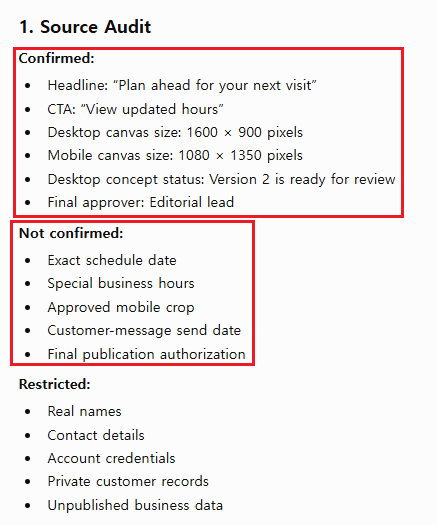
The first run was a source audit, not a draft. ChatGPT kept the six inputs as confirmed and labeled each of the five missing details “Not confirmed.” It also put real names, contact details, credentials, private customer records, and unpublished business data in a restricted category that stayed out of the drafting entirely. The next reviewer got a starting point they could verify, instead of a confident draft with nothing behind it.
Field note: The restricted category is the line most people skip. Before you ask for any draft, decide what isn’t allowed into the chat at all, not just what’s missing. If you only sort facts into confirmed and unknown, private details end up in the conversation by default, because nobody said they couldn’t.
Run 2: ask for a handoff, not copy
For the second run, I asked for a source-bounded handoff instead of customer-facing copy. Every unresolved input became a required human approval with a next action, and the record ended with “Publication status: Not ready.”
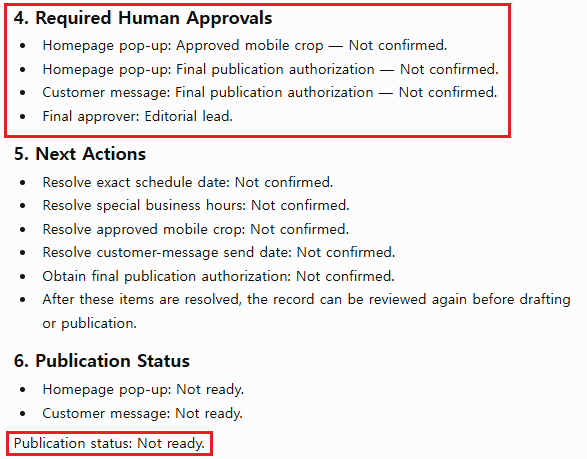
That status line was the practical difference. The output was useful for internal review, but it didn’t claim that the homepage pop-up, the customer message, the special hours, or the mobile version had been approved. I’d pass this record to the Editorial lead. I wouldn’t publish it.
Field note: End every handoff with an explicit status. I use “Not ready,” “Internal review,” or “Approved.” Drafts get forwarded, and without a status line the next person has to guess whether they’re looking at a suggestion or a decision.
The five stages behind both runs
Build a source packet. Collect only what the task needs: approved notes, an existing draft, a style reference, a deadline, and the place the result will be used. A good packet answers three questions. What is confirmed? What is still missing? What isn’t allowed in the chat?
Separate facts, decisions, and unknowns. A confirmed fact, like an approved event length, gets used exactly. A decision a person still owns, like the final headline, gets options, not a verdict. An unknown, like an unapproved date or link, gets a visible placeholder. Restricted information, like private customer or patient data, stays out.
Define the output contract. “Write an email” isn’t a contract. “Prepare a 120-word internal review draft for a project manager, with missing dates in brackets” is, and it’s much easier to check.
Draft one reviewable unit. Ask for the smallest useful piece: one email, one decision table, one checklist. Don’t generate five channels at once until the packet and one sample have passed review.
Check it where it will live. Compare the draft with the source, confirm the owner and deadline, and look at the real destination. A website banner needs desktop and mobile checks. An email needs the right recipient and working links. A report needs citations and a reviewer who knows the subject.
| Stage | What ChatGPT does | What a person checks |
|---|---|---|
| 1. Source | Organizes approved material | Removes restricted data |
| 2. Boundaries | Labels facts, decisions, and unknowns | Confirms decisions and owners |
| 3. Contract | Follows the audience and format | Approves the requirements |
| 4. Draft | Produces one reviewable unit | Checks every claim |
| 5. Delivery | Formats only approved content | Inspects the live destination |
A handoff record to keep beside the chat
This gives the next reviewer enough context to know what the draft can and can’t be used for.
Task:
Destination:
Audience:
Approved source:
Confirmed facts:
Missing decisions:
Restricted information removed:
Required format:
Draft owner:
Fact-check owner:
Final approver:
Live-result check:
Status: Practice / Internal review / Approved
The same method on a design request
Design requests often arrive before the content does. A request like “Create a July schedule in the style I want” has no dates, message, dimensions, destination, brand reference, or approver. When I asked for the finished image right away, I got clean layouts that still weren’t usable. I compare those results in detail in Common ChatGPT Prompt Mistakes in Design Work. Asking for a production handoff first worked better:
You are preparing a design handoff, not final artwork.

The request is: "Create a clean, premium July schedule for a homepage pop-up."

Do not invent dates, closure information, events, contact details, dimensions, brand colors, or approved copy.

Return:
1. A list titled "Missing before design starts."
2. Two layout directions that use placeholders only.
3. A desktop and mobile asset checklist.
4. An image-generation risk list covering spelling, broken text, distorted objects, glossy artifacts, and difficult-to-edit areas.
5. A Photoshop QA checklist for typography, spacing, contrast, crop, and export.

Write "NOT PROVIDED" beside every missing fact.
End with "Human approval required."
Do not generate the final image.
It doesn’t produce an image, and that’s the point. It turns an underspecified request into a production brief with the missing decisions at the top. For a real pop-up, I still build the final composition in Photoshop once the date and message are approved, and I check the desktop and mobile versions separately.
Field note: Inspect the pixels every time. In this schedule example I didn’t see an obvious glossy or broken area. Earlier generated images have given me misspelled text, damaged letterforms, and unnaturally shiny patches. That history is a reason to look closely at each image, not a reason to assume every one has the same defect.
Where else this fits
The tasks change, but the control points don’t. For an email, start from verified facts and the recipient’s role, then check the recipient, dates, links, and any commitments before sending. For a meeting follow-up, turn approved notes into decisions, owners, and open questions, and confirm who owns each deadline. For a report summary, work from named sections and review every claim against its source and number. For a content plan, give ChatGPT the audience, offer, and constraints, and leave brand, compliance, and publication decisions to their owners. Medical, legal, financial, and safety decisions shouldn’t rest on a general-purpose AI response at all.
FAQ
What if ChatGPT labels a missing detail as confirmed?
Stop the handoff and compare that statement with the source packet. Move it back to “Not confirmed,” name the person who can verify it, and regenerate only that section.
When is a ChatGPT work handoff ready to publish?
Only after every required fact and asset is confirmed, desktop and mobile are reviewed separately, the named approver signs off, and the live destination is checked. Until then, “Not ready” is the correct status for a useful draft.
The takeaway
ChatGPT saves drafting and organizing time at work, but only inside a process that starts with approved sources, keeps unknowns visible, and leaves the final call to a person. For ready-to-adapt wording once the workflow is in place, see my ChatGPT prompts for work. For a recurring multi-channel example, see the monthly clinic marketing workflow.