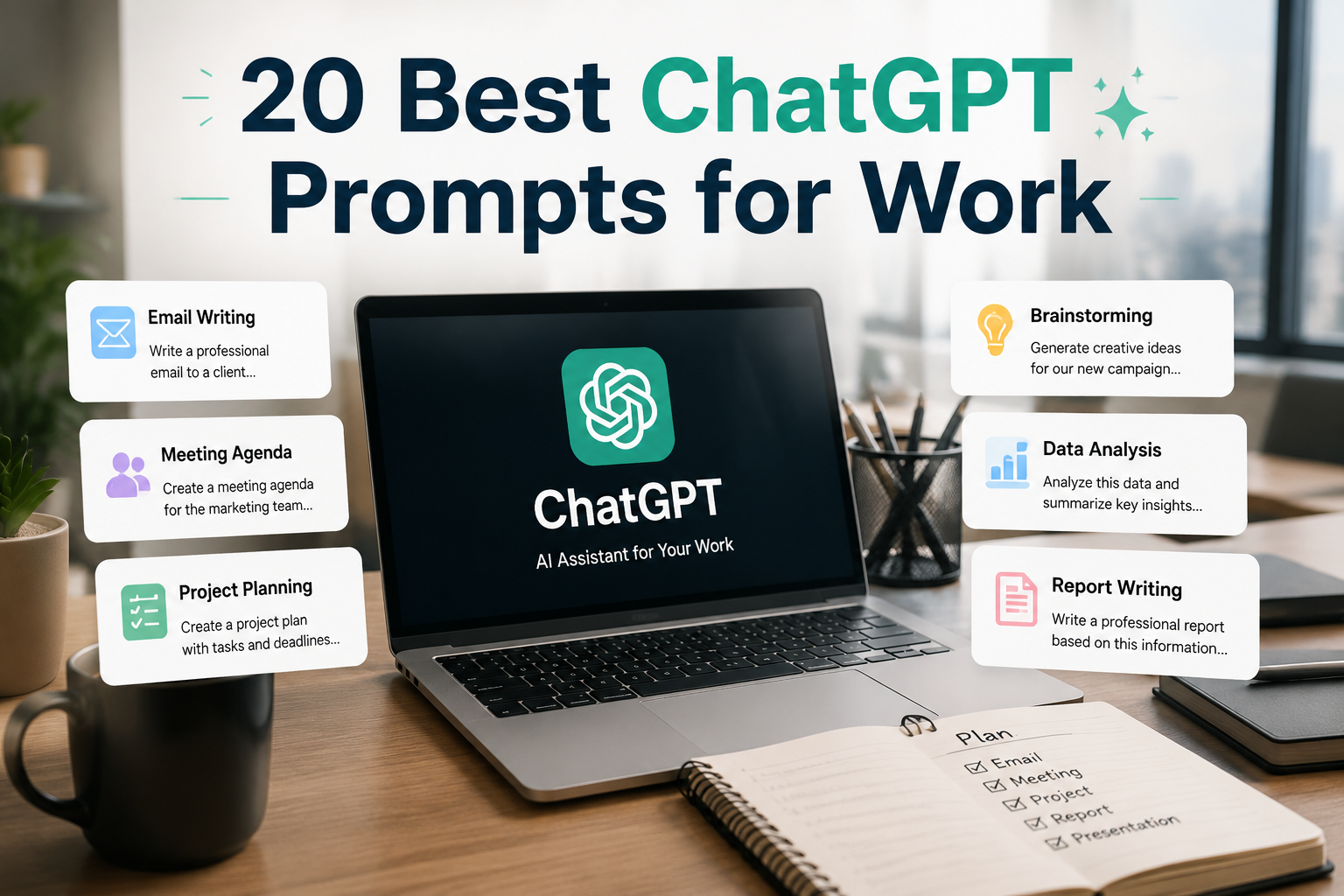
The best ChatGPT prompts for work can help professionals save time, improve productivity, and complete everyday business tasks more efficiently.
Whether you’re writing emails, planning projects, or organizing meetings, using well-written prompts can significantly improve the quality of ChatGPT’s responses.
However, the quality of ChatGPT’s responses depends largely on the prompts you provide. A well-written prompt can produce accurate, useful, and professional results, while a vague prompt often leads to generic answers.
In this guide, you’ll discover 20 practical ChatGPT prompts for work that professionals can use for emails, meetings, project planning, research, marketing, presentations, customer communication, and more.
Whether you’re an employee, freelancer, manager, or business owner, these prompts can help you work faster and more efficiently.
Why Use ChatGPT Prompts at Work?

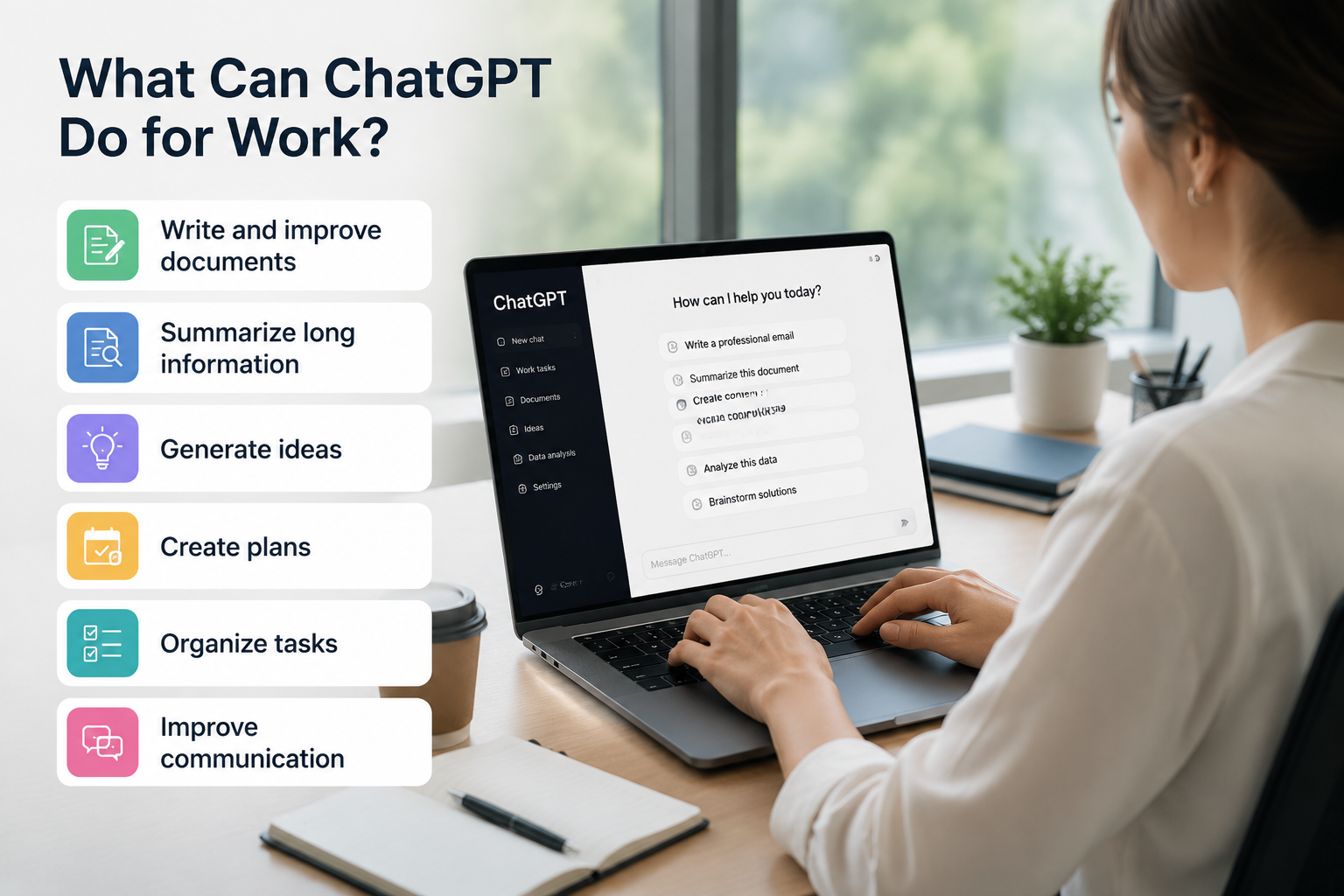
ChatGPT can support professionals in almost every industry by reducing repetitive work and helping generate ideas more efficiently.
With the right prompts, you can:
- Write professional emails
- Plan projects
- Organize meetings
- Summarize documents
- Brainstorm ideas
- Create reports
- Improve communication
- Increase productivity
If you’re new to ChatGPT, start with our beginner guide:
20 Best ChatGPT Prompts for Work

The following best ChatGPT prompts for work cover the most common professional tasks.
1. Write Professional Emails
Writing professional emails often takes more time than expected.
ChatGPT can help you create clear, polite, and well-structured emails for clients, coworkers, and business partners.
Example Prompt
Write a professional email to a client explaining a one-week project delay.
Keep the tone polite, positive, and solution-focused.
You can also ask ChatGPT to make the email shorter, more formal, or friendlier depending on the situation.
2. Create Meeting Agendas
A clear meeting agenda keeps discussions focused and saves time.
ChatGPT can quickly organize meeting topics and priorities.
Example Prompt
Create a one-hour meeting agenda for a weekly marketing team meeting.
Include discussion topics, time allocations, and action items.
3. Summarize Meeting Notes
After meetings, organizing notes into clear summaries can be time-consuming.
ChatGPT can identify the most important points and generate action items.
Example Prompt
Summarize these meeting notes into five key takeaways and create a list of action items.
4. Plan Projects
Managing projects becomes easier when tasks are organized into clear steps.
ChatGPT can help build project timelines and task lists.
Example Prompt
Create a project plan for launching a new company website within six weeks.
Include milestones, deadlines, and responsibilities.
5. Organize Weekly Tasks
Professionals often juggle multiple priorities.
ChatGPT can organize tasks based on urgency and importance.
Example Prompt
Create a weekly work schedule based on these tasks.
Prioritize urgent work while balancing meetings and focused work sessions.
6. Brainstorm New Ideas
Generating fresh ideas is easier when you have an AI brainstorming partner.
ChatGPT can suggest multiple creative approaches to the same problem.
Example Prompt
Generate ten creative marketing ideas for a new coffee shop targeting young professionals.
Include both online and offline marketing strategies.
7. Research Topics Faster
Research often involves reading multiple articles and comparing information.
ChatGPT can summarize concepts and explain complicated topics in simple language.
Example Prompt
Explain blockchain technology for business professionals using simple language and practical examples.
8. Analyze Business Data
ChatGPT can help interpret reports and identify patterns within business data.
Always verify important decisions using reliable data sources.
Example Prompt
Analyze this quarterly sales report and identify the three most important business insights.
9. Write Professional Reports
Reports should be clear, organized, and easy to understand.
ChatGPT can improve clarity and structure.
Example Prompt
Rewrite this project report using a professional business tone.
Organize the content into clear sections with headings.
10. Create Presentation Outlines
Instead of starting from a blank page, ChatGPT can quickly generate presentation structures.
Example Prompt
Create a 10-slide presentation outline about digital marketing trends in 2026.
Include key talking points for each slide.
11. Generate Marketing Ideas
Marketing teams constantly need fresh campaign ideas and promotional strategies.
ChatGPT can generate creative ideas based on your target audience, industry, and business goals.
Example Prompt
Generate 15 marketing campaign ideas for a cosmetic clinic targeting women in their 30s.
Include social media, email, and offline marketing ideas.
Providing your audience and business goals will produce much more relevant ideas.
12. Reply to Customer Messages
Responding to customer inquiries consistently can improve customer satisfaction.
ChatGPT can help create professional and friendly responses for emails, live chat, and customer support.
Example Prompt
Write a polite reply to a customer requesting a refund.
Show empathy, explain the company policy, and offer an alternative solution.
13. Write Social Media Posts
Creating engaging social media content every day can be challenging.
ChatGPT can generate captions for Instagram, LinkedIn, Facebook, Threads, and X.
Example Prompt
Write five LinkedIn posts promoting AI productivity tools.
Use a professional tone and include a question to encourage engagement.
14. Create Blog Outlines
Planning a blog becomes much easier when you have a clear structure before writing.
ChatGPT can generate SEO-friendly outlines that organize your ideas logically.
Example Prompt
Create an SEO-friendly blog outline for the topic "Benefits of Artificial Intelligence for Small Businesses."
Include H2 and H3 headings.
15. Perform a SWOT Analysis
A SWOT analysis helps evaluate strengths, weaknesses, opportunities, and threats.
ChatGPT can quickly organize information into a clear business framework.
Example Prompt
Create a SWOT analysis for a small online clothing business entering a competitive market.
16. Create Standard Operating Procedures (SOPs)
Well-written SOPs help teams maintain consistency.
ChatGPT can organize step-by-step workflows into professional documentation.
Example Prompt
Create a standard operating procedure for onboarding a new employee in a marketing department.
17. Prioritize Daily Tasks
Managing multiple deadlines becomes easier when tasks are properly prioritized.
ChatGPT can organize work using urgency, importance, and estimated completion time.
Example Prompt
Prioritize these tasks using the Eisenhower Matrix and explain why.
18. Translate Business Documents
ChatGPT can translate documents while keeping a natural business tone.
Always review important translations before sending them to clients.
Example Prompt
Translate this business proposal into professional English while maintaining a formal tone.
19. Prepare Interview Questions
Hiring managers can use ChatGPT to generate interview questions for different positions.
Example Prompt
Create ten behavioral interview questions for hiring a digital marketing specialist.
20. Compare Business Decisions
Sometimes choosing between multiple options can be difficult.
ChatGPT can compare advantages and disadvantages objectively.
Example Prompt
Compare the advantages and disadvantages of outsourcing customer support versus hiring an in-house team.
Present the answer as a comparison table.
A Practical Workflow: Turn Messy Meeting Notes into an Action Plan
Copying a prompt is only the first step. The useful part is giving ChatGPT enough context, reviewing the output, and correcting anything the model inferred without evidence.
Consider a realistic situation: a project manager has rough notes from a 30-minute launch meeting. The notes contain decisions, possible deadlines, unanswered questions, and tasks whose owners are not yet confirmed. Instead of asking ChatGPT to “summarize this,” use a prompt that separates facts from assumptions.
Reusable prompt
I will paste rough notes from a project meeting.
Create four sections:
1. Confirmed decisions
2. Action items in a table with task, owner, deadline, and status
3. Open questions
4. Risks or dependencies
Use only information stated in the notes. If an owner or deadline is missing, write “Not confirmed” instead of guessing. After the table, list any statements that may need verification.
Meeting notes:
[Paste the notes here]
How to Judge the Result
A polished answer is not automatically a correct answer. Compare the response with the original notes and check four things:
- Ownership: Did ChatGPT assign a task to someone who was only mentioned in the discussion?
- Deadlines: Did it convert a tentative date into a confirmed commitment?
- Missing context: Did the summary leave out a constraint, dependency, or objection?
- Unsupported conclusions: Did it add a recommendation that was not present in the notes?
If any item is uncertain, revise the prompt or correct the draft before sharing it. For longer assignments that use the same reference files and instructions repeatedly, our ChatGPT Projects guide explains how to keep that work in a focused workspace.
Protect Sensitive Work Information
Do not paste confidential client data, passwords, private financial records, employee information, or unpublished business plans into an AI tool unless your organization has approved that use. Replace names and identifying details with placeholders when possible, and follow your employer’s security and retention policies.
If you want to revise a long draft section by section, see our ChatGPT Canvas guide for a more controlled editing workflow.
Tips for Writing Better Work Prompts
Give Clear Instructions
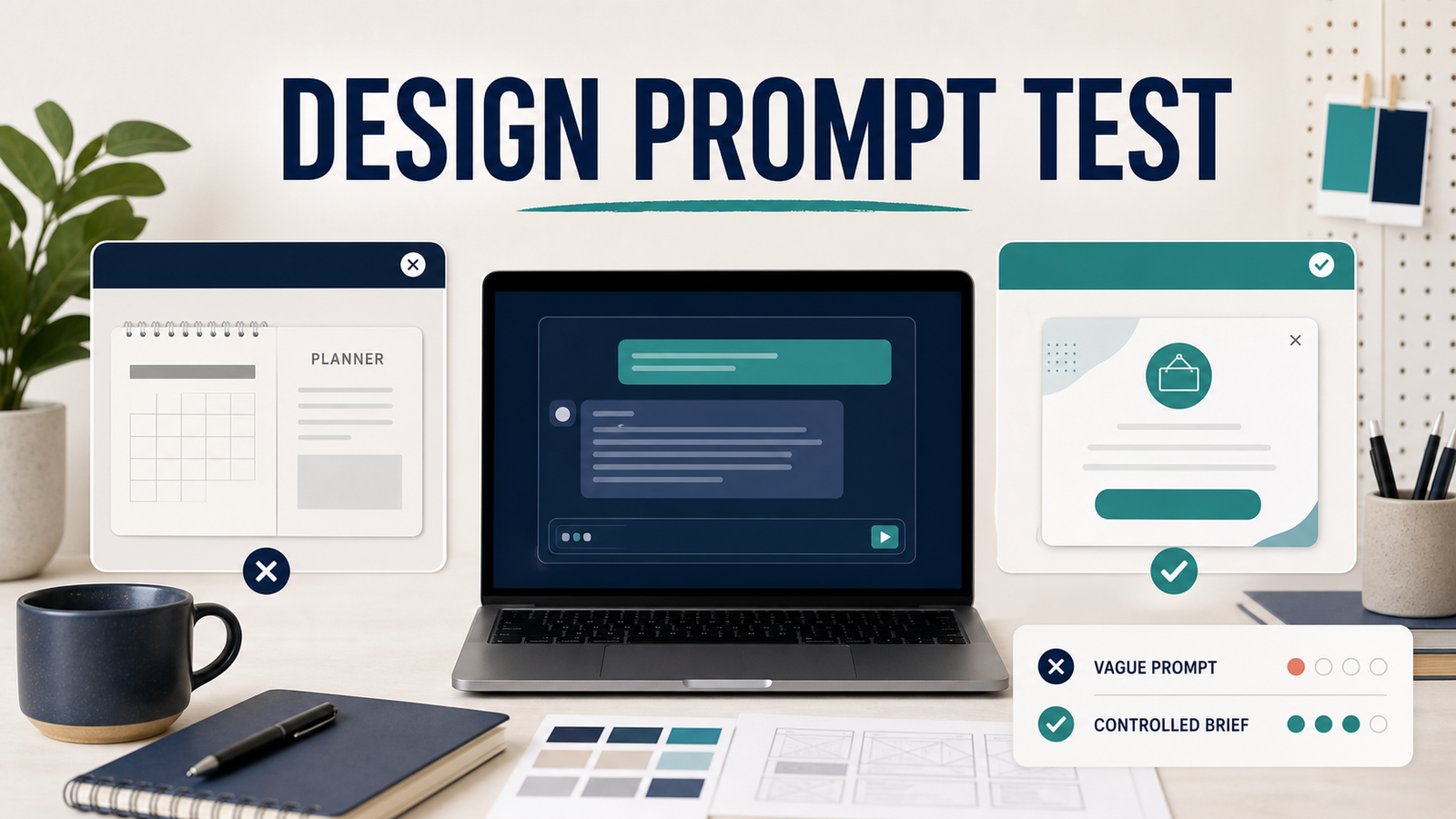
The clearer your instructions, the better ChatGPT can understand your request.
Avoid vague prompts and explain exactly what you want to achieve.
For more prompt-writing tips, read our guide:
10 Common ChatGPT Prompt Mistakes
Provide Enough Context
Include useful background information whenever possible.
Helpful details include:
- Your goal
- Your audience
- Your preferred format
- The desired tone
- Any important limitations
For more ready-to-use examples, check out:
Best ChatGPT Prompts for Beginners
Keep Improving the Conversation
Your first prompt doesn’t have to be perfect.
Ask ChatGPT to rewrite, shorten, expand, simplify, or improve its previous response.
The best results usually come from an ongoing conversation rather than a single request.
Frequently Asked Questions
Can ChatGPT improve productivity at work?
Yes. ChatGPT can help professionals write documents, organize projects, summarize information, generate ideas, and automate repetitive tasks, allowing them to focus on higher-value work.
Are these prompts suitable for beginners?
These best ChatGPT prompts for work are suitable for employees, freelancers, business owners, and managers.
Absolutely. Most of the prompts in this guide are simple enough for beginners to copy, modify, and use immediately.
Can ChatGPT replace employees?
No. ChatGPT is designed to assist people, not replace human judgment, creativity, communication, and decision-making.
Should I verify ChatGPT’s answers?
Yes. Always verify important information, especially when making financial, legal, medical, or business decisions.
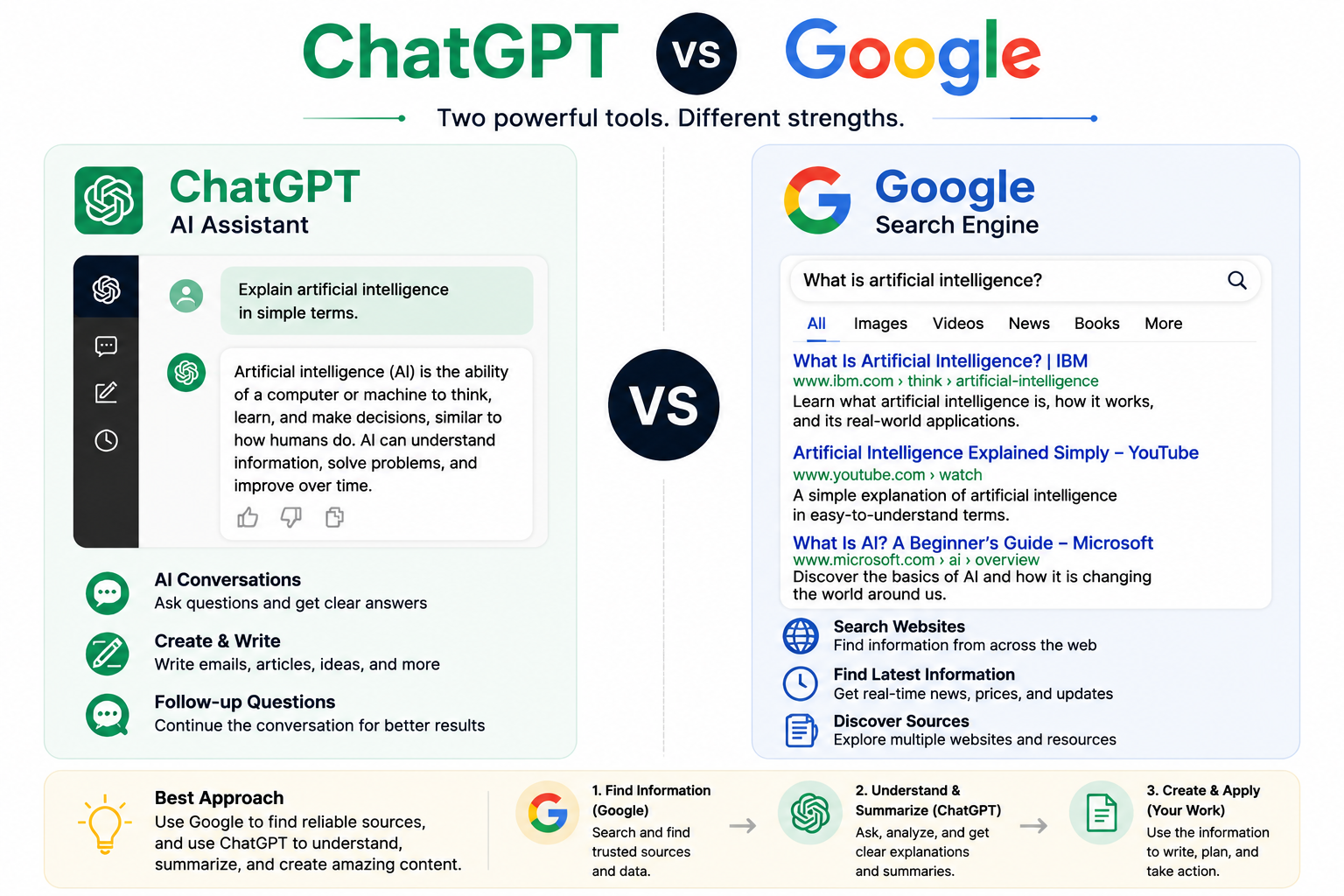
For more information about when to use ChatGPT or traditional search engines, read:
Conclusion
Best ChatGPT Prompts for Work can help professionals save time, improve productivity, and communicate more effectively.
These best ChatGPT prompts for work can easily be customized for your own industry and daily workflow.
Whether you’re writing emails, planning projects, brainstorming ideas, or creating presentations, using clear prompts will consistently produce better results.
Start by trying a few of the prompts in this guide, customize them to fit your workflow, and continue refining your conversations with ChatGPT.
The more you practice writing effective prompts, the more valuable ChatGPT will become in your daily work.
ChatGPT is developed by OpenAI. To learn more about ChatGPT and its latest features, visit the official OpenAI website.