BJ Creates

PRACTICAL AI GUIDES

,

How to Use ChatGPT for Work: A Source-to-Handoff Field Test

Written by

·

How to Use ChatGPT for Work

How to use ChatGPT for work became clearer in my hands-on test when I stopped measuring success by the polish of the draft. The real test was whether the workflow prevented missing dates, approvals, and assets from becoming confident-looking assumptions. I used a fictional clinic-marketing packet and recorded where the process preserved evidence, exposed gaps, and stopped before publication.

All names, campaign details, and operational data in this test are fictional. I did not use real client, patient, customer, employee, credential, or unpublished business information.

How to Use ChatGPT for Work

Problem Breakdown & Direct Resolution

In my controlled field test, the safest way to use ChatGPT for work was to separate confirmed source facts from unknowns before asking for a handoff. The model produced a usable review record only when the prompt named missing inputs, restricted data, a final approver, and a stop condition instead of asking for a polished draft immediately.

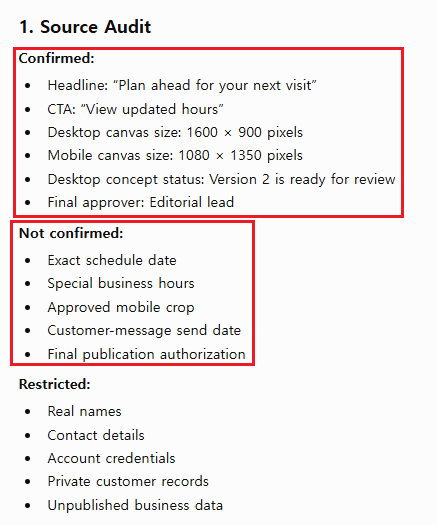
ChatGPT source audit separating confirmed facts, unconfirmed details, and restricted inputs for a fictional marketing handoff.
The source audit preserved approved inputs, labeled every missing operational detail “Not confirmed,” and kept restricted information outside the drafting workflow.

I supplied only six confirmed inputs: an approved headline and CTA, desktop and mobile canvas sizes, a desktop concept ready for review, and the Editorial lead as final approver. I deliberately withheld the exact date, special hours, mobile crop, customer-message send date, and final publication authorization.

The source audit did not hide those gaps. It separated confirmed inputs from “Not confirmed” items and kept real names, contact details, credentials, private customer records, and unpublished business data in a restricted category. That result gave the next reviewer a verifiable starting point instead of a confident but unsupported draft.

In This Guide

Step-by-Step Actionable Troubleshooting

Stage 1: Build a source packet

Collect only the material needed for the task: approved notes, an existing draft, a style reference, a deadline, and the destination where the result will be used. If the source is long, identify the relevant pages or sections instead of asking ChatGPT to guess what matters.

A source packet should answer three questions: What is confirmed? What is still missing? What information is not allowed to enter the chat?

Stage 2: Separate facts, decisions, and unknowns

Before drafting, divide the material into confirmed facts, decisions a person has already made, and open questions. This prevents polished wording from hiding an unapproved date, offer, owner, claim, or link.

BucketExampleAllowed AI action
Confirmed factApproved event durationUse it exactly
Human decisionFinal headline or channel priorityOffer options, not a final decision
UnknownUnapproved date or linkShow a placeholder
Restricted inputPrivate customer or patient dataDo not include it

Stage 3: Define the output contract

Describe the reader, channel, length, format, tone, and approval status. “Write an email” is not an output contract. “Prepare a 120-word internal review draft for a project manager, with missing dates in brackets” is much easier to inspect.

Stage 4: Draft in a reviewable unit

Ask for the smallest useful deliverable: a subject line plus email body, a decision table, a checklist, a meeting summary, or a content handoff. Do not generate five channels at once until the source packet and one sample output have passed review.

Stage 5: Run the human gate at the destination

Compare the draft with the source, confirm the owner and deadline, and inspect the real destination. A website banner may need desktop and mobile checks. An email needs the correct recipient and links. A report needs source citations and a reviewer who understands the subject.

StageAI workHuman gate
1. SourceOrganize approved materialRemove restricted data
2. BoundariesLabel facts, decisions, and unknownsConfirm decisions and owners
3. ContractFollow the required audience and formatApprove requirements
4. DraftCreate one reviewable unitCheck every claim
5. DeliveryFormat only approved contentInspect the live destination
A source-bounded ChatGPT handoff record listing required human approvals, next actions, and a not-ready publication status.
The reviewable handoff converted unresolved source details into human approvals and next actions without publishing or inventing missing information.

For the second run, I asked for a source-bounded handoff rather than customer-facing copy. The result converted each unresolved input into a required human approval, named the next action, and ended with “Publication status: Not ready.”
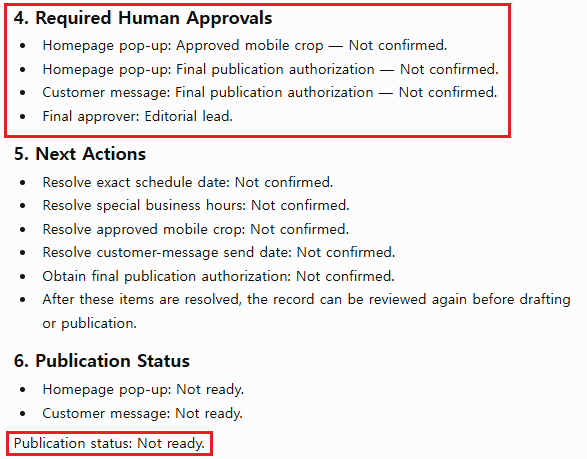
That stop condition was the practical difference. The output was useful for internal review, but it did not claim that the homepage pop-up, customer message, special hours, or mobile composition had been approved. I would pass this record to the Editorial lead; I would not publish it as finished work.

A Reusable Work Handoff Record

Keep this record beside the conversation. It gives the next reviewer enough context to understand what the draft can and cannot be used for.

Task:
Destination:
Audience:
Approved source:
Confirmed facts:
Missing decisions:
Restricted information removed:
Required format:
Draft owner:
Fact-check owner:
Final approver:
Live-result check:
Status: Practice / Internal review / Approved

Where This Workflow Fits at Work

Work taskSource and outputHuman check
EmailVerified facts and recipient role → subject and bodyRecipient, dates, links, commitments
Meeting follow-upApproved notes → decisions, owners, open questionsOwnership and deadlines
Design handoffCopy, dimensions, references → production checklistDesktop/mobile fit and approved copy
Report summaryNamed report sections → claim-and-source reviewNumbers, citations, interpretation
Content planAudience, offer, constraints → review calendarBrand, compliance, publication owner

The work categories can change, but the control points stay similar: source, boundaries, output contract, reviewable draft, and a named human owner.

A Real Work Test: Turn a Content-Free Design Request into a Usable Handoff

The BJ Creates editor works with design and marketing requests where the visual is expected before the content is ready. A typical request can be as short as “Create a July schedule in the style I want.” The problem is not a lack of creativity. The prompt is missing the dates, message, dimensions, destination, brand reference, and approval status needed to make usable artwork.

In this situation, a fast AI-generated image can look complete while creating more work. It may introduce placeholder copy, reuse assumptions from an earlier task, misspell text, or produce image areas that look glossy, broken, or difficult to repair. Even when the image has no obvious artifact, a generic calendar is still not a homepage pop-up for a specific organization.

What this test measures

  • Does ChatGPT expose missing information instead of filling the gaps?
  • Does it separate layout direction from final artwork?
  • Does it preserve a clean, premium visual goal without inventing brand details?
  • Does it produce a handoff that a designer can continue in Photoshop?

The incomplete source request

Create a July schedule in the style I want.

This request does not identify the year, confirmed schedule changes, event copy, desktop or mobile dimensions, website location, brand colors, image style, or approver. Those are production requirements, not decorative details.

Test 1: ask for the finished visual immediately

Create a clean and premium July schedule image for a homepage pop-up.

In the editor’s test, a vague request produced a tidy general calendar with blank sections for monthly focus, important dates, tasks, and notes. A more controlled image request produced a polished schedule layout. Neither result was ready for the actual job because the operational content and the organization’s visual context were still missing.

This distinction matters: “looks clean” and “can be published” are different judgments. The generated layout may be useful as visual reference, but treating it as final artwork would hide the missing approvals.

Test 2: ask for a production handoff first

You are preparing a design handoff, not final artwork.

The request is: “Create a clean, premium July schedule for a homepage pop-up.”

Do not invent dates, closure information, events, contact details, dimensions, brand colors, or approved copy.

Return:
1. A list titled “Missing before design starts.”
2. Two layout directions that use placeholders only.
3. A desktop and mobile asset checklist.
4. An image-generation risk list covering spelling, broken text, distorted objects, glossy artifacts, and difficult-to-edit areas.
5. A Photoshop QA checklist for typography, spacing, contrast, crop, and export.

Write “NOT PROVIDED” beside every missing fact.
End with “Human approval required.”
Do not generate the final image.

The output contract

DeliverableWhat makes it usefulWhat a person still decides
Missing-input listNames every fact that blocks productionWhich source and approver can confirm each item
Layout directionsDescribe hierarchy without pretending to know the brandWhich direction fits the organization’s real visual identity
Desktop/mobile checklistPrevents one crop from being approved for both contextsActual dimensions, safe areas, and live-page readability
Risk listMakes image and text defects part of the reviewWhether to regenerate, retouch, rebuild, or reject the draft
Photoshop QATurns a vague aesthetic request into inspectable checksFinal typography, spacing, color, image treatment, and export

Editor’s verdict: the refusal to invent is the valuable output

The controlled prompt is more useful even though it does not create a finished image. It converts an underspecified request into a production brief and makes the missing decisions visible. That is a better starting point than repairing an attractive but unusable calendar after generation.

For a real homepage pop-up, the editor would normally build the final composition in Photoshop after the date and message are approved. The background, central message area, typography, and spacing must fit the organization’s style. Desktop and mobile versions require separate checks. A generic template cannot make those decisions without the real context.

The visual result also needs a defect review. In this specific schedule example, the editor did not see an obvious glossy or broken image area. However, previous generated images have sometimes contained misspelled text, damaged letterforms, or unnaturally shiny areas. That history is a reason to inspect the actual pixels—not a reason to assume every generated image has the same defect.

Human approval required

  • Confirm the exact date, message, destination, dimensions, and approver before final design.
  • Check every visible word; generated text is not approved copy.
  • Inspect the image at 100% for distorted edges, broken details, and unnatural highlights.
  • Review desktop and mobile crops separately on the intended page.
  • Keep the editable Photoshop file and rebuild areas that cannot be safely corrected.

Privacy boundary: this test uses a fictional request. A design brief does not need patient, customer, account, or private campaign data. Remove sensitive information and follow the organization’s approved AI and data-handling policy before using real workplace material.

For a deeper comparison of vague and controlled visual prompts, see Common ChatGPT Prompt Mistakes in Design Work. For the separate process of carrying confirmed schedule information across a website, customer message, and business listing, use the monthly clinic marketing workflow.

Real-World Pitfalls & Pro Tips

  • Do not confuse a clean layout with approval. A polished result can still contain an unverified date, asset, owner, or publication decision.
  • Do not treat silence as permission. If the source does not name a value, label it “Not confirmed” and assign a human owner.
  • Review desktop and mobile separately. A desktop concept does not prove that the mobile crop, spacing, CTA, or readability is ready.
  • End with an explicit status. I use “Not ready,” “Internal review,” or “Approved” so the next person does not mistake a draft for a release decision.

Specification / Comparison Checklist

  • Source fidelity: Every important statement can be traced to approved material.
  • Unknowns: Missing dates, links, owners, prices, and claims remain visible.
  • Privacy: Confidential and identifying information was removed or handled under an approved policy.
  • Commitments: The draft did not invent promises, deadlines, approvals, or responsibilities.
  • Destination fit: The output was checked where it will actually appear, including mobile when relevant.
  • Human ownership: A named person is responsible for fact-checking and final approval.

Do not delegate final medical, legal, financial, safety, employment, or policy decisions to a general-purpose AI response. Use an appropriate qualified reviewer and authoritative source.

FAQ Section

What should I do if ChatGPT labels a missing detail as confirmed?

Stop the handoff and compare the statement with the original source packet. Move any unsupported value back to “Not confirmed,” name the person who can verify it, and regenerate only the affected section.

Can I use real client, patient, customer, or employee data in a practice source packet?

No. Use fictional or properly sanitized examples for practice. Follow your organization’s approved privacy, security, and data-handling rules before using any work system with confidential or identifying information.

When is a ChatGPT work handoff ready for publication?

Only after every required fact and asset is confirmed, desktop and mobile outputs are reviewed separately, the named approver authorizes release, and the live destination is checked. A useful draft can still have the correct status: “Not ready.”

Conclusion

Learning how to use ChatGPT for work becomes more useful when the conversation is connected to a controlled process. Start with approved source material, make unknowns visible, request one reviewable output, and keep a person responsible for the final decision.

If you need ready-to-adapt wording after the workflow is defined, use our ChatGPT prompts for work. For a recurring multi-channel example, see the monthly clinic marketing QA workflow. The prompt library supplies templates; this article supplies the handoff process around them.

ChatGPT can reduce drafting and organizing time, but source accuracy, privacy, approval, and the live result remain human responsibilities.

About BJ Creates

BJ Creates publishes practical, beginner-friendly guides for using ChatGPT and AI tools clearly, effectively, and responsibly. We focus on useful steps, adaptable prompts, verification, privacy, and honest limitations.

Learn more about our editorial approach →

CONTINUE LEARNING

Choose the next step for your goal

Move from the fundamentals to better prompts, focused workflows, and more informed privacy choices.

START HERE

Learn the fundamentals

Build confidence with core ChatGPT features, safer habits, and clearer first requests.

Open the beginner guide →

IMPROVE YOUR PROMPTS

Ask with more clarity

Use a reusable structure to add context, constraints, and a useful output format.

Improve your prompts →

PRIVACY & CONTROL

Make informed choices

Understand training controls, memory, temporary chats, and important privacy limits.

Review privacy controls →