The clinic scenario in this walkthrough is fictional and sanitized. Nothing was published from this exercise.
ChatGPT Projects is most useful when a recurring job needs one controlled source of truth, not simply another place to store chats. This walkthrough uses a project-only workspace and a fictional clinic website pop-up scenario to check whether ChatGPT Projects can preserve approved design facts, expose missing inputs, and stop before publication.
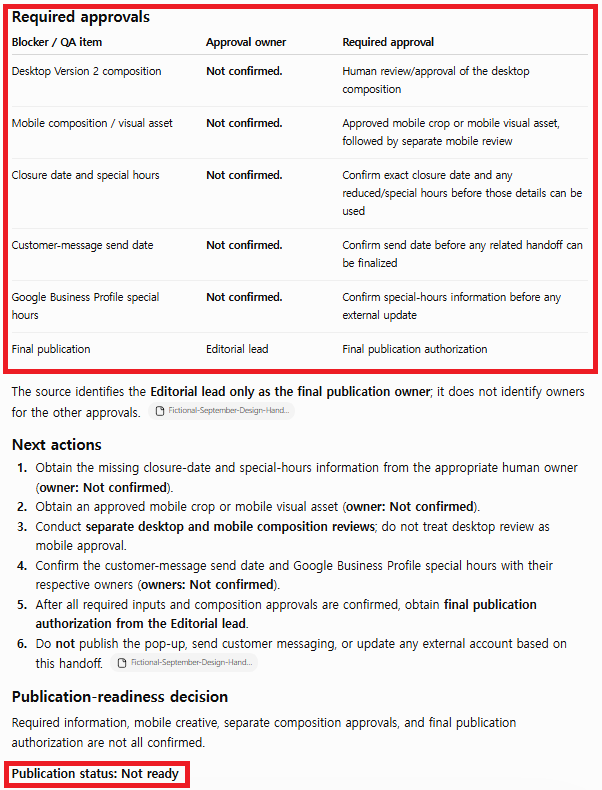
The direct result was practical: the Project recovered the saved headline, CTA, canvas sizes, desktop asset status, brand direction, and publication owner. It also kept the closure date, mobile asset, customer-message date, special hours, and final authorization marked as Not confirmed. The response ended with Publication status: Not ready and did not claim to publish, send, or update anything.
This is a better test than asking whether Projects can “organize work.” The real question in my design and marketing workflow is whether the workspace can keep a handoff honest when some information is approved and some is still missing. A polished draft that hides uncertainty creates more Photoshop revisions, more mobile QA problems, and more risk than a shorter handoff that clearly blocks release.
OpenAI describes Projects as workspaces that keep related chats, files, and project instructions together. Project instructions apply inside that Project, and memory behavior depends on the memory option and account settings. The workflow below is aligned with the official OpenAI Projects guidance and uses fictional information only. No real clinic, patient, customer, or employee data was used.
How to set up the Project, step by step
Step 1: Create a Project with a narrow operational purpose
For this exercise, a Project can be created with a name such as “BJ Creates — Design Handoff Workflow,” using project-only memory so the workspace does not draw on unrelated chats outside the Project. With project-only memory, chats inside the Project can reference other conversations in the same Project, but not conversations outside it, which helps isolate the Project source and instructions from unrelated context, and this memory choice can be changed later in Project settings.
A common mistake is naming a Project after a broad topic such as “Marketing” or “Design.” Broad workspaces accumulate unrelated instructions and make it difficult to know which source influenced a result. I prefer a name that describes one workflow and one decision boundary: this Project exists to prepare a pre-publication design handoff, not to run an entire marketing department.
Step 2: Add one sanitized source packet
I added a text source titled Fictional September Design Handoff Source. It contained confirmed creative facts, a separate list of missing operational details, and an explicit required outcome. The source was intentionally incomplete because the test would be meaningless if every value were already approved.
Confirmed:
Headline: Plan ahead for your September visit.
CTA: View September hours.
Brand direction: calm, spacious, premium, easy to scan.
Desktop canvas: 1600 × 900.
Mobile canvas: 1080 × 1350.
Desktop asset: Version 2 ready for review.
Publication owner: Editorial lead.

Not confirmed:
Exact closure date.
Reduced or special hours.
Approved mobile crop.
Customer-message send date.
Google Business Profile special hours.
Final publication authorization.
The source also said that desktop and mobile must be reviewed as separate compositions. This reflects my actual working concern: resizing a desktop graphic is not the same as completing mobile QA. The model needed to keep the missing mobile asset visible instead of treating the desktop file as sufficient.
Step 3: Write Project instructions as release rules
Rather than using the instructions field for vague style preferences such as “be helpful” or “write professionally,” it can be used as a small release-control layer. The Project was told to use only facts supplied in its sources and chats, label missing values exactly Not confirmed, separate approvals from next actions, and stop before publishing.
Respond in English only.
Use only facts explicitly provided in this Project.
Never invent dates, prices, claims, dimensions, approvals,
owners, links, or publication status.
Separate Confirmed inputs, Not confirmed,
Required approvals, and Next actions.
Do not publish, send messages, or change external accounts.
End with “Publication status: Not ready”
unless every required input and approval is confirmed.
This is the key difference between a useful Project and a folder full of chats. The source packet explains what is known; the Project instructions explain how uncertainty must be handled. Combining the two made the output easier to audit.
Step 4: Run a controlled handoff request
I opened a new chat inside the Project and gave it one short request:
Using only the source saved in this Project,
prepare the final pre-publication design handoff
for the September website pop-up.
Keep confirmed facts separate from missing inputs,
identify the human approvals still required,
and end with a publication-readiness decision.
Do not invent or assume any missing fact.
Respond in English only.
The request is deliberately shorter than the Project instructions. That is the operational advantage I wanted to test: recurring rules should live at the Project level so I do not need to paste the same guardrails into every chat.
Step 5: Audit the result instead of trusting its tone
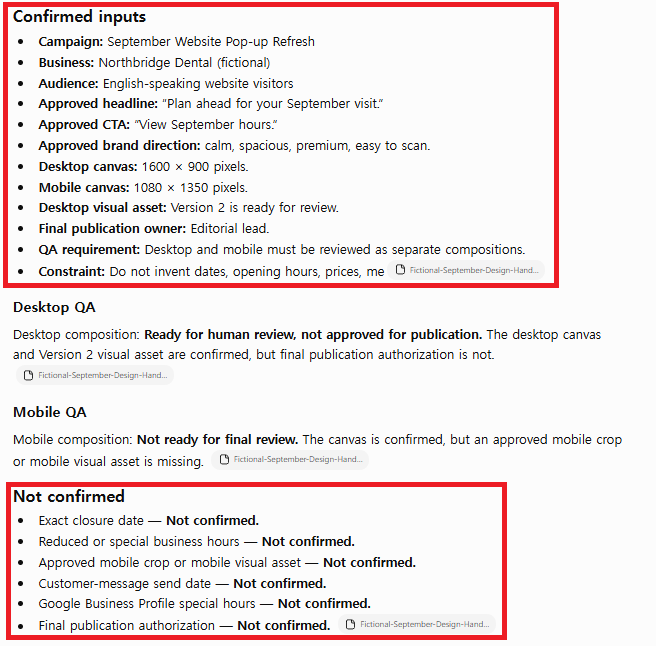
The response preserved the approved copy and visual specifications, separated desktop QA from mobile QA, and listed each unresolved input. It did not assign imaginary approval owners. Where the source did not name an owner, it said the owner was not confirmed. It also told the editor not to publish the pop-up, send customer messaging, or change an external account.
I scored the output against observable conditions rather than whether it sounded confident. The only lost point was evidence completeness: the source packet itself did not identify owners for several approvals, so a human still has to supply that information.
Field note: A Project doesn’t decide which of its files is still current. If last month’s source packet is sitting next to this month’s, the model can blend them, and nothing in the interface warns you. Remove obsolete files or put the version and month in each file name before you start a new cycle.
A few other habits keep a Project honest. Use a sanitized test packet, never live patient, customer, or employee data, especially if screenshots will end up in a tutorial. Keep one Project aligned to one workflow, because a Project that holds strategy, copywriting, analytics, and personal chats makes it hard to tell which source shaped an answer. Treat a ready desktop asset as evidence for desktop only, not proof that the mobile crop, margins, CTA, or text size have passed. And put missing inputs in a visible “Not confirmed” section with a final release status, so a reviewer can scan the blockers even on a phone.
Field Test Results
| Evaluation criterion | Observed result | Decision |
|---|---|---|
| Source fidelity | Approved headline, CTA, dimensions, asset status, and owner were preserved | 5/5 |
| Missing-input handling | Every unresolved operational value remained Not confirmed | 5/5 |
| Desktop/mobile separation | Desktop review did not become automatic mobile approval | 5/5 |
| Approval boundary | No imaginary owner or authorization was added | 5/5 |
| Evidence completeness | The source did not contain every approval owner, so human follow-up remained necessary | 4/5 |
| Total | Useful as a reviewable handoff, not as an autonomous publishing system | 24/25 |
The 24/25 score does not mean the response is “almost ready to publish.” It means the model followed the source boundary well. Publication was still blocked because the closure date, special hours, mobile asset, customer-message date, Google Business Profile hours, and final authorization were genuinely absent. A good result made those gaps easier to see.
What goes where in the Project
| Project component | What I put there | What to verify |
|---|---|---|
| Project purpose | One pre-publication design handoff workflow | Does every chat support the same operational decision? |
| Sources | Sanitized confirmed and missing inputs | Are versions, dates, dimensions, and owners current? |
| Project instructions | Fact boundary, output structure, stop condition | Do the rules prevent guessing and unsupported actions? |
| Chat request | One short deliverable request | Does the response cite or reflect the intended source? |
| Desktop QA | Canvas and Version 2 asset status | Has a human reviewed hierarchy, crop, and readability? |
| Mobile QA | Separate 1080 × 1350 requirement | Is a real mobile asset present and tested? |
| Release decision | Publication status and unresolved blockers | Has the named human owner approved every required item? |
When a ChatGPT Project Is the Wrong Tool
I would not create a Project for a one-off question with no reusable context. A regular chat is faster when there is nothing to organize. I would use a default non-personalized Temporary Chat when I specifically want an isolated conversation that does not appear in history while it remains temporary, does not use existing memories or Custom Instructions, and does not create new memories. If a Temporary Chat is personalized or later saved, its behavior changes, so I would check the current product options before relying on that boundary.
I also would not use a Project as the final approval system for legal, medical, financial, privacy, or brand-critical publishing. The Project can prepare a reviewable brief, but the named owner must verify the source and make the release decision. If you are choosing among persistent context, general personalization, and an isolated conversation, read the Projects vs Memory vs Temporary Chat context test. For cross-chat personal preferences, see the ChatGPT Memory field test.
FAQ
Can ChatGPT Projects guarantee that every source fact is correct?
No. A Project helps keep sources, chats, and instructions together, but it does not certify that an uploaded source is accurate or current. I still verify every date, dimension, link, claim, approval, and owner against the authoritative business record before publication.
Should I use project-only memory for every Project?
Not automatically. Project-only memory fits jobs that need a clean context boundary, like this one. According to OpenAI, you can change a Project’s memory setting later in its settings, though the change can take a few hours to apply, and shared Projects always use project-only memory. Choose the memory scope that matches the job, then test it with non-sensitive information before relying on it.
Can a Project publish a website pop-up or update business hours by itself?
Not in this test. This walkthrough uses Projects only to organize a source-bounded handoff. The instructions explicitly prohibited publishing, sending messages, or changing external accounts. Any external action should require the appropriate connection, permission, review, and human approval; never imply that an action happened when it did not.
The verdict
This workflow shows that ChatGPT Projects can be valuable for recurring design and marketing work when the Project is built around a controlled source packet, explicit release rules, and a human decision owner. The strongest outcome was not a polished paragraph. It was the visible separation between what was ready, what was missing, and what still required approval.
For the next real workflow, I would keep the same structure: one narrow Project, versioned sources, project-level guardrails, separate desktop and mobile QA, and a publication status that cannot become Ready until the evidence is complete. If a draft needs focused revisions after the handoff is approved, the ChatGPT Canvas controlled editing test explains how I review selected sections without rewriting the entire document.