Disclosure: The clinic scenario, dates, and QA checklist results in this walkthrough are invented for illustration and are not drawn from an actual client account.
Most ChatGPT Memory guides explain where to toggle the setting. This guide tests a harder question: can Memory carry a durable marketing QA preference into a new chat without turning changing campaign facts into long-term context?
That convenience also creates an important responsibility: you should know what ChatGPT remembers, how to correct outdated details, and how to remove information you no longer want used.
This guide explains how ChatGPT Memory works, how to test it with a controlled example, when to use Temporary Chat, and which details should never be treated as safe long-term memory.
Quick answer
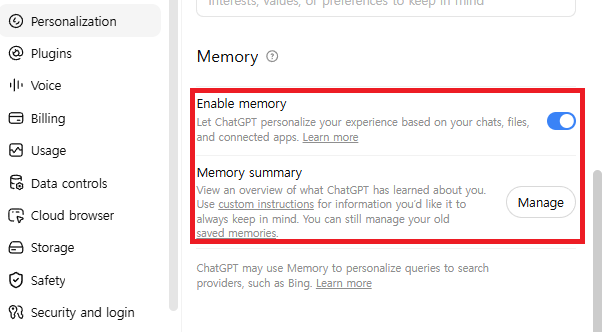
To manage ChatGPT Memory, open your profile menu, go to Settings > Personalization > Memory, and review the available controls. You can also ask, “What do you remember about me?” Because labels and availability can vary by plan, region, device, and rollout, use the options shown in your own account as the final reference.
What Is ChatGPT Memory?
ChatGPT Memory is a personalization feature that can use useful context from previous interactions to make future answers more relevant. Depending on the experience available to your account, this may include information you explicitly asked ChatGPT to remember and context drawn from earlier conversations.
A memory might be a high-level preference such as:
- You prefer concise bullet-point answers.
- You are learning beginner-level Python.
- You avoid dairy when asking for recipe ideas.
- You usually have 30 minutes available for a study session.
Memory is best for durable context, not for exact documents, passwords, or large templates. It should reduce repetitive setup without becoming a place to store sensitive or irreplaceable information.
ChatGPT Memory vs. Custom Instructions vs. Projects
| Feature | Best use | Scope |
|---|---|---|
| Memory | Preferences and helpful context that may matter across chats | Can influence future conversations when enabled |
| Custom Instructions | Explicit directions about how you want ChatGPT to respond | Applied as direct account-level guidance |
| Projects | Files, chats, and instructions for one ongoing area of work | Organized around a specific project |
Use Memory for information that should follow you across suitable conversations. Use Custom Instructions when you want to state a rule directly. Use Projects when the context belongs to one defined body of work rather than your general preferences.
For a focused workspace with related chats and files, see our ChatGPT Projects guide.
How to Turn On ChatGPT Memory
Step 1: Open Settings
Open ChatGPT, select your profile menu, and choose Settings.
Step 2: Open Personalization
Select Personalization, then open the Memory controls available in your account. The exact wording may change as OpenAI updates the feature.
Step 3: Review the Controls
Enable the memory options you want to use. If a memory summary or management page is available, review it before relying on personalization. You can turn Memory off later, but turning it off does not necessarily delete information that was already remembered.
Field Test: Memory for a Recurring Marketing QA Preference
This walkthrough is modeled on a recurring clinic-marketing workflow described by the BJ Creates editor. The underlying workflow type involves homepage pop-ups, monthly event messages, desktop and mobile creative, closure dates, and public business hours, but no clinic name, patient information, real closure date, or campaign copy is used below.
The decision being tested is narrow: can Memory carry a stable review preference into a new chat without turning changing campaign facts into long-term memory?
Step 1: Record a memory-free baseline
Open a Temporary Chat and enter the prompt below. By default, a Temporary Chat is non-personalized and does not use existing memories, custom instructions, or plugins, though you can choose a personalized Temporary Chat at the start if you want it to draw on those. Save the output for comparison.
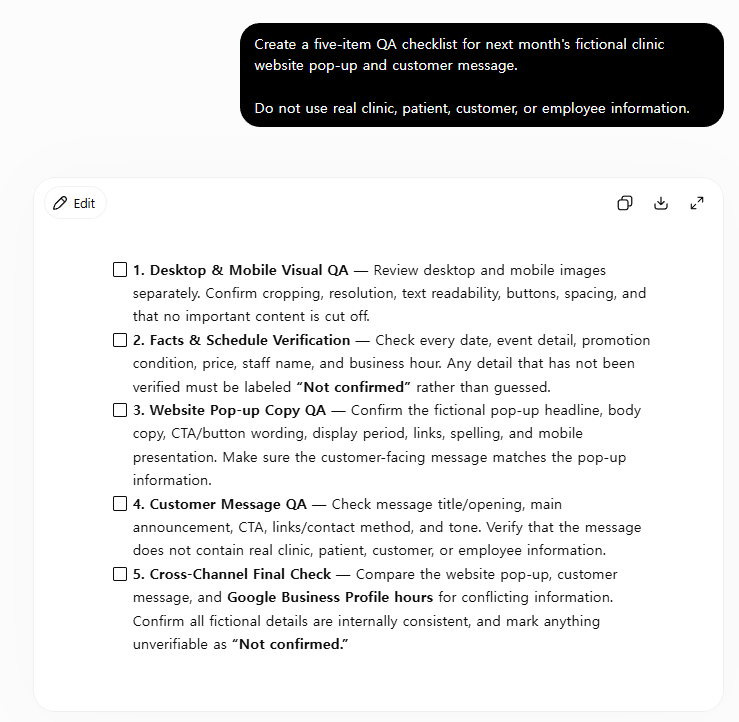
Create a five-item QA checklist for next month's fictional clinic website pop-up and customer message.

Do not invent dates or approvals. Use fictional details only.
Step 2: Save only the durable workflow preference
Return to a normal chat with Memory enabled and use this controlled instruction:
Remember this workflow preference:

When I request a recurring marketing QA checklist:
- review desktop and mobile creative separately;
- label every missing date "Not confirmed";
- never assume that copy, artwork, or a schedule has been approved.

Do not treat clinic names, patient information, exact closure dates, or campaign copy as a reusable preference.
Then ask, “What do you remember about my marketing QA preference?” Check that the answer contains only the durable review rules. If it repeats changing campaign facts or adds a rule you did not request, correct or delete the memory before continuing.
Step 3: Repeat the task in a new normal chat
Start a new normal chat and submit the same baseline prompt. Do not paste the preference again. This isolates whether the saved workflow rule influenced the new checklist.
Step 4: Score the result instead of trusting the tone
| Pass condition | 1 point if present | Why it matters |
|---|---|---|
| Desktop and mobile are separate checks | Yes / No | Mobile QA was a real missed step in the workflow |
| Missing dates are labeled “Not confirmed” | Yes / No | Prevents an invented date from looking approved |
| No approval is assumed | Yes / No | Keeps publication decisions with a human |
| The checklist contains exactly five items | Yes / No | Tests whether the current prompt still controls format |
| No real or sensitive details appear | Yes / No | Checks the privacy boundary |
Interpretation: a 5/5 score means the saved preference carried useful QA structure without overriding the current task. A 3–4/5 result needs correction before use. A result below 3/5 suggests that Memory is not reliably helping this workflow or that another setting is influencing the answer. This is a single-account editorial check, not a product benchmark; results can vary by account, plan, settings, model, and rollout.
Step 5: Delete and retest
Delete the saved preference in Settings > Personalization > Manage memories, delete the original chat where it was shared, and repeat the new-chat prompt. OpenAI explains that saved memories are stored separately from chat history, so deleting only the chat is not a complete removal test.
What Belongs in Memory—and What Does Not
| Information | Better destination | Editorial judgment |
|---|---|---|
| Stable preference to separate desktop and mobile QA | Memory | Reusable, testable, and non-sensitive |
| Exact closure dates, approved copy, and final artwork | Project or verified source document | Changes by campaign and requires version control |
| Monthly reminder to begin the review | Scheduled Task | Timing is the requirement, not personalization |
| Patient, customer, or confidential client information | Approved organizational system—not personal ChatGPT Memory | Requires the employer’s privacy, security, and retention rules |
| One-off conversation that should not use personalization | Temporary Chat | Avoids referencing or creating memories, subject to current product terms |
The practical rule is simple: Memory can carry a durable preference, but it should not become the source of truth for dates, approvals, files, or private records. For current product behavior and deletion controls, review OpenAI’s official saved-memory guidance.
Useful Things to Let ChatGPT Remember
- Answer format: concise bullets, step-by-step explanations, or short summaries.
- Learning level: beginner, intermediate, or advanced knowledge of a topic.
- Long-term goal: improving business English or learning a programming language.
- Recurring constraint: a normal session length or preferred level of detail.
- Accessibility preference: plain language, descriptive structure, or another non-sensitive presentation need.
- General dietary preference: vegetarian or dairy-free suggestions, when you are comfortable sharing it.
Keep memories general and useful. If a detail is only relevant to one course, client, or assignment, a Project may be a better place for that context.
What You Should Not Store in ChatGPT Memory
- Passwords, recovery codes, or API keys
- Credit card, bank, tax, or government identification numbers
- Confidential client, employer, or student information
- Private medical, legal, or financial records
- Exact contracts, unpublished research, or proprietary documents
- Anything you would not want influencing a future conversation
Memory is a convenience feature, not a password manager, secure records vault, or source of truth. Store critical information in the system designed for it.
How to View, Correct, or Delete Memories
You can begin by asking:
What do you remember about me?For a more controlled review, open Settings > Personalization > Memory and use the management options available to your account. Review memories periodically and remove details that are inaccurate, outdated, unnecessary, or more specific than expected.
Deleting a chat does not automatically remove a saved memory created from that conversation. Turning Memory off also does not automatically erase existing saved information. To fully remove a detail, OpenAI advises deleting the memory and the original chat or other source where the information appeared.
OpenAI states that a log of deleted saved memories may be retained for up to 30 days for safety and debugging. See the official Memory FAQ for the latest controls and retention details.
When to Use Temporary Chat
Use a default non-personalized Temporary Chat when you want a conversation that does not use existing memories, Custom Instructions, or plugins and does not create new memories while it remains temporary. It is useful for one-off questions, testing a less-personalized response, or discussing a topic you do not want carried into future chats. If you choose a personalized Temporary Chat, it can use existing memories and Custom Instructions but still will not create or update memories while it remains temporary.
According to OpenAI, an unsaved Temporary Chat does not appear in chat history, does not create memories, and is not used to improve its models while it remains temporary; OpenAI may retain a copy for up to 30 days for safety. A Temporary Chat can now be saved, which converts it into a regular chat that then follows your account’s personalization and model-improvement settings. If a custom GPT sends data to a third party through actions, that third party’s privacy policy applies.
For current details, read the official Temporary Chat FAQ.
Not sure whether Memory is appropriate for a particular conversation? Compare ChatGPT Memory and Temporary Chat to see how history, personalization, and retention differ.
Memory and Model Training Are Different Settings
Turning Memory off controls personalization; it is not the same as choosing whether your conversations help improve OpenAI’s models. That separate choice appears under Data Controls as Improve the model for everyone.
If the training setting is enabled, OpenAI says content from chats and saved memories may be used to improve models for eligible consumer accounts. Business, Enterprise, and Edu content is not used for training by default. Review the current Data Controls FAQ for the settings that apply to your account.
Common ChatGPT Memory Problems
The response uses an outdated preference
Ask ChatGPT what it remembers, correct the outdated detail explicitly, and review the Memory management page. Do not keep adding new versions of the same rule without removing conflicts.
Memory does not appear to work
Check whether Memory is enabled and whether the feature is available for your plan, region, and device. Also confirm that you are using a regular chat or a personalized Temporary Chat. A default non-personalized Temporary Chat does not use existing memories.
The preference is too vague
Replace “I like helpful answers” with a testable instruction such as “I prefer answers that begin with a three-bullet summary.” Clear, observable preferences are easier to review.
A remembered detail is not suitable for every task
Move task-specific instructions into a Project or state an exception in the current chat. General memory should not override the real requirements of a specific assignment.
Frequently Asked Questions
Is ChatGPT Memory always on?
No. Memory can be controlled in Settings, and availability may vary by account, plan, region, device, and rollout.
Can I ask ChatGPT what it remembers?
Yes. Ask “What do you remember about me?” and then review the management controls in Settings for a more complete check.
Does deleting a chat delete its saved memory?
Not necessarily. Saved memories are managed separately from chat history. For full removal, delete the saved memory and the original chat or other source.
Does turning Memory off erase existing memories?
No. Turning it off stops the feature from being used in the same way, but existing saved information must be removed separately.
Does Temporary Chat use Memory?
By default, Temporary Chat is non-personalized and does not access or create memories, custom instructions, or plugins, though you can start a personalized Temporary Chat if you choose.
Should I use Memory for exact templates?
No. Use a Project, document, or secure storage system for exact text and important records. Memory is better suited to high-level preferences and context.
Final Thoughts
ChatGPT Memory is most useful when it saves small amounts of stable, non-sensitive context that would otherwise be repeated in many conversations. Its value comes from continuity, but that continuity should remain visible and controllable.
Start with one harmless preference, test it in a new chat, inspect the result, and then practice updating and deleting it. Review your memories regularly, use a default non-personalized Temporary Chat when personalization is unwanted, and never rely on Memory as secure storage.
If you need to choose between cross-chat Memory, an ongoing Project, and a one-off Temporary Chat, compare all three in our ChatGPT Projects vs Memory vs Temporary Chat guide.
If you use ChatGPT for structured learning, our ChatGPT Study Mode guide explains how to request step-by-step questions, practice, and feedback.
Memory is only one part of ChatGPT privacy. Use our ChatGPT Data Controls guide to review model training, chat history, data exports, and account settings separately.