Tag: ChatGPT Tips

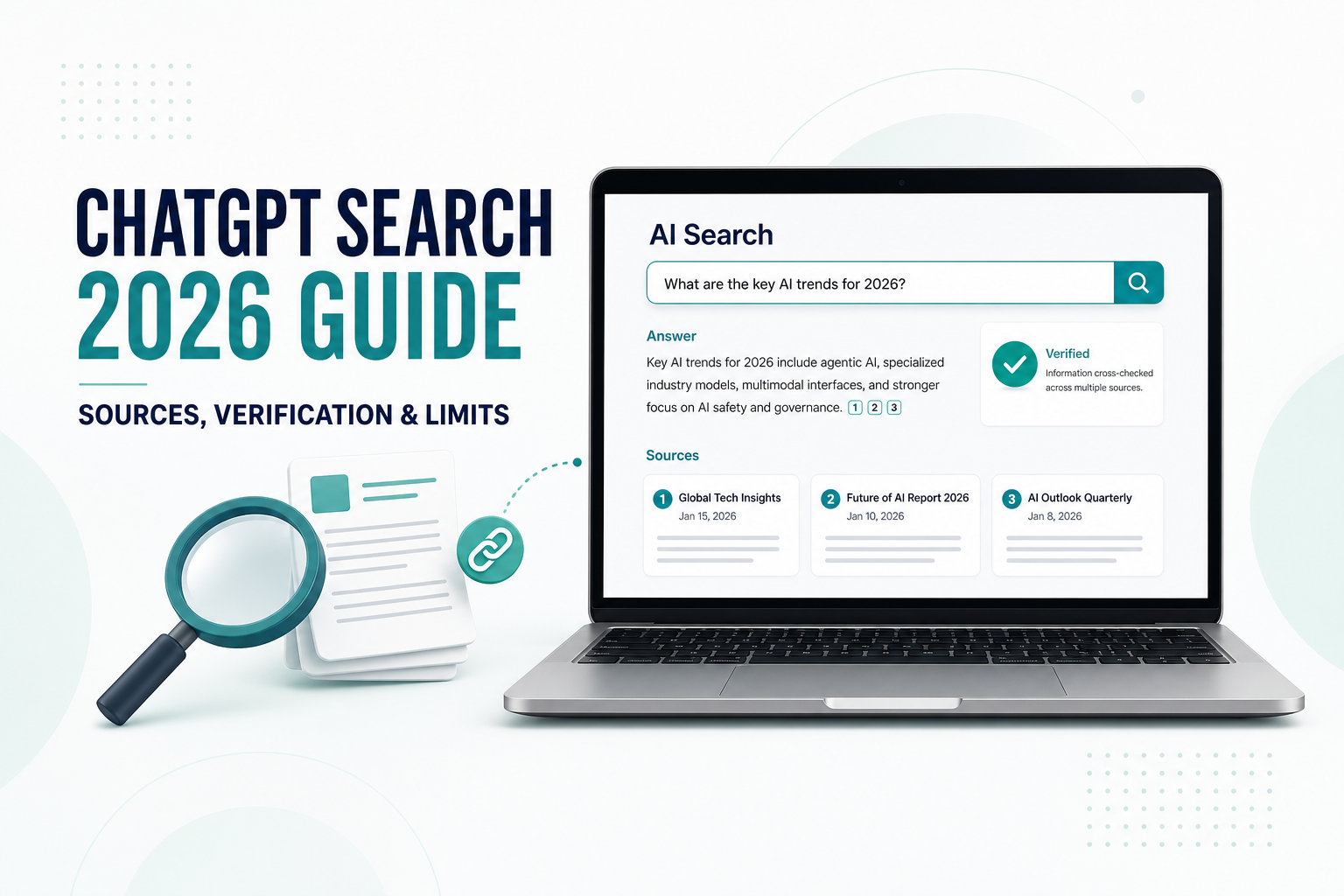
  • How to Use ChatGPT Search (2026 Guide): Sources, Verification & Limits

    How to Use ChatGPT Search (2026 Guide): Sources, Verification & Limits

    ChatGPT Search can turn a broad question into a timely answer with links to web sources. That makes it useful for travel planning, product research, local recommendations, and work that depends on current information.

    However, a cited answer is not automatically a correct answer. A source may be outdated, a page may not support the exact claim, or an important detail may be missing. The most reliable way to use ChatGPT Search is to treat it as a research assistant: ask a focused question, inspect the citations, and verify the details that affect your decision.

    Quick answer

    Open ChatGPT, choose Search from the tools menu—or simply ask a question that needs current web information. After the answer appears, open the inline citations or the Sources panel. Check that each important claim is supported by a relevant, current, trustworthy page before acting on it.

    What Is ChatGPT Search?

    ChatGPT Search is a web-search feature inside ChatGPT. It can find recent information, combine material from multiple pages, and present an answer with links to relevant sources. According to OpenAI, Search is available on ChatGPT’s web, desktop, and mobile experiences, and ChatGPT may search automatically when a question would benefit from web information.

    You can also select Search manually. In the current interface, open the tools or sources menu near the message box and choose Search. Typing / may also show Search as an option. Interface labels can change, so use the tools menu if a shortcut is not visible.

    The important difference is not simply that Search can access the web. It is that a search response can include inline citations and a Sources panel, giving you a path from the summary back to the original pages.

    ChatGPT Search vs. a Regular Chat

    FeatureRegular ChatGPT responseChatGPT Search response
    Best forExplanation, drafting, brainstorming, and stable knowledgeCurrent events, changing details, local information, and web research
    Web sourcesMay not use the web for the answerUses web search when activated or considered useful
    CitationsNot always presentMay include inline citations and a Sources panel
    FreshnessCan rely on learned informationCan retrieve more recent pages, subject to availability
    Your responsibilityCheck important factsOpen and evaluate the cited sources

    If you want a broader comparison of search engines and AI answers, read our guide to ChatGPT vs. Google.

    How to Use ChatGPT Search Step by Step

    Step 1: Decide whether the question needs the web

    Use Search when the answer can change with time or location. Examples include opening hours, prices, product availability, recent software changes, schedules, regulations, and news. A timeless task such as rewriting an email usually does not need web search.

    Step 2: Add the details that control the answer

    A vague request creates vague research. Include the place, date, budget, preferred source type, and the decision you are trying to make. If freshness matters, ask ChatGPT to state when each source was published or last updated.

    Weak search prompt:

    Find a good coworking space.

    Stronger search prompt:

    I need a coworking day pass near Toronto Union Station for this Sunday.
    
    Requirements:
    - Within a 15-minute walk
    - No more than C$40 before tax
    - Open from at least 10 a.m. to 4 p.m.
    - Reliable Wi-Fi and a quiet work area
    
    Search the web and give me three options in a table. For every price and opening-hour claim, cite the business's official website. State when the page was accessed, and mark any detail that you could not verify.

    Step 3: Open the citations

    On desktop, you may be able to hover over an inline citation and click it. If citations are not visible in the text, select Sources below the response to open the source panel. Do not judge a source only by its title. Open the page and find the sentence, table, policy, or listing that supports the claim.

    Step 4: Verify the decision-critical details

    In the coworking example, the decision-critical details are the Sunday hours, day-pass price, exact location, and whether a day pass is actually available without a membership. A blog post that mentions the space is weaker evidence than the company’s current booking or location page.

    Step 5: Ask a follow-up that exposes uncertainty

    Review your answer as a skeptical fact-checker.
    
    List:
    1. Claims supported by an official primary source
    2. Claims supported only by a third-party source
    3. Claims that may be outdated or ambiguous
    4. Details I should confirm directly before visiting
    
    Do not add new claims unless you cite them.

    A Practical Source-Checking Method

    A long source list can create a false sense of certainty. Use this five-part check for the claims that matter most.

    1. Relevance: Does the page support the exact claim, or only discuss a related topic?
    2. Authority: Is it an official organization, original research, a regulator, or the business responsible for the information?
    3. Freshness: Is there a publication or update date, and is it recent enough for the question?
    4. Agreement: Do other credible sources support the same conclusion?
    5. Scope: Does the information apply to your country, plan, product version, date, or situation?

    Useful rule: The higher the cost of being wrong, the closer you should get to the primary source.

    What to Do When Sources Disagree

    Conflicting sources are common. One page may be old, one may describe a different region, and another may repeat information without checking it. Do not ask ChatGPT to choose a winner without explaining why.

    These two sources disagree about [specific claim].
    
    Compare them by:
    - Publication or update date
    - Whether each is a primary or secondary source
    - Geographic and product scope
    - Evidence provided
    
    Explain the most likely reason for the disagreement. If the conflict cannot be resolved, say so clearly and tell me what I should verify directly.

    When the subject is legal, medical, financial, or safety-related, use Search to locate authoritative material—not to replace a qualified professional or an official source. For a medical decision, for example, a cited summary is still not a diagnosis.

    5 Useful ChatGPT Search Prompts

    1. Check a recent software change

    Search for the latest official information about [feature].
    Use the product's official documentation and release notes first.
    Tell me the supported plans, platforms, and rollout limitations.
    Separate confirmed facts from reasonable inferences.

    2. Build a source-first briefing

    Create a 250-word briefing on [topic] using sources published or updated within the last 90 days.
    Prioritize primary sources and reputable reporting.
    Place a citation immediately after every time-sensitive claim.
    End with three unresolved questions.

    3. Verify a number

    Find the original source for this statistic: "[paste claim]."
    Do not cite a page that merely repeats it.
    Report the original publication date, methodology, sample or scope, and any limitations.

    4. Compare current options

    Compare [option A] and [option B] for [specific use case] as of today.
    Use official pricing and feature pages where possible.
    Show price, major limits, cancellation terms, and the date each source was checked.
    Mark information that varies by region or plan.

    5. Audit an answer before sharing it

    Audit the answer above before I share it.
    Create a table with columns for Claim, Citation, Source Type, Date, Direct Support, and Risk.
    Label any unsupported or weakly supported claim and rewrite it more cautiously.

    If your prompts still produce vague results, review these common ChatGPT prompt mistakes.

    Privacy and Location Considerations

    Search prompts can be rewritten into more targeted queries and sent to third-party search providers. OpenAI says it may use general location inferred from your IP address to improve local results, but it does not send your IP address or ChatGPT account information to those search providers for the search.

    Precise device location is optional. If you enable it, local results may become more relevant. OpenAI’s current help page says precise location is used for the response and then deleted, although location-related details that appear in the answer can remain in your chat history.

    Avoid placing confidential client data, private documents, account credentials, or unnecessary personal details in a search prompt. Replace sensitive names and identifiers with neutral labels whenever possible. If you regularly handle private material, review your organization’s policy and ChatGPT data controls before using web search.

    Limits of ChatGPT Search

    • A citation can be weak: The linked page may be related without directly proving the sentence.
    • Pages can be outdated: A result may rank well even after a price, policy, or feature changes.
    • Coverage is incomplete: Paywalls, technical restrictions, site preferences, or missing indexed pages can limit what Search can access.
    • Summaries can remove nuance: Conditions, exceptions, and regional differences may disappear in a short answer.
    • Confident wording is not proof: ChatGPT can still produce an incorrect or misleading conclusion.
    • Usage limits apply: Search availability and limits can depend on the current ChatGPT plan and product experience.

    OpenAI recommends checking important information with reliable sources. This is especially important for quotes, data, technical instructions, and external references. ChatGPT Search makes verification easier, but it does not remove the need to verify.

    A Reusable Search-and-Verify Template

    I need current information to decide [decision].
    
    Context:
    - Location or market: [place]
    - Date or deadline: [date]
    - Requirements: [must-haves]
    - Constraints: [budget, plan, version, or other limits]
    
    Search instructions:
    1. Use primary and official sources first.
    2. Cite each time-sensitive claim immediately.
    3. Include the publication or update date when available.
    4. Separate verified facts, estimates, and unresolved details.
    5. Identify conflicts between credible sources.
    6. End with a checklist of details I should confirm directly.
    
    Do not invent missing information.

    For longer, repeated research tasks, you can save your instructions and related files in a focused workspace. See our guide to using ChatGPT Projects.

    Frequently Asked Questions

    Is ChatGPT Search free?

    OpenAI’s current help page says ChatGPT Search is available across Free, Plus, Team, Edu, and Enterprise plans, including access for logged-out Free users. Search queries remain subject to plan usage limits, and availability can change, so check the official help page for the latest details.

    Does ChatGPT Search always show sources?

    Search responses may show inline citations. If they do not appear in the text, look for the Sources option below the response. Not every sentence necessarily has its own citation, so verify the claims that matter to your decision.

    Is ChatGPT Search more accurate than regular ChatGPT?

    Search can improve freshness and make an answer easier to check because it can use current web pages and provide citations. It can still misread a source, omit context, or produce an unsupported conclusion. Accuracy depends on the question, the available sources, and your verification process.

    Should I trust the first source?

    No. Open the source, confirm that it directly supports the claim, and compare it with a primary source or another credible page. For changing information, check the date and geographic scope.

    Does ChatGPT Search share my location?

    OpenAI says Search may use general location inferred from your IP address to improve results and may share that general location with search providers, but not the IP address itself or your ChatGPT account information. Precise device location is optional and can be controlled in Settings.

    Official Sources

    Final Thoughts

    ChatGPT Search is most useful when speed and traceability matter together. It can shorten the path from a question to relevant web pages, organize competing information, and show you where an answer came from.

    The safest workflow is simple: make the question specific, prefer primary sources, open the citations, check dates and scope, and clearly mark what remains uncertain. Use the answer to guide your research—not to skip it.

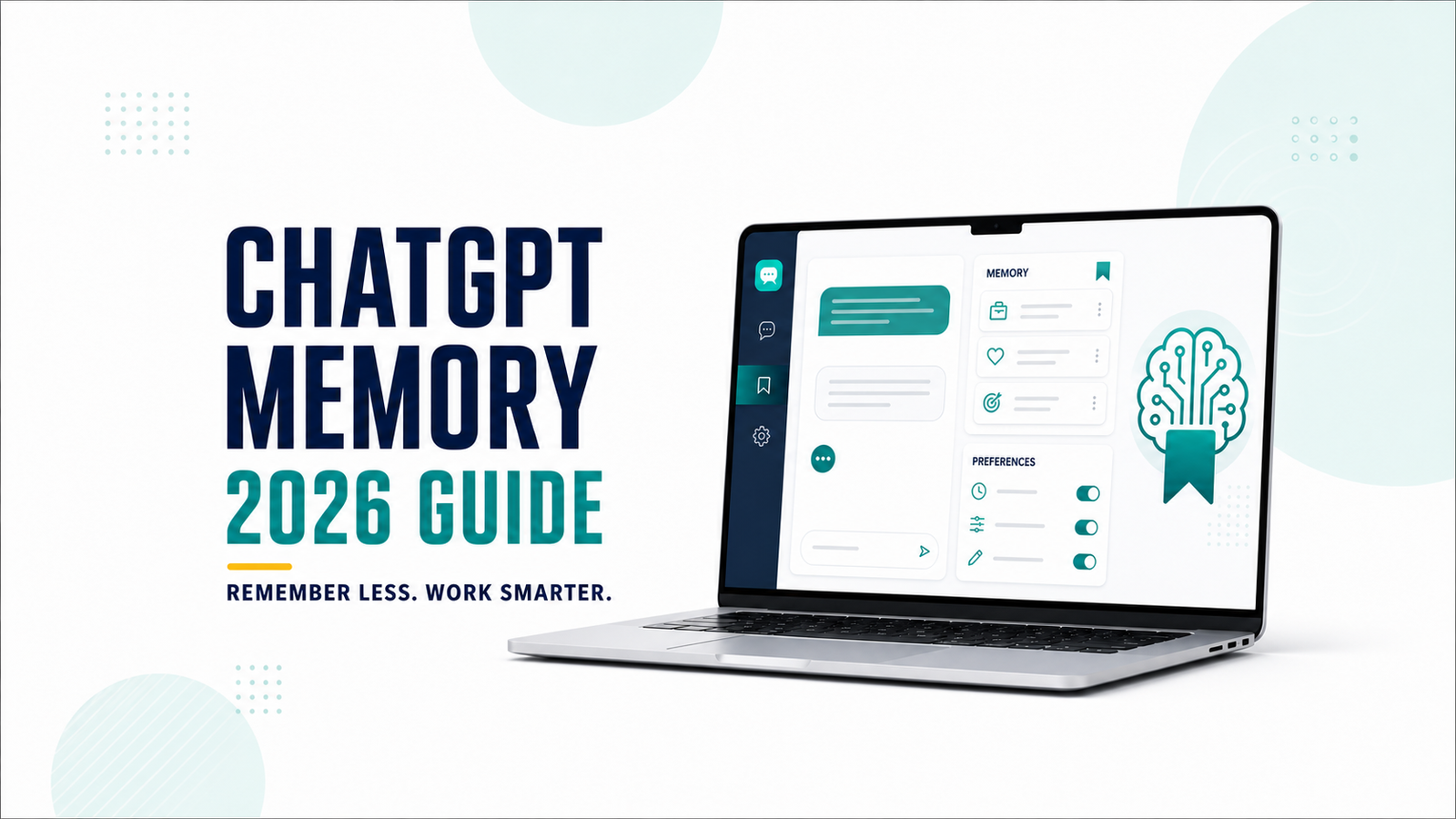
  • How to Use ChatGPT Memory (2026 Guide)

    How to Use ChatGPT Memory (2026 Guide)

    ChatGPT Memory can make conversations more useful by carrying helpful context from one chat to another. Instead of repeating your preferences, goals, or working style every time, you can let ChatGPT use relevant details to personalize future responses.

    That convenience also creates an important responsibility: you should know what ChatGPT remembers, how to correct outdated details, and how to remove information you no longer want used.

    This guide explains how ChatGPT Memory works, how to test it with a controlled example, when to use Temporary Chat, and which details should never be treated as safe long-term memory.

    Quick answer

    To manage ChatGPT Memory, open your profile menu, go to Settings > Personalization > Memory, and review the available controls. You can also ask, “What do you remember about me?” Because labels and availability can vary by plan, region, device, and rollout, use the options shown in your own account as the final reference.

    What Is ChatGPT Memory?

    ChatGPT Memory is a personalization feature that can use useful context from previous interactions to make future answers more relevant. Depending on the experience available to your account, this may include information you explicitly asked ChatGPT to remember and context drawn from earlier conversations.

    A memory might be a high-level preference such as:

    • You prefer concise bullet-point answers.
    • You are learning beginner-level Python.
    • You avoid dairy when asking for recipe ideas.
    • You usually have 30 minutes available for a study session.

    Memory is best for durable context, not for exact documents, passwords, or large templates. It should reduce repetitive setup without becoming a place to store sensitive or irreplaceable information.

    ChatGPT Memory vs. Custom Instructions vs. Projects

    FeatureBest useScope
    MemoryPreferences and helpful context that may matter across chatsCan influence future conversations when enabled
    Custom InstructionsExplicit directions about how you want ChatGPT to respondApplied as direct account-level guidance
    ProjectsFiles, chats, and instructions for one ongoing area of workOrganized around a specific project

    Use Memory for information that should follow you across suitable conversations. Use Custom Instructions when you want to state a rule directly. Use Projects when the context belongs to one defined body of work rather than your general preferences.

    For a focused workspace with related chats and files, see our ChatGPT Projects guide.

    How to Turn On ChatGPT Memory

    Step 1: Open Settings

    Open ChatGPT, select your profile menu, and choose Settings.

    Step 2: Open Personalization

    Select Personalization, then open the Memory controls available in your account. The exact wording may change as OpenAI updates the feature.

    Step 3: Review the Controls

    Enable the memory options you want to use. If a memory summary or management page is available, review it before relying on personalization. You can turn Memory off later, but turning it off does not necessarily delete information that was already remembered.

    A Practical ChatGPT Memory Test

    The safest way to understand Memory is to test it with a harmless preference that is easy to recognize and easy to delete.

    1. Save a Clear Preference

    In a normal ChatGPT conversation, enter:

    Remember that I prefer weekly plans in a short checklist with no more than five items.

    Use a preference that does not contain sensitive information. The confirmation you see may vary, so do not assume that a detail was saved simply because the response sounds agreeable.

    2. Check What ChatGPT Remembers

    What do you remember about how I want weekly plans formatted?

    A useful result should identify the checklist preference without inventing extra requirements. If the answer adds details you never requested, correct them before continuing.

    3. Test It in a New Chat

    Create a simple weekly plan for practicing business English.

    Compare the response with your saved preference. Did it use a short checklist? Did it stay within five items? This gives you a concrete signal that personalization influenced the answer, although output can still vary from one response to another.

    4. Update the Preference

    Update that preference: weekly plans can contain up to seven items, and each item should include an estimated time.

    Ask what ChatGPT remembers again. The new version should replace or refine the earlier preference rather than creating two conflicting rules.

    5. Delete and Retest

    Forget my preference about weekly plan formatting.

    Then review your Memory settings and start another new chat with the same planning request. This final step checks whether the preference has stopped influencing future answers.

    Useful Things to Let ChatGPT Remember

    1. Answer format: concise bullets, step-by-step explanations, or short summaries.
    2. Learning level: beginner, intermediate, or advanced knowledge of a topic.
    3. Long-term goal: improving business English or learning a programming language.
    4. Recurring constraint: a normal session length or preferred level of detail.
    5. Accessibility preference: plain language, descriptive structure, or another non-sensitive presentation need.
    6. General dietary preference: vegetarian or dairy-free suggestions, when you are comfortable sharing it.

    Keep memories general and useful. If a detail is only relevant to one course, client, or assignment, a Project may be a better place for that context.

    What You Should Not Store in ChatGPT Memory

    • Passwords, recovery codes, or API keys
    • Credit card, bank, tax, or government identification numbers
    • Confidential client, employer, or student information
    • Private medical, legal, or financial records
    • Exact contracts, unpublished research, or proprietary documents
    • Anything you would not want influencing a future conversation

    Memory is a convenience feature, not a password manager, secure records vault, or source of truth. Store critical information in the system designed for it.

    How to View, Correct, or Delete Memories

    You can begin by asking:

    What do you remember about me?

    For a more controlled review, open Settings > Personalization > Memory and use the management options available to your account. Review memories periodically and remove details that are inaccurate, outdated, unnecessary, or more specific than expected.

    Deleting a chat does not automatically remove a saved memory created from that conversation. Turning Memory off also does not automatically erase existing saved information. To fully remove a detail, OpenAI advises deleting the memory and the original chat or other source where the information appeared.

    OpenAI states that a log of deleted saved memories may be retained for up to 30 days for safety and debugging. See the official Memory FAQ for the latest controls and retention details.

    When to Use Temporary Chat

    Use Temporary Chat when you want a conversation that does not access or create memories for personalization. It is useful for one-off questions, testing an unbiased response, or discussing a topic you do not want carried into future chats.

    According to OpenAI, Temporary Chats do not appear in chat history and are not used to improve its models. A copy may still be retained for up to 30 days for safety, and enabled Custom Instructions can still apply. If a custom GPT sends data to a third party through actions, that third party’s privacy policy applies.

    For current details, read the official Temporary Chat FAQ.

    Not sure whether Memory is appropriate for a particular conversation? Compare ChatGPT Memory and Temporary Chat to see how history, personalization, and retention differ.

    Memory and Model Training Are Different Settings

    Turning Memory off controls personalization; it is not the same as choosing whether your conversations help improve OpenAI’s models. That separate choice appears under Data Controls as Improve the model for everyone.

    If the training setting is enabled, OpenAI says content from chats and saved memories may be used to improve models for eligible consumer accounts. Business, Enterprise, and Edu content is not used for training by default. Review the current Data Controls FAQ for the settings that apply to your account.

    Common ChatGPT Memory Problems

    The response uses an outdated preference

    Ask ChatGPT what it remembers, correct the outdated detail explicitly, and review the Memory management page. Do not keep adding new versions of the same rule without removing conflicts.

    Memory does not appear to work

    Check whether Memory is enabled and whether the feature is available for your plan, region, and device. Also confirm that you are using a normal chat rather than Temporary Chat.

    The preference is too vague

    Replace “I like helpful answers” with a testable instruction such as “I prefer answers that begin with a three-bullet summary.” Clear, observable preferences are easier to review.

    A remembered detail is not suitable for every task

    Move task-specific instructions into a Project or state an exception in the current chat. General memory should not override the real requirements of a specific assignment.

    Frequently Asked Questions

    Is ChatGPT Memory always on?

    No. Memory can be controlled in Settings, and availability may vary by account, plan, region, device, and rollout.

    Can I ask ChatGPT what it remembers?

    Yes. Ask “What do you remember about me?” and then review the management controls in Settings for a more complete check.

    Does deleting a chat delete its saved memory?

    Not necessarily. Saved memories are managed separately from chat history. For full removal, delete the saved memory and the original chat or other source.

    Does turning Memory off erase existing memories?

    No. Turning it off stops the feature from being used in the same way, but existing saved information must be removed separately.

    Does Temporary Chat use Memory?

    Temporary Chat does not access or create memories for personalization, although enabled Custom Instructions can still apply.

    Should I use Memory for exact templates?

    No. Use a Project, document, or secure storage system for exact text and important records. Memory is better suited to high-level preferences and context.

    Final Thoughts

    ChatGPT Memory is most useful when it saves small amounts of stable, non-sensitive context that would otherwise be repeated in many conversations. Its value comes from continuity, but that continuity should remain visible and controllable.

    Start with one harmless preference, test it in a new chat, inspect the result, and then practice updating and deleting it. Review your memories regularly, use Temporary Chat when personalization is unwanted, and never rely on Memory as secure storage.

    If you use ChatGPT for structured learning, our ChatGPT Study Mode guide explains how to request step-by-step questions, practice, and feedback.

    Memory is only one part of ChatGPT privacy. Use our ChatGPT Data Controls guide to review model training, chat history, data exports, and account settings separately.

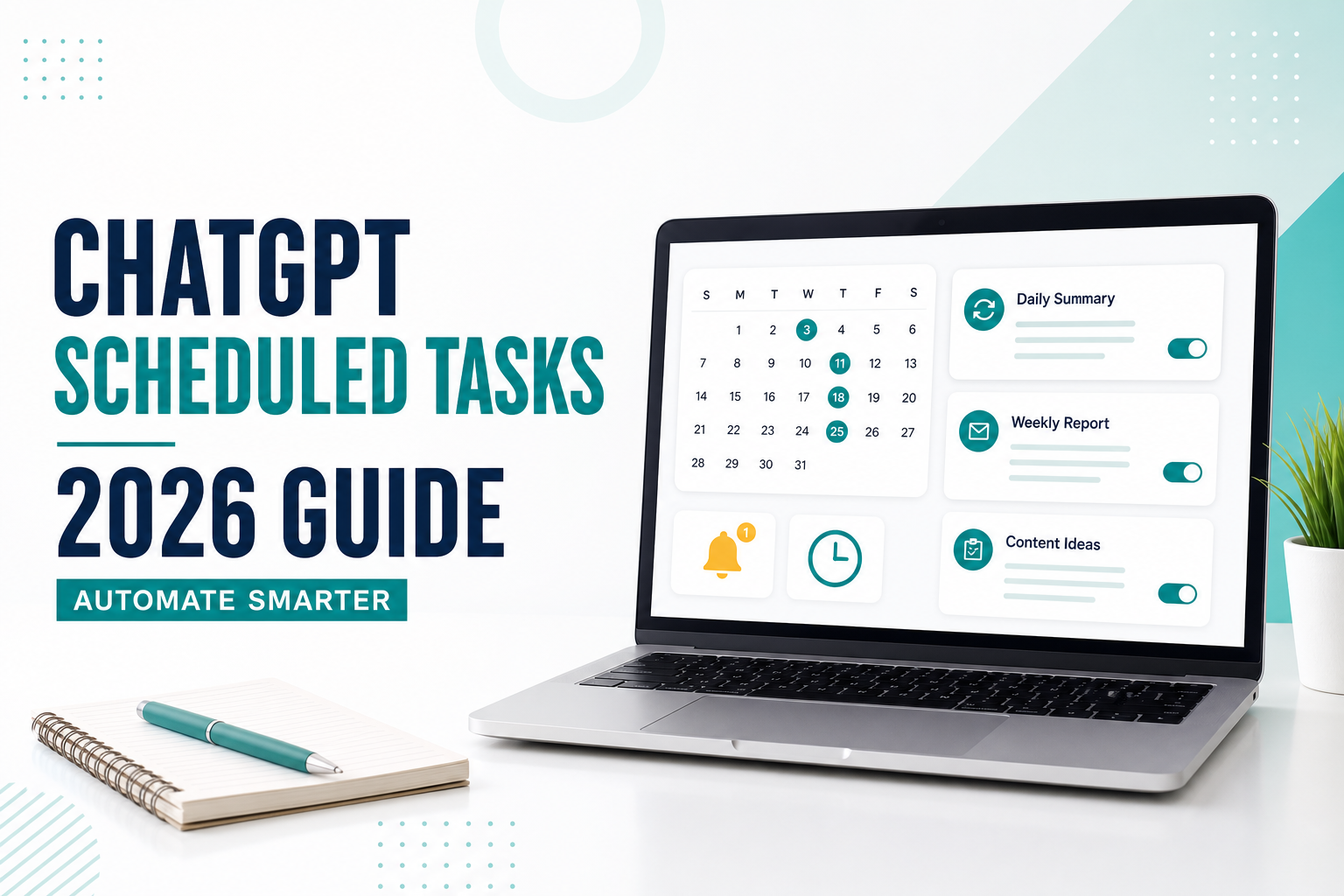
  • How to Use ChatGPT Scheduled Tasks (2026 Guide)

    How to Use ChatGPT Scheduled Tasks (2026 Guide)

    ChatGPT can answer a question now, but some jobs are more useful when they happen later. ChatGPT Scheduled Tasks can remind you about a deadline, run a recurring prompt, or check for a meaningful change and notify you when there is something worth reviewing.

    The feature is useful for routines such as a Monday planning prompt, a one-time follow-up reminder, or a periodic monitoring request. It is not a replacement for a calendar, an emergency alert system, or a fully automated business workflow.

    In this guide, you will learn how to create and manage ChatGPT Scheduled Tasks, write clearer task instructions, understand the current limits, and review the results safely.

    Quick answer

    Open the Scheduled page in the ChatGPT sidebar on the web or mobile app, create a new task, describe what should happen and when, then review the confirmation. You can later edit, pause, resume, or delete the task from the Scheduled page.

    What Are ChatGPT Scheduled Tasks?

    ChatGPT Scheduled Tasks let ChatGPT perform an instruction at a future time or on a recurring schedule. According to OpenAI, tasks can also monitor for a change and notify you only when there is a meaningful update.

    There are three useful task patterns:

    • One-time tasks: remind you about a specific event or follow-up.
    • Recurring tasks: run the same instruction daily, weekly, or on another schedule.
    • Monitoring tasks: periodically check for a change and report only when the condition is met.

    This is different from a normal ChatGPT conversation. A normal chat waits for your next message. A scheduled task can run later and deliver a notification through the options available in your account.

    How to Create a Scheduled Task in ChatGPT

    Step 1: Open the Scheduled Page

    Sign in to ChatGPT on the web or mobile app and select Scheduled from the sidebar. OpenAI says the Scheduled page is not currently available in the ChatGPT desktop app or Codex app.

    Step 2: Create a New Task

    Select the option to create a task. You can also ask ChatGPT directly to schedule something, such as a future reminder.

    Step 3: Describe the Outcome and Schedule

    Include the task, timing, time zone, output format, and the condition for sending a notification. A clear instruction reduces ambiguity.

    Every Monday at 8:30 AM Eastern Time, ask me to list my three most important work goals for the week. Then turn my response into a short plan with one next action for each goal. Keep the plan under 200 words.

    Step 4: Review the Confirmation

    Check the task name, schedule, time zone, and instruction before relying on it. If the timing is unclear, edit the task rather than assuming ChatGPT interpreted it correctly.

    Step 5: Enable the Notifications You Want

    Task updates can use the notification options available in your ChatGPT settings, such as push notifications or email. Browser and mobile operating-system permissions may also need to be enabled.

    How to Manage ChatGPT Scheduled Tasks

    The Scheduled page shows your tasks and their next run times. Open a task to review its previous result or use its controls to edit, pause, resume, or delete it.

    You can also reach task management from ChatGPT settings under Notifications and Manage tasks. OpenAI notes that deleting the chat associated with a task automatically pauses that task. Deleting a task, however, does not delete its associated chat.

    7 Practical ChatGPT Scheduled Task Examples

    1. Create a One-Time Follow-Up Reminder

    Remind me on July 24 at 10:00 AM Pacific Time to follow up with the design team about the homepage review. In the reminder, include these three questions: Is the mobile layout approved? Are the final images ready? Is the launch date still realistic?

    This is more useful than a vague “remind me later” request because it includes the exact time, time zone, subject, and follow-up questions.

    2. Run a Weekly Planning Check-In

    Every Friday at 4:00 PM, ask me to review this week. Ask one question at a time about completed work, unfinished work, and the main blocker. After I answer, create a five-item plan for next week. Do not invent tasks I did not mention.

    The instruction controls the conversation sequence and prevents the task from producing a generic plan before receiving your input.

    3. Prepare a Daily Priority Prompt

    Every weekday at 8:15 AM, ask me for today's meetings, deadlines, and available focus time. Then suggest three priorities in a table with columns for priority, reason, and first action. Label every assumption.

    This example makes ChatGPT wait for current information instead of pretending it already knows your schedule.

    4. Monitor a Public Page for a Meaningful Change

    Check the official page at [URL] every weekday afternoon. Notify me only if the eligibility requirements or application deadline changes. In the update, quote the changed section briefly, include the page link, and state when you checked it. Stop after August 31.

    Use an official source and define exactly what counts as a meaningful change. Still open the source yourself before making an important decision because an AI-generated update can be incomplete or incorrect.

    5. Get a Recurring Learning Prompt

    Every Tuesday and Thursday at 7:00 PM, give me one beginner-level question about spreadsheet formulas. Wait for my answer before explaining it. Keep each session under 10 minutes and increase the difficulty only after two correct answers.

    For longer guided practice, you can also learn how to use ChatGPT Study Mode.

    6. Review a Recurring Business Process

    On the first business day of each month at 9:00 AM, ask me for the previous month's support metrics. After I provide them, summarize the three largest changes, ask two questions about possible causes, and create a short list of items that require human review. Do not make recommendations until I answer.

    This prompt separates data collection, analysis, and decisions. That makes the result easier to review than a request that asks the AI to make an immediate recommendation.

    7. Schedule a Project Checkpoint

    Every Wednesday at 2:00 PM, ask me for the current status of the website redesign, the next milestone, and any blocker. Convert my answers into a short status update with sections for Completed, Next, Risks, and Decisions Needed.

    If the work spans many chats, learn how to organize the related material with ChatGPT Projects. However, OpenAI currently states that a task created in a project cannot access that project’s files.

    A Practical Prompt Test: Vague vs. Structured

    To test whether a scheduled-task prompt is clear enough, compare these two versions.

    Vague prompt

    Give me an AI news update regularly.

    Structured prompt

    Every Wednesday at 9:00 AM Eastern Time, summarize up to five important AI product announcements published during the previous seven days. Prioritize official company announcements and original documentation. For each item, include the announcement date, a two-sentence summary, and a source link. Clearly label rumors or secondary reporting and do not include an item without a source.

    How to interpret the difference: the vague version leaves the schedule, time zone, scope, source standard, length, and review criteria undefined. The structured version gives ChatGPT a repeatable process. It still does not guarantee that every summary or link is correct, so open important sources before using the result.

    A Simple Formula for Better Scheduled Task Prompts

    A useful scheduled-task instruction usually contains six parts:

    1. Action: What ChatGPT should do
    2. Schedule: Exact day, time, frequency, and time zone
    3. Input: What information or source it should use
    4. Output: Required format, length, and audience
    5. Quality check: What must be verified or labeled
    6. Stop condition: When monitoring or repetition should end

    Reusable template

    Every [schedule and time zone], [perform the action]. Use [input or source]. Return the result as [format and length] for [audience]. Verify or label [important facts and assumptions]. Notify me only when [condition]. Stop when [end condition].

    Clear preferences can also improve ordinary conversations. See our guide to ChatGPT Custom Instructions, but do not store confidential or task-specific information in permanent instructions.

    Current Limitations You Should Know

    • Plan limits apply: the number of active tasks varies by ChatGPT plan.
    • Frequency is limited: OpenAI says tasks cannot run more than once per hour.
    • Some tools are unsupported: voice chats and GPTs do not currently work with Tasks.
    • Project files are not available to the task: a task created inside a project cannot access the project’s files.
    • Deleting the associated chat pauses the task: check the Scheduled page if a task unexpectedly stops.
    • Apps depend on access and permissions: connected services may be unavailable or may require approval, especially in managed workspaces.
    • Tasks do not currently support webhooks: they are better suited to recurring check-ins than precise event-triggered automation.

    Availability and limits can change. Confirm the current details in the official OpenAI Scheduled Tasks guide before choosing a plan or building an important workflow around the feature.

    Privacy and Accuracy Tips

    • Do not place passwords, private client data, health information, payment details, or confidential company material in a task instruction.
    • Use official sources for monitoring tasks and open the source before acting on an important update.
    • Include a time zone whenever timing matters.
    • Define a stop condition for temporary monitoring tasks.
    • Review names, dates, figures, links, and assumptions in every result.
    • Use a normal calendar or dedicated alerting system for critical reminders that cannot be missed.

    OpenAI also warns that ChatGPT can produce incorrect or misleading answers. Treat task results as drafts or alerts to review, not as automatically verified facts.

    Frequently Asked Questions

    Are ChatGPT Scheduled Tasks free?

    OpenAI currently lists Scheduled Tasks for Plus, Pro, Business, and Enterprise users globally. Availability and active-task limits depend on the plan, so check the official help page for the current details.

    Can ChatGPT Scheduled Tasks send notifications?

    Yes. Depending on your settings and device permissions, task updates can use available push or email notifications.

    Can a scheduled task use files from a ChatGPT Project?

    No. OpenAI currently states that a task created in a project cannot access the files stored in that project.

    Why did my scheduled task pause?

    A task may pause after inactivity, when it needs additional action, or when its associated chat is deleted. Open the Scheduled page to review, edit, or resume it.

    Are Scheduled Tasks the same as ChatGPT Projects?

    No. Projects organize related chats, files, and instructions. Scheduled Tasks run an instruction later or repeatedly. The two features can support the same workflow, but they serve different purposes and project files are not currently available to Tasks.

    Can I use Tasks for important business decisions?

    You can use Tasks to collect reminders, draft summaries, or surface information for review. Do not let an unchecked result make a financial, legal, hiring, safety, or other high-impact decision. Verify important information with primary sources and qualified people.

    Final Thoughts

    ChatGPT Scheduled Tasks are most useful when the instruction is repeatable, the timing is clear, and the result can be reviewed before action is taken.

    Start with one low-risk task, such as a weekly planning check-in or a noncritical reminder. Include the time zone, output format, verification rule, and stop condition. After the first run, inspect the result and adjust the instruction before adding more tasks.

    For more workplace ideas, read How to Use ChatGPT for Work. Better instructions make both ordinary chats and scheduled workflows easier to review and more useful.

  • How to Use ChatGPT Custom Instructions (2026 Guide)

    How to Use ChatGPT Custom Instructions (2026 Guide)

    Repeating the same preferences in every ChatGPT conversation wastes time. You may keep asking for concise answers, beginner-friendly explanations, a specific writing tone, or a certain output format. ChatGPT Custom Instructions let you save those preferences once so they can shape future responses automatically.

    However, useful custom instructions are not a long biography or a collection of vague wishes. They should give ChatGPT clear, reusable guidance without including private information that does not belong in every conversation.

    In this guide, you will learn how to turn on ChatGPT Custom Instructions, what to write, how they differ from Memory, and how to test whether your instructions actually improve the result.

    Quick answer

    Open ChatGPT, go to Settings → Personalization → Custom Instructions, turn on customization, and add short guidance about your role, goals, preferred tone, and response format. Avoid passwords, confidential work details, financial information, or anything you would not want considered across multiple chats.

    What Are ChatGPT Custom Instructions?

    Custom Instructions are account-level preferences that tell ChatGPT what it should consider when responding. Instead of writing “Use plain English and give me a checklist” in every new chat, you can save that preference in your settings.

    According to the official OpenAI Custom Instructions guide, the feature is available on all plans on the web, desktop, iOS, and Android. OpenAI also states that the longer text fields have a 1,500-character limit.

    Custom Instructions are most useful for preferences that remain relevant across many conversations, such as:

    • Your general role or experience level
    • The audience you usually communicate with
    • Your preferred tone and level of detail
    • A response structure you use repeatedly
    • Rules such as explaining jargon or identifying uncertainty

    Custom Instructions vs. Memory

    Custom Instructions and Memory can both personalize responses, but they serve different purposes.

    FeatureCustom InstructionsMemory
    Who adds the information?You write and edit explicit guidanceChatGPT may remember useful details from conversations
    Best forStable rules, tone, role, and output preferencesPersonal details and context that may develop over time
    ControlYou can directly edit or delete the textYou can review, correct, or delete saved memories
    Example“Use plain English and end with next steps.”Remembering that you are preparing for a specific exam

    Use Custom Instructions when you know exactly what guidance should apply repeatedly. Use a normal prompt when the requirement belongs only to one task. If you want ChatGPT to carry useful preferences across conversations without manually rewriting every rule, read our ChatGPT Memory guide. Custom Instructions can still affect Temporary Chat, while Memory behaves differently; our Memory vs Temporary Chat guide explains how these controls work together. If you want a dedicated workspace with its own files and instructions, read our guide to using ChatGPT Projects.

    How to Turn On ChatGPT Custom Instructions

    On the web or desktop app

    1. Open ChatGPT and sign in.
    2. Select your profile icon and open Settings.
    3. Choose Personalization.
    4. Open Custom Instructions.
    5. Turn on customization and enter your instructions.
    6. Save the changes and start a test conversation.

    On iPhone or Android

    1. Open the ChatGPT mobile app.
    2. Open Settings.
    3. Select Customize ChatGPT.
    4. Enable customization and add your instructions.

    Menu wording can change as the app is updated. If you do not see the option, update the app and look under Settings or Personalization.

    A Reusable Custom Instructions Template

    A strong setup usually covers four things: context, goals, response preferences, and boundaries. Copy the template below and replace the brackets.

    I am a [role or experience level] who mainly works on [typical tasks].
    
    My usual audience is [audience]. My main goals are [goals].
    
    When you respond:
    - Use [tone and reading level].
    - Start with a direct answer, then explain the reasoning.
    - Use headings, short paragraphs, and bullet points when helpful.
    - Define technical terms before using them.
    - State assumptions and clearly label uncertainty.
    - End with practical next steps.
    
    Do not invent facts, sources, quotes, or statistics. Ask a clarifying question when missing information would materially change the answer.

    This template gives ChatGPT useful defaults without trying to control every possible conversation. Task-specific details should still go in the prompt itself. Our guide to writing better ChatGPT prompts explains how to add goal, context, audience, format, and constraints for an individual request.

    Practical Example: A Small-Business Content Writer

    Imagine a freelance writer who creates educational articles for small-business owners. Without Custom Instructions, the writer sends this prompt:

    Give me an outline for an article about reducing meeting time.

    The answer may be usable, but its tone, structure, audience, and evidence standard are undefined. The writer then adds these Custom Instructions:

    I write practical educational content for small-business owners with limited time.
    
    Use clear US English and a professional but approachable tone. Begin with the reader's problem. Use descriptive headings, short paragraphs, and actionable examples. Explain jargon. When a claim may change over time, ask for a current source or label it for verification. Never invent statistics or customer results.

    After saving the instructions, the writer submits the same short request again. A better response should now:

    • Frame long meetings as a time and productivity problem
    • Use an outline suitable for busy business owners
    • Include practical sections such as agendas, time limits, and follow-up rules
    • Avoid unsupported numbers and exaggerated promises

    How to interpret the result

    The improved structure does not prove that every recommendation is correct. It shows that the instructions successfully influenced presentation and audience fit. The writer should still verify factual claims, add firsthand experience, and revise generic advice before publishing.

    This distinction matters: Custom Instructions can improve consistency, but they do not guarantee accuracy or originality.

    7 Useful Custom Instructions Examples

    1. For a beginner learning a technical topic

    Assume I am a beginner. Explain one concept at a time, define technical terms, and use a simple example before adding advanced detail. Ask one short check-for-understanding question at the end.

    2. For professional emails

    When drafting emails, use a polite and concise tone. Put the purpose in the first paragraph, make the requested action explicit, and avoid filler phrases. Do not invent names, dates, commitments, or attachments.

    3. For brainstorming

    When brainstorming, provide 10 distinct ideas grouped into safe, moderate, and experimental options. Briefly state the advantage and risk of each idea. Avoid repeating the same concept with different wording.

    4. For decision support

    When comparing options, use a table with criteria, advantages, disadvantages, cost or effort, and major uncertainties. Give a recommendation only after stating the assumptions behind it.

    5. For editing your writing

    Preserve my meaning and voice. Correct grammar, remove repetition, and improve clarity. Do not add facts or change claims without flagging the change. After the revision, list the three most important edits.

    6. For research assistance

    Separate confirmed facts, source-based claims, and your own inferences. Prefer recent primary sources. Include publication dates and direct links when web research is available. Say when evidence is missing or conflicting.

    7. For action plans

    Turn recommendations into a prioritized checklist. Label each step as now, next, or later. Include the expected outcome, required input, and a simple way to verify completion.

    What Not to Put in Custom Instructions

    Because these instructions can influence many conversations, keep them general and low-risk. Do not add:

    • Passwords, security answers, or authentication codes
    • Banking, payment, tax, or government identification details
    • Private medical information you do not want reused
    • Confidential client, employer, or project data
    • Instructions to always agree with you or hide uncertainty
    • Rules that encourage invented citations, fake quotes, or unsupported claims

    OpenAI notes that relevant information from Custom Instructions may be provided to third-party plug-in developers when you use those plug-ins. Use only services you trust and avoid entering information you would not want shared with a connected third party.

    How to Test and Improve Your Instructions

    Do not judge your setup from one complicated request. Use a simple test:

    1. Choose a short prompt you have used before.
    2. Write down what a good response should contain.
    3. Run the prompt with customization enabled.
    4. Check tone, structure, audience fit, and factual caution separately.
    5. Remove instructions that are ignored, redundant, or too broad.
    6. Test again with a different task.

    If ChatGPT keeps missing the same requirement, make it measurable. Replace “be concise” with “start with a two-sentence answer and keep each section under five bullet points.” Replace “be accurate” with “label uncertainty and do not invent sources, quotes, dates, or numbers.”

    Common Problems and Fixes

    The answers feel too rigid

    You may have added too many formatting rules. Keep only the preferences that should apply to most conversations and move task-specific requirements into the prompt.

    The instructions seem to be ignored

    Confirm that customization is enabled. Simplify conflicting rules and test with a new, clear request. Also remember that safety policies and higher-priority system instructions can override personal preferences.

    Every answer is too long

    Specify a default length, such as “answer in 150 words unless I ask for a detailed guide.” Avoid requesting examples, alternatives, explanations, and complete checklists in every response.

    The response is still generic

    Custom Instructions provide stable background, not the complete context for every task. Add a specific goal, source material, audience, deadline, and output format to the current prompt. Review our list of common ChatGPT prompt mistakes for more examples.

    Frequently Asked Questions

    Are ChatGPT Custom Instructions free?

    OpenAI says Custom Instructions are available on all ChatGPT plans. Availability and menu placement can still vary by app version, region, or managed workspace settings.

    Do Custom Instructions apply to old chats?

    OpenAI states that updated settings are applied immediately across chats, while previous versions can remain visible in your chat history. Test the current behavior in a new message after saving your changes.

    Can I turn Custom Instructions off?

    Yes. Return to Settings and Personalization, then disable customization. You can also edit or delete the text for future conversations.

    Are Custom Instructions the same as a custom GPT?

    No. Custom Instructions are preferences for your regular ChatGPT experience. A custom GPT is a separately configured assistant that can have its own instructions, knowledge, tools, and sharing settings. OpenAI notes that GPTs do not use your saved Memory, Custom Instructions, or previous conversations.

    Can Custom Instructions make every answer accurate?

    No. They can encourage careful behavior, but ChatGPT can still produce incorrect, incomplete, or outdated information. Verify important medical, legal, financial, academic, and business decisions with qualified professionals and reliable primary sources.

    Final Thoughts

    The best ChatGPT Custom Instructions are short enough to maintain and specific enough to test. Start with your role, typical audience, preferred response structure, and rules for handling uncertainty. Then compare the output with your expectations and revise one instruction at a time.

    Use Custom Instructions for stable preferences, normal prompts for individual tasks, and Projects when you need a dedicated workspace with its own files and context. This simple separation keeps your setup useful without making every conversation feel the same.

    If you are still learning the basics, begin with our step-by-step ChatGPT beginner guide.

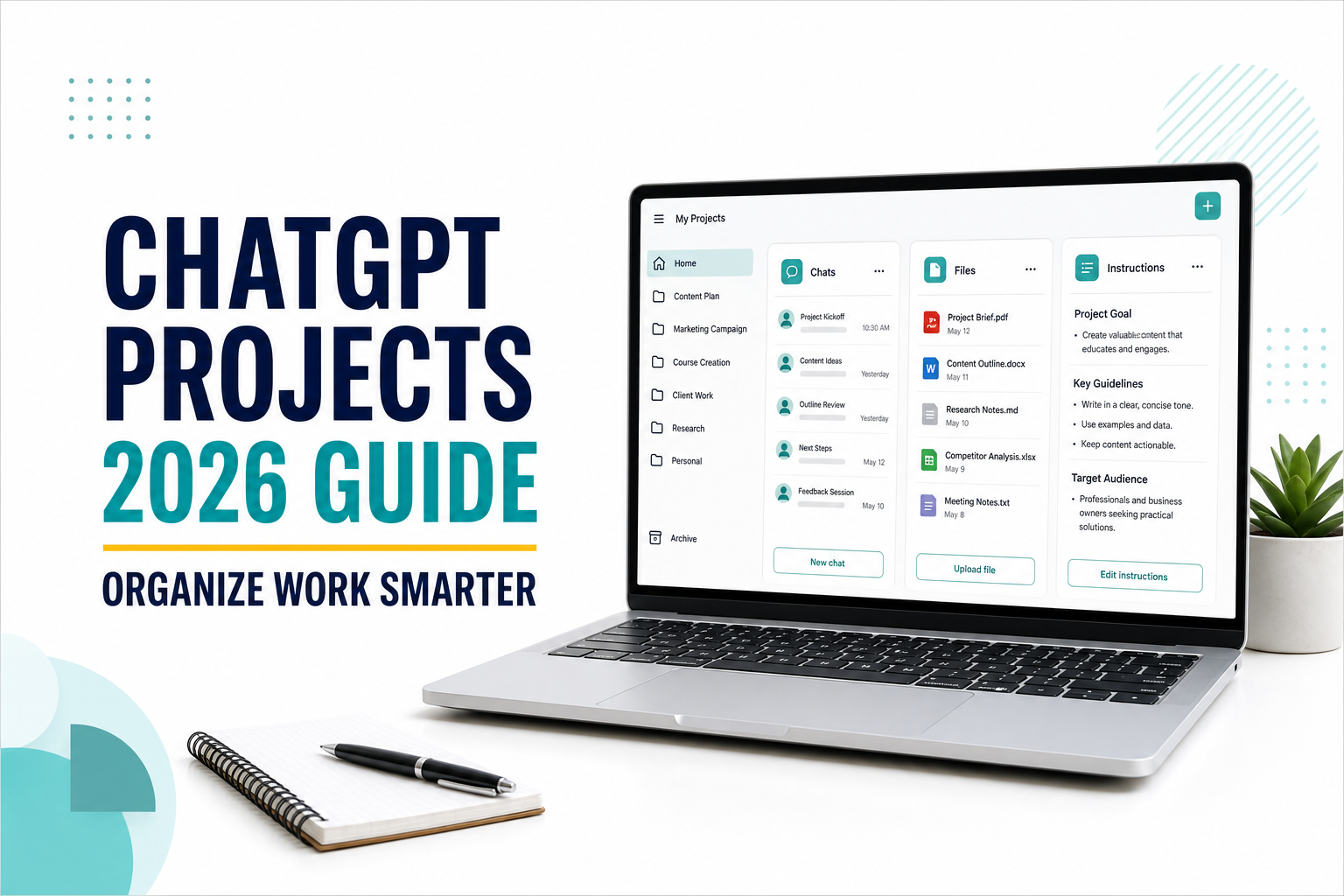
  • How to Use ChatGPT Projects (2026 Guide)

    How to Use ChatGPT Projects (2026 Guide)

    Starting a new ChatGPT conversation is easy. The harder part is keeping useful chats, reference files, instructions, and decisions organized when your work continues for days or weeks. ChatGPT Projects solves this problem by giving one ongoing task its own focused workspace.

    Instead of explaining the same background in every new chat, you can place related conversations and source material inside one project. ChatGPT can then work with the context that belongs to that project.

    In this guide, you will learn how to create a ChatGPT Project, add useful context, write project instructions, organize recurring work, and avoid common mistakes.

    Quick answer

    To use ChatGPT Projects, sign in to ChatGPT, select New project in the sidebar, name the project, and add the chats, files, and instructions needed for that work. Use a separate project for each long-running goal so its context stays focused.

    What Are ChatGPT Projects?

    ChatGPT Projects are dedicated workspaces for ongoing work. A project can keep related chats, uploaded files, project-specific instructions, and saved responses together. This makes it easier to return to a task without rebuilding the context from the beginning.

    OpenAI says Projects are available globally to signed-in users on free and paid ChatGPT plans. The tools and file limits available inside a project can still depend on your plan and workspace settings. You can confirm current details in the official OpenAI Projects guide.

    A project is especially useful when the work changes over time. Examples include a content calendar, job search, research report, course, marketing campaign, travel plan, or weekly business review.

    Regular chat vs. ChatGPT Project

    FeatureRegular chatChatGPT Project
    Best forOne question or a short taskOngoing, multi-step work
    ContextMainly the current conversationProject chats, files, and instructions
    OrganizationStored in the general chat listGrouped by one goal or subject
    InstructionsChat instructions or global preferencesInstructions written specifically for the project
    Returning laterYou may need to restate backgroundRelated context remains organized in one workspace

    How to Create a ChatGPT Project

    Step 1: Choose one clear goal

    Before creating a project, decide what belongs inside it. Avoid a name such as “Everything” or “General Work.” A focused name makes it easier to decide which chats and files should be included.

    • Good: 2026 Content Calendar
    • Good: Beginner Python Course
    • Too broad: Work and Personal Tasks

    Step 2: Select New project

    Sign in to ChatGPT and select New project in the sidebar. Enter a descriptive name. You may also be able to choose an icon and color, which helps when you manage several projects.

    Step 3: Choose the memory option carefully

    When creating a new project, ChatGPT may offer a choice between default memory and project-only memory. Project-only memory keeps the project self-contained: chats can reference other conversations in the same project but not conversations outside it.

    Choose project-only memory when you want a clear boundary between subjects, clients, courses, or sensitive work. OpenAI notes that project-only memory must be selected when the project is created; it cannot simply be added to an existing project later.

    Step 4: Add project instructions

    Open the project menu, select Project settings, and write instructions that apply only to this workspace. Project instructions can describe ChatGPT’s role, preferred tone, output format, audience, sources, or review process. They override your global custom instructions inside that project.

    Act as my content planning assistant.
    Write for beginners in clear English.
    Use short paragraphs, practical examples, and descriptive headings.
    Separate verified facts from suggestions.
    Before drafting, ask for the target keyword, reader, and goal.

    Step 5: Start the first chat

    Create a new conversation inside the project and explain the immediate task. Project instructions provide the working rules, while your first message should describe the specific result you need now.

    If you are new to the interface, begin with our guide on how to use ChatGPT for beginners.

    How to Add Useful Context

    Upload reference files

    You can add reference material such as PDFs, documents, spreadsheets, images, or pasted text. ChatGPT can use these sources when answering questions inside the project. Upload only material that is relevant to the project’s goal.

    File limits depend on your ChatGPT plan, and only a limited number of files can be uploaded at once. If a large source is unnecessary, upload the most relevant section instead.

    Move an existing chat

    If a useful conversation already exists, open its menu and choose Move to project, or drag it into the project when that option is available. After moving, the chat inherits the project’s instructions and file context.

    Some chats may not be eligible to move. For example, OpenAI says conversations created with a custom GPT cannot currently be moved into a project.

    Save a useful response as a source

    When ChatGPT creates a decision note, approved outline, summary, or reusable draft, open the response menu and save it to the project sources when that option appears. This gives later chats a stable reference instead of forcing you to search through old messages.

    7 Practical Ways to Use ChatGPT Projects

    1. Manage a content calendar

    Keep your audience notes, keyword plan, published URLs, outlines, and editorial instructions in one project. Use separate chats for topic research, drafting, editing, and internal linking while keeping the same overall context.

    2. Run a recurring work review

    Create a project for weekly plans, meeting notes, status updates, and decisions. Return each week to summarize progress and prepare the next action list. For more ideas, see our practical guide to using ChatGPT for work.

    3. Organize a research project

    Upload relevant papers, reports, interview notes, and source summaries. Ask ChatGPT to compare claims, identify unanswered questions, and maintain a running list of sources that still need verification.

    4. Plan a job search

    Store your resume, career goals, skill inventory, and job descriptions. Use different chats for company research, resume tailoring, interview practice, and follow-up messages without mixing the project with unrelated conversations.

    5. Build a personal learning hub

    Keep your course outline, notes, reading list, and practice questions together. You can also use ChatGPT Study Mode inside a project for guided explanations and active practice.

    6. Plan a trip or major purchase

    Collect requirements, options, budgets, booking details, and decision criteria. Ask ChatGPT to update comparisons when prices or priorities change, but verify current details with official providers before buying.

    7. Maintain a consistent writing workflow

    Add examples of your preferred style and project instructions for tone, structure, and audience. Then use separate chats for outlines, first drafts, editing, and quality checks. Strong instructions still matter, so review our guide on how to write better ChatGPT prompts.

    A Reusable Project Setup Formula

    A useful project usually needs six elements:

    1. Goal: The result the project should produce
    2. Audience: Who will use or read the result
    3. Sources: The files and facts ChatGPT should use
    4. Rules: Tone, format, constraints, and approval requirements
    5. Workflow: The stages used repeatedly
    6. Quality check: How important claims and final outputs are reviewed

    Reusable template:

    This project is for [goal].
    The main audience is [audience].
    Use the uploaded [sources] as primary context.
    Follow these rules: [tone, format, and constraints].
    Our workflow is [stages].
    Before finalizing any output, check [quality criteria].
    Ask a clarifying question when required information is missing.

    Using Tools Inside a Project

    Projects can use many of the same ChatGPT tools available in regular conversations. Depending on your account, you may be able to use web search, image generation, Canvas, voice, Study Mode, connected apps, deep research, or agent features.

    Tool availability depends on your subscription, device, workspace controls, and current usage limits. A project organizes context; it does not automatically unlock tools that are unavailable on your account.

    Common ChatGPT Project Mistakes

    Putting unrelated work in one project

    A project becomes less useful when it contains unrelated goals, audiences, and files. Create separate projects when the context or working rules are different.

    Uploading files without explaining their purpose

    Do not assume ChatGPT knows which file is authoritative or what each source should be used for. Explain the role of important files in your project instructions or first message.

    Writing vague project instructions

    “Help me with work” is too broad. State the goal, audience, preferred format, constraints, and when ChatGPT should ask questions.

    Treating project memory as perfect storage

    Important requirements should still be written clearly in project instructions or saved sources. Do not rely on ChatGPT to recall every detail exactly, especially when accuracy matters.

    Trusting every generated claim

    Projects improve organization, not factual certainty. Verify important medical, legal, financial, technical, and current information with reliable primary sources.

    Privacy and Important Limitations

    • Do not upload passwords, private keys, payment information, or material you are not allowed to share.
    • Check your organization’s rules before uploading client, employee, school, or company documents.
    • Plan limits can affect file uploads, tools, messages, and collaborators.
    • Deleting a project removes access to its chats, files, and instructions; save essential final work elsewhere.
    • Shared projects create additional visibility, so review files and chats before inviting other people.

    Use ChatGPT Custom Instructions for preferences that should influence regular chats, such as tone and response format. Use Projects for a specific ongoing workspace with its own files, context, and project-level instructions.

    Frequently Asked Questions

    Are ChatGPT Projects free?

    Yes. OpenAI says Projects are available globally on free and paid ChatGPT subscription types. File limits and advanced tools vary by plan.

    How many ChatGPT Projects can I create?

    OpenAI currently says users can create an unlimited number of projects. Limits still apply to files, tools, messages, and collaboration based on the account.

    Can I upload files to a ChatGPT Project?

    Yes. Projects can use files such as PDFs, documents, spreadsheets, and images. The number of files allowed depends on your plan.

    Can I move an old chat into a project?

    Often, yes. Use the chat menu or drag the chat into a project when the option is available. Some conversations, including chats created with a custom GPT, may not be eligible.

    Can I share a ChatGPT Project?

    OpenAI currently supports project sharing for ChatGPT users, but collaborator limits and workspace controls vary by plan. Review access permissions before sharing files or conversations.

    What is the difference between a Project and a custom GPT?

    A Project organizes ongoing work with related chats, files, and instructions. A custom GPT is a reusable customized assistant that can be designed for a particular behavior or task. Use a Project to manage evolving work and a custom GPT when you need a reusable assistant configuration.

    If a document or code draft inside your project needs repeated, targeted revisions, move the work into Canvas. Our ChatGPT Canvas guide explains how to edit selected sections, compare versions, review suggestions, and export the finished result.

    Final Thoughts

    ChatGPT Projects are most useful when your work needs continuity. They reduce repeated setup by keeping related chats, files, instructions, and saved outputs in one focused workspace.

    Projects are designed for task-specific continuity. If you want ChatGPT to reuse helpful personal preferences across otherwise separate conversations, compare this workflow with our ChatGPT Memory guide.

    Start with one project that has a clear goal. Add only relevant sources, write practical instructions, and separate different subjects when their context begins to conflict.

    A well-organized project will not replace careful thinking or fact-checking, but it can make repeated work easier to manage and more consistent over time.

  • How to Use ChatGPT Study Mode (2026 Guide)

    How to Use ChatGPT Study Mode (2026 Guide)

    ChatGPT can give you a quick answer, but a quick answer does not always help you understand the subject. ChatGPT Study Mode is designed for a different kind of experience: it asks questions, explains ideas step by step, and checks whether you truly understand what you are learning.

    This makes it useful for learning a new concept, preparing for an exam, reviewing class notes, or working through a difficult problem without immediately jumping to the final answer.

    In this guide, you will learn how to turn on ChatGPT Study Mode, what it can do, how to write a strong first message, and how to use it responsibly as a study aid.

    Quick answer

    To use ChatGPT Study Mode, open a main ChatGPT conversation, select Tools in the message box (or type /), choose Study and learn, and describe what you want to study. You can also open it directly at chatgpt.com/studymode.

    What Is ChatGPT Study Mode?

    ChatGPT Study Mode is a learning experience built into ChatGPT. Instead of only providing a finished answer, it can guide you with questions, break a topic into smaller parts, explain ideas at different difficulty levels, and test your understanding.

    OpenAI says Study Mode is available globally on all ChatGPT plans and works with the models available in ChatGPT on the web, iOS, and Android. Availability of uploads, voice, and other tools can still depend on your plan, device, and current usage limits. You can confirm the latest details in the official OpenAI Study Mode guide.

    The main difference is the learning process. A normal chat may answer your question immediately. Study Mode is more likely to ask what you already know, where you became confused, or what step you would try next. This can encourage active thinking instead of passive copying.

    ChatGPT Study Mode vs. a regular chat

    FeatureRegular ChatGPTStudy Mode
    Primary goalAnswer questions and help complete tasksHelp you understand and practice a topic
    Typical responseMay provide a direct answerOften uses questions, hints, and guided steps
    Understanding checksYou usually request themCan include questions and feedback during the lesson
    Best forDrafting, brainstorming, quick explanations, and general tasksConcept learning, practice problems, note review, and exam preparation
    Can be turned offStandard conversation modeYes—deselect Study and learn from Tools

    How to Turn On ChatGPT Study Mode

    Step 1: Open a main ChatGPT conversation

    Sign in to ChatGPT and start a new regular conversation. If you are using a custom GPT, Project, or another specialized area and cannot find Study Mode, return to a main ChatGPT chat.

    Step 2: Open the Tools menu

    Select Tools near the message composer. You can also type / to open the available tool list.

    Step 3: Select Study and learn

    Choose Study and learn. Study Mode will remain active for that conversation until you open Tools again and deselect it.

    Step 4: Describe your learning goal

    Do not begin with only a broad word such as “biology” or “math.” Tell ChatGPT your level, the exact topic, your goal, your deadline, and what you already understand.

    I am a first-year college student studying introductory biology. I have an exam next Friday on enzymes. Explain the topic from the basics, ask me one question at a time, and give me feedback before moving to the next question.

    What Can ChatGPT Study Mode Do?

    • Teach a new concept: Begin with a simple explanation and add more detail gradually.
    • Guide problem-solving: Offer hints and questions instead of immediately revealing the final answer.
    • Prepare you for a test: Create practice questions, short quizzes, and focused review sessions.
    • Review study materials: Work with notes, worksheets, slides, images, or PDFs when uploads are available.
    • Check understanding: Ask open-ended questions and explain why an answer is correct or incorrect.
    • Adjust the difficulty: Make an explanation simpler, slower, more advanced, or more detailed.

    7 Practical Ways to Use ChatGPT Study Mode

    1. Learn a difficult concept from the beginning

    Study Mode can build an explanation in layers. Start by stating your current level and asking it to pause after each section.

    I am new to economics. Teach me opportunity cost using a simple everyday example. Pause after each section and ask me to explain the idea in my own words.

    2. Prepare for an exam

    Give ChatGPT your exam date, available study time, topics, and preferred question format. Ask it to identify weak areas rather than repeatedly testing what you already know.

    I have a history exam in five days and 40 minutes to study each day. Create a five-day review plan for the causes of World War I. Quiz me at the end of each session and adjust the next session based on my mistakes.

    3. Turn notes into a study session

    If file uploads are available, attach your notes, slides, syllabus, or worksheet. Tell ChatGPT which pages or sections matter. First ask it to summarize what it can read so you can catch missing or misread information.

    I uploaded my lecture notes. First list the main topics you can identify. Then teach me section 3, create five practice questions, and explain each mistake I make.

    4. Work through a practice problem

    Ask for hints and checkpoints rather than a complete solution. This is especially useful in mathematics, science, programming, and other subjects where the reasoning process matters.

    Help me solve this algebra problem, but do not give me the final answer. Ask what I would try first, give one hint at a time, and correct my reasoning when necessary.

    5. Understand why an answer is wrong

    Correct answers are useful, but understanding mistakes often produces deeper learning. Provide the question, your answer, and your reasoning.

    I selected answer B, but the correct answer is D. Ask me to explain my reasoning, identify the exact misconception, and give me a similar question to check whether I understand the correction.

    6. Create active-recall practice

    Instead of rereading the same notes, ask Study Mode to quiz you one question at a time. Require it to wait for your response before revealing feedback.

    Quiz me on these notes using active recall. Ask one question at a time, wait for my answer, score it from 1 to 3, and briefly explain what I should review.

    7. Run a short review session

    You do not need a long session. Tell ChatGPT exactly how much time you have and ask it to prioritize the most important material.

    I have 20 minutes to review photosynthesis. Spend 10 minutes on the key ideas, 7 minutes testing me, and the final 3 minutes summarizing what I still need to review.

    A Simple Prompt Formula for Better Study Sessions

    A useful Study Mode prompt usually contains six parts:

    1. Level: Your grade, course level, or experience
    2. Topic: The exact concept or chapter
    3. Goal: Learn, review, practice, or prepare for a test
    4. Current understanding: What you know and where you are stuck
    5. Method: Hints, questions, examples, quiz, or step-by-step teaching
    6. Constraint: Deadline, session length, difficulty, or source material

    Reusable template:

    I am a [level] student learning [specific topic]. My goal is to [goal]. I already understand [what you know], but I am confused about [difficulty]. Teach me using [method]. I have [time or deadline]. Check my understanding before moving to the next section.

    If you want to improve prompts for other tasks as well, read our guides to using ChatGPT for beginners and beginner-friendly ChatGPT prompts.

    For a broader prompt-writing framework that works beyond studying, see How to Write Better ChatGPT Prompts.

    Common Study Mode Mistakes

    Asking an overly broad question

    “Teach me chemistry” gives ChatGPT little direction. Name the topic, level, goal, and type of help you want.

    Requesting the final answer immediately

    If your goal is learning, ask for a hint, a question, or feedback on your reasoning before requesting the solution.

    Uploading material without identifying the section

    Large files can contain more information than you need. Point to the relevant page, chapter, worksheet question, or learning objective.

    Trusting every response without checking

    ChatGPT can make mistakes or misunderstand uploaded material. Verify important facts with your textbook, teacher, official course materials, or another reliable source.

    Ignoring school AI policies

    Rules for AI-assisted work differ by school, class, and assignment. Follow your instructor’s policy, cite AI use when required, and do not present generated work as entirely your own.

    Important Limitations

    • Study Mode can still produce incorrect or incomplete information.
    • It may occasionally provide a direct answer even when you want guided questions.
    • Its access to files, images, voice, and other tools depends on what is available in your chat.
    • It follows the same model, message, and usage limits that apply to your ChatGPT plan.
    • It does not replace a teacher, tutor, textbook, or official academic requirements.

    Treat ChatGPT Study Mode as a learning partner—not as an unquestionable source or a shortcut around doing the work.

    Frequently Asked Questions

    Is ChatGPT Study Mode free?

    OpenAI currently states that Study Mode is available on all ChatGPT plans globally. Normal plan limits still apply.

    Can Study Mode use PDFs and images?

    Yes, when uploads are available in your chat. You can attach notes, slides, worksheets, textbook excerpts, PDFs, or photos and tell ChatGPT which section to use.

    Can ChatGPT Study Mode create quizzes?

    Yes. Ask it to create practice questions, quiz you one question at a time, wait for your answers, and explain what you missed.

    Why can’t I find Study and learn?

    Make sure you are signed in and using a main ChatGPT conversation. Update or refresh the app, or open chatgpt.com/studymode directly. Study Mode may not appear inside some specialized surfaces.

    How do I turn Study Mode off?

    Open Tools in the message composer and deselect Study and learn.

    Final Thoughts

    ChatGPT Study Mode is most useful when you want to understand a topic rather than simply collect an answer. The quality of the session still depends on the information you provide and the effort you put into responding, checking, and practicing.

    Start with a specific learning goal, ask for one step at a time, explain your reasoning, and verify important information. Used this way, Study Mode can become a practical companion for learning new concepts, reviewing course materials, and preparing more actively for exams.

  • How to Write Better ChatGPT Prompts (2026 Guide)

    How to Write Better ChatGPT Prompts (2026 Guide)

    Learning how to write better ChatGPT prompts is one of the most valuable skills you can develop when using AI.

    Many people believe ChatGPT gives poor answers, but in reality, the quality of the response depends heavily on the quality of the prompt.

    A clear and detailed prompt helps ChatGPT understand your goal, context, audience, and desired format, leading to more useful and accurate responses.

    In this guide, you’ll learn practical techniques for writing better ChatGPT prompts, along with examples you can use immediately.

    Whether you’re writing blog posts, emails, reports, or business documents, better prompts help ChatGPT generate more relevant and accurate responses.

    By understanding a few simple prompt-writing techniques, you can save time, reduce revisions, and get significantly better results from AI.

    Why Prompt Writing Matters

    A prompt is simply the instruction you give ChatGPT.

    The more information you provide, the better ChatGPT can understand what you’re trying to accomplish.

    Well-written prompts help ChatGPT:

    • Generate more accurate responses
    • Reduce misunderstandings
    • Save time
    • Improve writing quality
    • Produce more useful results

    If you’re new to ChatGPT, start with our beginner guide:

    How to Use ChatGPT for Beginners

    If you’re looking for ready-to-use examples, check out:

    Best ChatGPT Prompts for Work

    How to Write Better ChatGPT Prompts guide with prompt writing examples

    Writing better prompts is not about making them longer.

    It’s about providing the right information in a clear and structured way.

    The following practical tips will help you communicate more effectively with ChatGPT and consistently receive higher-quality responses.

    10 Tips for Writing Better ChatGPT Prompts

    The following techniques can dramatically improve the quality of ChatGPT’s responses.

    10 tips for writing better ChatGPT prompts infographic

    1. Be Specific

    Avoid:

    Write an email.

    Better:

    Write a professional email to a client explaining a one-week project delay.

    2. Provide Context

    Tell ChatGPT who you are, what you’re trying to accomplish, and who the audience is.

    The more context you provide, the better the response.

    3. Describe Your Goal

    Instead of asking for information, explain what you want to achieve.

    Example:

    Help me create a blog outline for beginners interested in AI.

    4. Specify the Format

    Ask for:

    • Bullet points
    • Table
    • Step-by-step guide
    • Checklist
    • Email
    • Blog post

    Example:

    Present the answer as a comparison table.

    5. Define the Tone

    Examples:

    • Professional
    • Friendly
    • Formal
    • Casual
    • Persuasive

    6. Mention the Audience

    Example:

    Explain artificial intelligence to a 12-year-old.

    7. Break Large Tasks into Smaller Steps

    Instead of asking ChatGPT to complete everything at once, divide the task.

    This usually produces higher-quality results.

    8. Ask Follow-up Questions

    Good prompting is often conversational.

    Ask ChatGPT to:

    • Expand
    • Simplify
    • Rewrite
    • Improve
    • Add examples

    Each follow-up prompt helps ChatGPT better understand your expectations and improve the final response.

    9. Review the Output

    Always check important information before using it.

    Verify facts related to:

    • Finance
    • Medicine
    • Law
    • Business

    Important decisions should always be based on verified information from trusted sources.

    10. Keep Improving Your Prompt

    Your first prompt doesn’t have to be perfect.

    Small improvements often produce dramatically better answers.

    A Practical Before-and-After Prompt Test

    Consider a common workplace task: telling a client that a project will be one week late. The two prompts below ask for the same deliverable, but they give ChatGPT very different amounts of useful information.

    Version 1: A vague request

    Write an email about a project delay.

    This request identifies the task, but not the recipient, reason, revised date, tone, or next step. ChatGPT has to make assumptions, so the draft may sound generic or include details that do not match the situation.

    Version 2: A structured request

    Write a concise email to an existing client explaining that the website redesign will be delivered on August 14 instead of August 7 because final accessibility testing needs more time.
    
    Acknowledge the inconvenience, take responsibility, and explain that the extra testing reduces the risk of problems after launch. Keep the tone calm and professional. Use a subject line, two short paragraphs, and a clear invitation to discuss any scheduling concerns. Do not invent discounts or additional project details.

    An illustrative result from the second prompt should be easier to use because the model no longer needs to guess the audience, facts, tone, structure, or prohibited details. The response can focus on communicating the delay instead of inventing the missing context.

    Why the second prompt is stronger

    • Task: Write a client email about a specific delay.
    • Context: The project, old date, new date, and reason are supplied.
    • Audience: The reader is an existing client.
    • Tone: Calm, professional, accountable, and concise.
    • Format: A subject line and two short paragraphs.
    • Boundary: The model is told not to invent compensation or project details.

    The lesson is not that every prompt must be long. It is that each instruction should remove an important ambiguity. If a detail will change whether the answer is usable, include it.

    Examples of Weak vs Strong Prompts

    Weak Prompt

    Write a blog post about AI.

    Better Prompt

    Write a 1,000-word beginner-friendly blog post about artificial intelligence.

    Use H2 and H3 headings, include practical examples, and keep the tone conversational.


    Weak Prompt

    Explain SEO.

    Better Prompt

    Explain SEO to a complete beginner using simple language.

    Include practical examples and a step-by-step guide.

    Common Prompt Formula

    A simple prompt structure is:

    Task

    Context

    Audience

    Format

    Tone

    Example:

    Write a 1,000-word blog post about AI productivity tools.
    
    Audience:
    Small business owners.
    
    Tone:
    Professional but easy to understand.
    
    Format:
    Use H2 and H3 headings with bullet points.

    Using a consistent prompt structure helps ChatGPT understand your request more accurately and produce better results.

    You can use this simple framework for almost any task, whether you’re writing emails, creating content, or planning projects.

    You can also use this framework in ChatGPT Study Mode to define your level, topic, goal, and preferred learning method before starting a guided study session.

    If you repeatedly ask for the same tone, response length, or formatting rules, save those preferences once with ChatGPT Custom Instructions and keep each task-specific prompt focused on the current goal.

    How to Diagnose a Weak ChatGPT Response

    When a response is disappointing, do not immediately rewrite the entire prompt. First identify the specific failure, then add the smallest instruction that addresses it.

    Problem in the responseLikely causePrompt improvement
    Too genericAudience, goal, or context is missingAdd who the answer is for and what decision or action it should support
    Too longNo length or priority was definedSet a word range and ask for only the most important points
    Wrong formatThe deliverable was not specifiedRequest a table, checklist, email, outline, or numbered steps
    Invented detailsThe model had to fill gapsSupply the facts and instruct it to label uncertainty instead of guessing
    Wrong toneThe relationship and tone were unclearDescribe the reader and use concrete tone words

    For an important factual task, add a verification instruction such as:

    Use only the information I provide and the sources you can verify. Separate confirmed facts from assumptions. If a claim cannot be verified, say so instead of guessing. Include links to the sources used.

    This instruction can reduce unsupported claims, but it does not guarantee accuracy. Review the sources yourself, especially for medical, legal, financial, safety, or other high-impact decisions. Our ChatGPT Search guide explains how to inspect citations and verify claims more carefully.

    OpenAI’s official prompt engineering best-practices guide likewise recommends clear, specific instructions, enough context, and iterative refinement after reviewing the first response.

    Common Mistakes to Avoid

    Avoid:

    • Being too vague
    • Missing context
    • Asking multiple questions at once
    • Forgetting the audience
    • Not reviewing the response

    Learn more:

    10 Common ChatGPT Prompt Mistakes

    If you’re new to ChatGPT, you may also enjoy:

    How to Use ChatGPT for Beginners

    Frequently Asked Questions

    Why are my ChatGPT answers too generic?

    Most generic responses happen because the prompt lacks enough detail or context.


    How long should a ChatGPT prompt be?

    There is no perfect length. A prompt should contain enough information for ChatGPT to understand your request.


    Can better prompts improve ChatGPT’s answers?

    Yes. Better prompts often lead to more accurate, detailed, and useful responses.


    Should I use ChatGPT or Google?

    ChatGPT is excellent for generating ideas, writing, and explaining concepts, while Google is better for finding recent information and official sources.

    Learn more:

    ChatGPT vs Google


    Can I reuse the same prompt?

    Yes.

    You can reuse prompts, but adjusting them to your audience, goals, and context usually produces better responses.

    Conclusion

    Better prompting is less about finding a secret phrase and more about reducing ambiguity. State the task, provide the context that affects the answer, identify the audience, define the output format, and set useful boundaries.

    Then review the response as a draft. If it is generic, inaccurate, too long, or poorly structured, diagnose that specific problem and refine one part of the prompt. This conversational approach is usually more effective than trying to write a perfect instruction on the first attempt.

    Clear prompts can improve relevance and reduce revisions, but they do not guarantee factual accuracy. Verify important claims with reliable primary sources and never treat a confident answer as proof.

    For repeated work, save the reusable structure and replace only the changing context. Over time, a small library of tested prompt templates can make ChatGPT more useful for writing, learning, planning, and everyday work.