The revision request in this test is fictional and sanitized. No real client, patient, or campaign data was used.
In my design and marketing workflow, the most useful ChatGPT Custom Instructions are not personality notes. They are repeatable quality-control rules that stop an unclear revision message from being treated as an approved production brief. In this field test, a short set of instructions improved one fictional handoff score from 18/25 to 24/25 by making missing dates, assets, approvals, and mobile requirements easier to audit.
I modeled the test on a problem I regularly face in clinic marketing work: a request arrives through a messenger, refers to an older design, asks for a premium look, and says the update is urgent—but does not include the exact date, approved copy, correct asset, mobile crop, or final approver. A polished answer is dangerous if it quietly turns those gaps into instructions.
I compared the same sanitized request twice, once without workflow instructions and once with them, and scored both against the same five review criteria.
The short version: save only stable rules in Custom Instructions. Preserve confirmed facts, label missing information, separate desktop and mobile work, name the required approvals, and stop before publication. Client names, dates, prices, campaign files, medical claims, and one-time requirements belong in the current prompt or a dedicated Project.
How I tested it
Step 1: Define the recurring failure before writing instructions
I did not begin by asking ChatGPT to sound more professional. I wrote down the failures that actually create rework: an assumed deadline, an undefined reference asset, a forgotten mobile crop, an unverified date, or a draft being presented as ready to publish. These are observable failures, so I could test whether an instruction changed them.
From that list I pulled four rules. Confirmed facts, like approved copy or a supplied desktop asset, have to stay visible instead of disappearing into a summary. Missing facts have to stay missing, not get filled with a plausible guess. Desktop and mobile checks stay separate, because a desktop version doesn’t prove the mobile crop is ready. And approval stays with a person: a useful draft isn’t permission to publish or send.
Step 2: Build one sanitized source request
The same fictional message was used to structure both the baseline and controlled example outputs shown below, so the only meaningful variable was the presence of Custom Instructions.
Please update next month's clinic website pop-up.
The text feels too crowded. Use the image from last month,
make it look more premium, change the date, prepare a mobile
version, and send it soon.
This request contains two useful signals—the existing layout feels crowded and both desktop and mobile work are expected—but it is not a production brief. “The image from last month,” “more premium,” “the date,” and “soon” are unresolved references. It also omits the approved wording, file version, destination link, display period, dimensions, and final approver.
Step 3: Run the baseline without workflow instructions
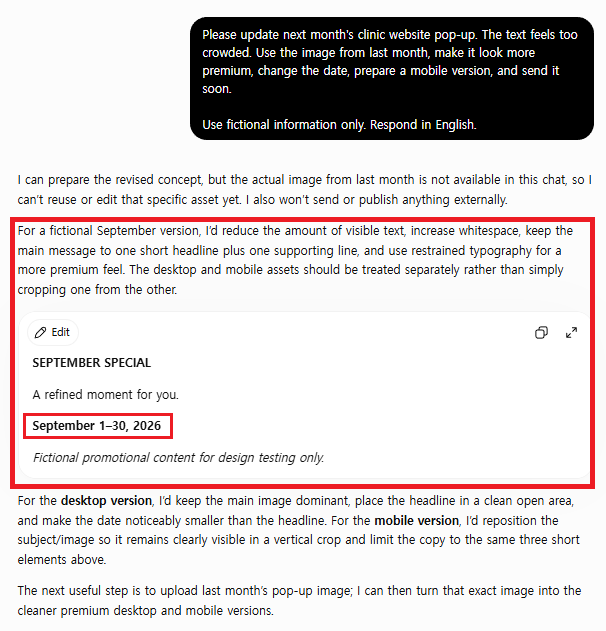
For the baseline, I opened a new regular chat and pasted only the fictional request. The response did several things well: it said the previous image was unavailable, refused to publish or send anything externally, and treated desktop and mobile as separate compositions. However, it also invented a campaign headline, the tagline “A refined moment for you,” and a September 1–30, 2026 date range that the source request never supplied.
The baseline was therefore useful as an early concept, not as a production handoff. It recognized one missing asset and stated a safe external-action boundary, but it did not provide a complete ledger of unresolved dates, copy, dimensions, destination, approvals, and reference material. Its main evidence failure was narrower than I expected but still important: plausible fictional copy and dates appeared inside an otherwise careful answer.
Step 4: Add stable Custom Instructions
I converted each observed failure into a short account-level rule. I kept campaign-specific information out of the instruction block because Custom Instructions can influence unrelated conversations.
I use ChatGPT to organize design and marketing handoffs.

When a request contains both confirmed and missing information:
1. Separate "Confirmed inputs" from "Not confirmed."
2. Preserve the sender's wording without upgrading assumptions into facts.
3. Keep desktop and mobile assets as separate QA items.
4. List the approval owner and next action for each blocker.
5. Do not invent dates, prices, dimensions, filenames, links,
   medical claims, deadlines, or approvals.
6. If required evidence is missing, end with:
   "Publication status: Not ready."

Do not claim that content was published, sent, scheduled, or updated
unless I explicitly confirm that action.
These rules are intentionally narrow. They do not identify a real client, store confidential data, or force every response into the same style. They define how uncertainty and side effects should be handled across recurring handoff tasks.
Step 5: Run the same request in a new chat
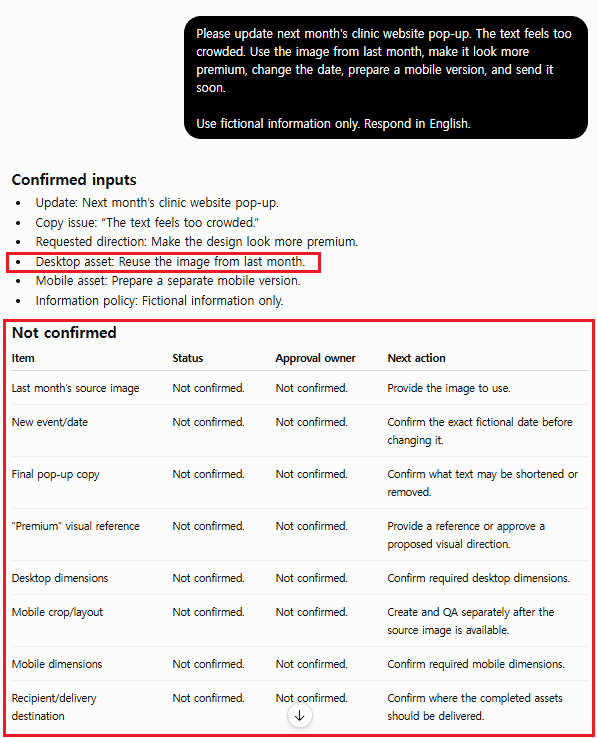
I saved the instructions, opened a fresh conversation, and submitted the same fictional request. The second response placed the source image, new event date, final copy, premium reference, desktop dimensions, mobile crop, mobile dimensions, and delivery destination in a “Not confirmed” table. It also supplied an approval owner and next action for each blocker before production could begin.
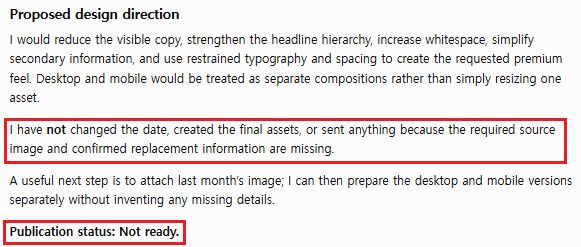
Most importantly, the response ended with “Publication status: Not ready” and stated that it had not changed a date, created final assets, or sent anything. One ambiguity remained: “Reuse the image from last month” appeared under Confirmed inputs even though the source image itself had not been supplied. The request to reuse it was confirmed; the asset was not. This distinction explains why the controlled result was scored 24/25 rather than treated as flawless.
Step 6: Score both outputs against the same criteria
I scored each response from 1 to 5 on five editorial criteria. These are my scores from one controlled trial, not a scientific benchmark. A different model version or session may phrase the answer differently.
| Review criterion | Baseline | With instructions |
|---|---|---|
| Original request preserved | 4/5 | 5/5 |
| Missing facts visible | 3/5 | 5/5 |
| Unsupported assumptions avoided | 3/5 | 4/5 |
| Desktop and mobile QA separated | 5/5 | 5/5 |
| Usable designer handoff | 3/5 | 5/5 |
| Total | 18/25 | 24/25 |
The six-point gain came from decision visibility, not from a more impressive tone. The controlled answer exposed a fuller set of questions before design work started and attached owners and next actions to them. I deducted one point because the “reuse last month’s image” direction appeared under Confirmed inputs even though the actual source asset remained unavailable.
Field note: The most tempting mistake is turning Custom Instructions into a client file. They apply across all your conversations, so a campaign date or client name saved there can show up in an unrelated chat weeks later. Keep real names, patient information, unpublished schedules, prices, file paths, and credentials out of them entirely.
A few other lessons from this test. A consistent format isn’t the same as verified facts: a response can follow every heading and still contain an unsupported date or link. “Be accurate” doesn’t change anything measurable, but “label every unavailable value Not confirmed” does. The handoff structure helps approval-sensitive work and gets in the way of early brainstorming, so don’t force it on every chat. And when you change an instruction, change one rule at a time and rerun the same request, so you can see what actually improved.
Where each kind of instruction belongs
I use this separation to decide where each instruction belongs. It prevents an old campaign requirement from silently affecting a new task.
| Information | Best location | Reason |
|---|---|---|
| Stable uncertainty rule | Custom Instructions | Useful across many chats |
| Preferred handoff structure | Custom Instructions | Repeatable output contract |
| Current campaign date | Live prompt | Task-specific and changeable |
| Approved copy and link | Live prompt or Project | Needs source evidence |
| Client files and reference assets | Dedicated Project | Workstream-specific context |
| Final publication approval | Human review | Must not be inferred |
A Reusable Custom Instructions Template
I use the following structure as a starting point and remove any line that does not repeatedly improve the work.
Role and recurring work:
I use ChatGPT for [repeated low-risk workflow].

Confirmed information:
Preserve facts exactly as supplied. Do not silently rewrite an
approval, date, number, filename, or link.

Missing information:
Label every unavailable value "Not confirmed."
List the owner and next action needed to resolve it.

Output:
Return [short sections or checklist] that separates confirmed inputs,
blockers, approvals, and next actions.

Boundaries:
Do not invent sources, dates, prices, dimensions, claims, deadlines,
or completed actions. Keep desktop and mobile requirements separate.

Stop condition:
If required evidence or approval is missing, end with
"[status phrase]."
This template follows the same practical principle I use for individual prompts: define the desired outcome, the evidence available, the constraints that matter, the expected output, and the condition that should stop the workflow. OpenAI’s current model guidance recommends clear outcomes, success criteria, constraints, output shape, and stopping rules for reliable task behavior. The developer documentation is not a guarantee for every ChatGPT interface, but the structure was useful in this field test.
How I Maintain the Instructions
I keep one sanitized test request that represents a recurring failure. Before changing anything, I run it in a new chat and record the result. Then I edit one instruction, rerun the same request, and score only what visibly changed. Any rule that adds length without improving accuracy, QA visibility, or handoff safety gets removed. I also reread the saved text whenever my workflow, tools, or privacy requirements change.
Field note: The most useful thing this test showed me was the deducted point. “Reuse the image from last month” landed under Confirmed inputs because the request to reuse it was confirmed, even though the image itself was never supplied. Instructions can make gaps visible, but a request for something and the thing itself are easy to blur. When you review a handoff, check every “confirmed” line by asking whether you can actually open the file or see the value.
If the requirement belongs only to one job, I put it in the current prompt. If it belongs to one continuing workstream with files and reference material, I use a dedicated Project. If it is a stable low-risk rule that should influence many conversations, I consider Custom Instructions.
For a deeper comparison of those context boundaries, read my Projects vs Memory vs Temporary Chat test. For task-level evidence and stop rules, see the marketing handoff prompt field test.
FAQ
Should I store client or patient information in Custom Instructions?
No. I use sanitized role and workflow rules only. Real patient, client, customer, employee, credential, pricing, schedule, and unpublished campaign information should stay out of account-wide instructions and should be handled according to the organization’s privacy and security requirements.
Why did the controlled result still require human review?
The instructions could expose missing evidence, but they could not create the correct source image, date, mobile crop, link, or approval. A safer answer identifies those blockers; it does not pretend the job is finished.
When should a rule stay in the prompt instead?
I keep a rule in the live prompt when it applies to one task: a campaign name, deadline, audience, exact dimensions, approved wording, reference file, or temporary output format. Custom Instructions are better for stable behavior that remains useful across unrelated chats.
The takeaway
This walkthrough did not show that longer instructions automatically produce better work. It showed that a few auditable rules can prevent an ambiguous revision message from looking more complete than it is. The useful improvement was visible uncertainty: confirmed facts stayed confirmed, missing inputs stayed missing, desktop and mobile QA remained separate, and publication stopped before unsupported action.
I would use this setup for recurring approval-sensitive handoffs, then verify every real date, asset, claim, link, and decision myself. That is a more valuable role for ChatGPT than asking it to sound confident when the source material is incomplete.