Tag: ChatGPT Projects

  • How to Use ChatGPT Projects (2026 Guide)

    How to Use ChatGPT Projects (2026 Guide)

    Starting a new ChatGPT conversation is easy. The harder part is keeping useful chats, reference files, instructions, and decisions organized when your work continues for days or weeks. ChatGPT Projects solves this problem by giving one ongoing task its own focused workspace.

    Instead of explaining the same background in every new chat, you can place related conversations and source material inside one project. ChatGPT can then work with the context that belongs to that project.

    In this guide, you will learn how to create a ChatGPT Project, add useful context, write project instructions, organize recurring work, and avoid common mistakes.

    Quick answer

    To use ChatGPT Projects, sign in to ChatGPT, select New project in the sidebar, name the project, and add the chats, files, and instructions needed for that work. Use a separate project for each long-running goal so its context stays focused.

    What Are ChatGPT Projects?

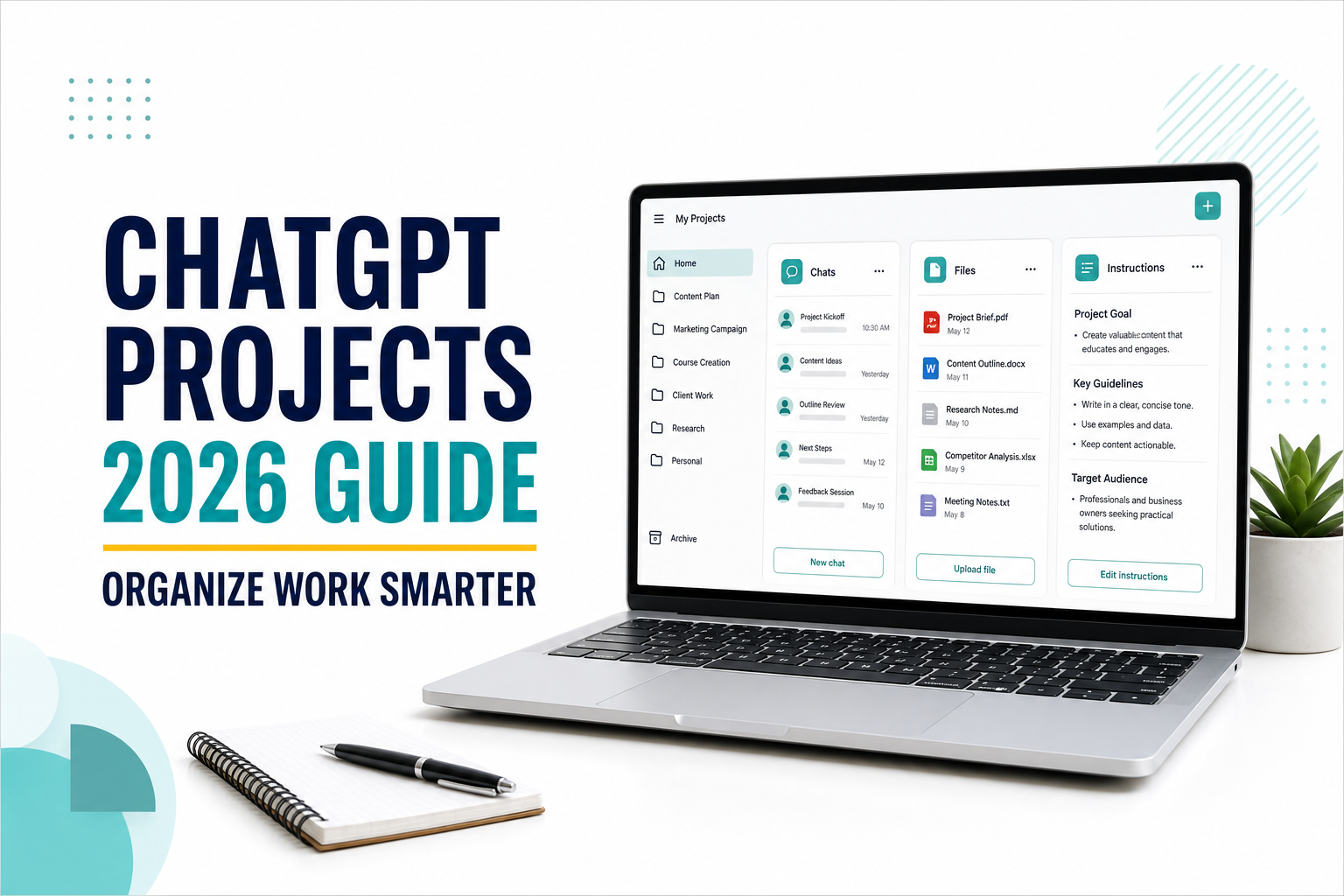
    ChatGPT Projects are dedicated workspaces for ongoing work. A project can keep related chats, uploaded files, project-specific instructions, and saved responses together. This makes it easier to return to a task without rebuilding the context from the beginning.

    OpenAI says Projects are available globally to signed-in users on free and paid ChatGPT plans. The tools and file limits available inside a project can still depend on your plan and workspace settings. You can confirm current details in the official OpenAI Projects guide.

    A project is especially useful when the work changes over time. Examples include a content calendar, job search, research report, course, marketing campaign, travel plan, or weekly business review.

    Regular chat vs. ChatGPT Project

    FeatureRegular chatChatGPT Project
    Best forOne question or a short taskOngoing, multi-step work
    ContextMainly the current conversationProject chats, files, and instructions
    OrganizationStored in the general chat listGrouped by one goal or subject
    InstructionsChat instructions or global preferencesInstructions written specifically for the project
    Returning laterYou may need to restate backgroundRelated context remains organized in one workspace

    How to Create a ChatGPT Project

    Step 1: Choose one clear goal

    Before creating a project, decide what belongs inside it. Avoid a name such as “Everything” or “General Work.” A focused name makes it easier to decide which chats and files should be included.

    • Good: 2026 Content Calendar
    • Good: Beginner Python Course
    • Too broad: Work and Personal Tasks

    Step 2: Select New project

    Sign in to ChatGPT and select New project in the sidebar. Enter a descriptive name. You may also be able to choose an icon and color, which helps when you manage several projects.

    Step 3: Choose the memory option carefully

    When creating a new project, ChatGPT may offer a choice between default memory and project-only memory. Project-only memory keeps the project self-contained: chats can reference other conversations in the same project but not conversations outside it.

    Choose project-only memory when you want a clear boundary between subjects, clients, courses, or sensitive work. OpenAI notes that project-only memory must be selected when the project is created; it cannot simply be added to an existing project later.

    Step 4: Add project instructions

    Open the project menu, select Project settings, and write instructions that apply only to this workspace. Project instructions can describe ChatGPT’s role, preferred tone, output format, audience, sources, or review process. They override your global custom instructions inside that project.

    Act as my content planning assistant.
    Write for beginners in clear English.
    Use short paragraphs, practical examples, and descriptive headings.
    Separate verified facts from suggestions.
    Before drafting, ask for the target keyword, reader, and goal.

    Step 5: Start the first chat

    Create a new conversation inside the project and explain the immediate task. Project instructions provide the working rules, while your first message should describe the specific result you need now.

    If you are new to the interface, begin with our guide on how to use ChatGPT for beginners.

    How to Add Useful Context

    Upload reference files

    You can add reference material such as PDFs, documents, spreadsheets, images, or pasted text. ChatGPT can use these sources when answering questions inside the project. Upload only material that is relevant to the project’s goal.

    File limits depend on your ChatGPT plan, and only a limited number of files can be uploaded at once. If a large source is unnecessary, upload the most relevant section instead.

    Move an existing chat

    If a useful conversation already exists, open its menu and choose Move to project, or drag it into the project when that option is available. After moving, the chat inherits the project’s instructions and file context.

    Some chats may not be eligible to move. For example, OpenAI says conversations created with a custom GPT cannot currently be moved into a project.

    Save a useful response as a source

    When ChatGPT creates a decision note, approved outline, summary, or reusable draft, open the response menu and save it to the project sources when that option appears. This gives later chats a stable reference instead of forcing you to search through old messages.

    7 Practical Ways to Use ChatGPT Projects

    1. Manage a content calendar

    Keep your audience notes, keyword plan, published URLs, outlines, and editorial instructions in one project. Use separate chats for topic research, drafting, editing, and internal linking while keeping the same overall context.

    2. Run a recurring work review

    Create a project for weekly plans, meeting notes, status updates, and decisions. Return each week to summarize progress and prepare the next action list. For more ideas, see our practical guide to using ChatGPT for work.

    3. Organize a research project

    Upload relevant papers, reports, interview notes, and source summaries. Ask ChatGPT to compare claims, identify unanswered questions, and maintain a running list of sources that still need verification.

    4. Plan a job search

    Store your resume, career goals, skill inventory, and job descriptions. Use different chats for company research, resume tailoring, interview practice, and follow-up messages without mixing the project with unrelated conversations.

    5. Build a personal learning hub

    Keep your course outline, notes, reading list, and practice questions together. You can also use ChatGPT Study Mode inside a project for guided explanations and active practice.

    6. Plan a trip or major purchase

    Collect requirements, options, budgets, booking details, and decision criteria. Ask ChatGPT to update comparisons when prices or priorities change, but verify current details with official providers before buying.

    7. Maintain a consistent writing workflow

    Add examples of your preferred style and project instructions for tone, structure, and audience. Then use separate chats for outlines, first drafts, editing, and quality checks. Strong instructions still matter, so review our guide on how to write better ChatGPT prompts.

    A Reusable Project Setup Formula

    A useful project usually needs six elements:

    1. Goal: The result the project should produce
    2. Audience: Who will use or read the result
    3. Sources: The files and facts ChatGPT should use
    4. Rules: Tone, format, constraints, and approval requirements
    5. Workflow: The stages used repeatedly
    6. Quality check: How important claims and final outputs are reviewed

    Reusable template:

    This project is for [goal].
    The main audience is [audience].
    Use the uploaded [sources] as primary context.
    Follow these rules: [tone, format, and constraints].
    Our workflow is [stages].
    Before finalizing any output, check [quality criteria].
    Ask a clarifying question when required information is missing.

    Using Tools Inside a Project

    Projects can use many of the same ChatGPT tools available in regular conversations. Depending on your account, you may be able to use web search, image generation, Canvas, voice, Study Mode, connected apps, deep research, or agent features.

    Tool availability depends on your subscription, device, workspace controls, and current usage limits. A project organizes context; it does not automatically unlock tools that are unavailable on your account.

    Common ChatGPT Project Mistakes

    Putting unrelated work in one project

    A project becomes less useful when it contains unrelated goals, audiences, and files. Create separate projects when the context or working rules are different.

    Uploading files without explaining their purpose

    Do not assume ChatGPT knows which file is authoritative or what each source should be used for. Explain the role of important files in your project instructions or first message.

    Writing vague project instructions

    “Help me with work” is too broad. State the goal, audience, preferred format, constraints, and when ChatGPT should ask questions.

    Treating project memory as perfect storage

    Important requirements should still be written clearly in project instructions or saved sources. Do not rely on ChatGPT to recall every detail exactly, especially when accuracy matters.

    Trusting every generated claim

    Projects improve organization, not factual certainty. Verify important medical, legal, financial, technical, and current information with reliable primary sources.

    Privacy and Important Limitations

    • Do not upload passwords, private keys, payment information, or material you are not allowed to share.
    • Check your organization’s rules before uploading client, employee, school, or company documents.
    • Plan limits can affect file uploads, tools, messages, and collaborators.
    • Deleting a project removes access to its chats, files, and instructions; save essential final work elsewhere.
    • Shared projects create additional visibility, so review files and chats before inviting other people.

    Use ChatGPT Custom Instructions for preferences that should influence regular chats, such as tone and response format. Use Projects for a specific ongoing workspace with its own files, context, and project-level instructions.

    Frequently Asked Questions

    Are ChatGPT Projects free?

    Yes. OpenAI says Projects are available globally on free and paid ChatGPT subscription types. File limits and advanced tools vary by plan.

    How many ChatGPT Projects can I create?

    OpenAI currently says users can create an unlimited number of projects. Limits still apply to files, tools, messages, and collaboration based on the account.

    Can I upload files to a ChatGPT Project?

    Yes. Projects can use files such as PDFs, documents, spreadsheets, and images. The number of files allowed depends on your plan.

    Can I move an old chat into a project?

    Often, yes. Use the chat menu or drag the chat into a project when the option is available. Some conversations, including chats created with a custom GPT, may not be eligible.

    Can I share a ChatGPT Project?

    OpenAI currently supports project sharing for ChatGPT users, but collaborator limits and workspace controls vary by plan. Review access permissions before sharing files or conversations.

    What is the difference between a Project and a custom GPT?

    A Project organizes ongoing work with related chats, files, and instructions. A custom GPT is a reusable customized assistant that can be designed for a particular behavior or task. Use a Project to manage evolving work and a custom GPT when you need a reusable assistant configuration.

    If a document or code draft inside your project needs repeated, targeted revisions, move the work into Canvas. Our ChatGPT Canvas guide explains how to edit selected sections, compare versions, review suggestions, and export the finished result.

    Final Thoughts

    ChatGPT Projects are most useful when your work needs continuity. They reduce repeated setup by keeping related chats, files, instructions, and saved outputs in one focused workspace.

    Projects are designed for task-specific continuity. If you want ChatGPT to reuse helpful personal preferences across otherwise separate conversations, compare this workflow with our ChatGPT Memory guide.

    Start with one project that has a clear goal. Add only relevant sources, write practical instructions, and separate different subjects when their context begins to conflict.

    A well-organized project will not replace careful thinking or fact-checking, but it can make repeated work easier to manage and more consistent over time.