Tag: ChatGPT Memory

  • ChatGPT Memory vs Temporary Chat: What’s the Difference? (2026 Guide)

    ChatGPT Memory vs Temporary Chat: What’s the Difference? (2026 Guide)

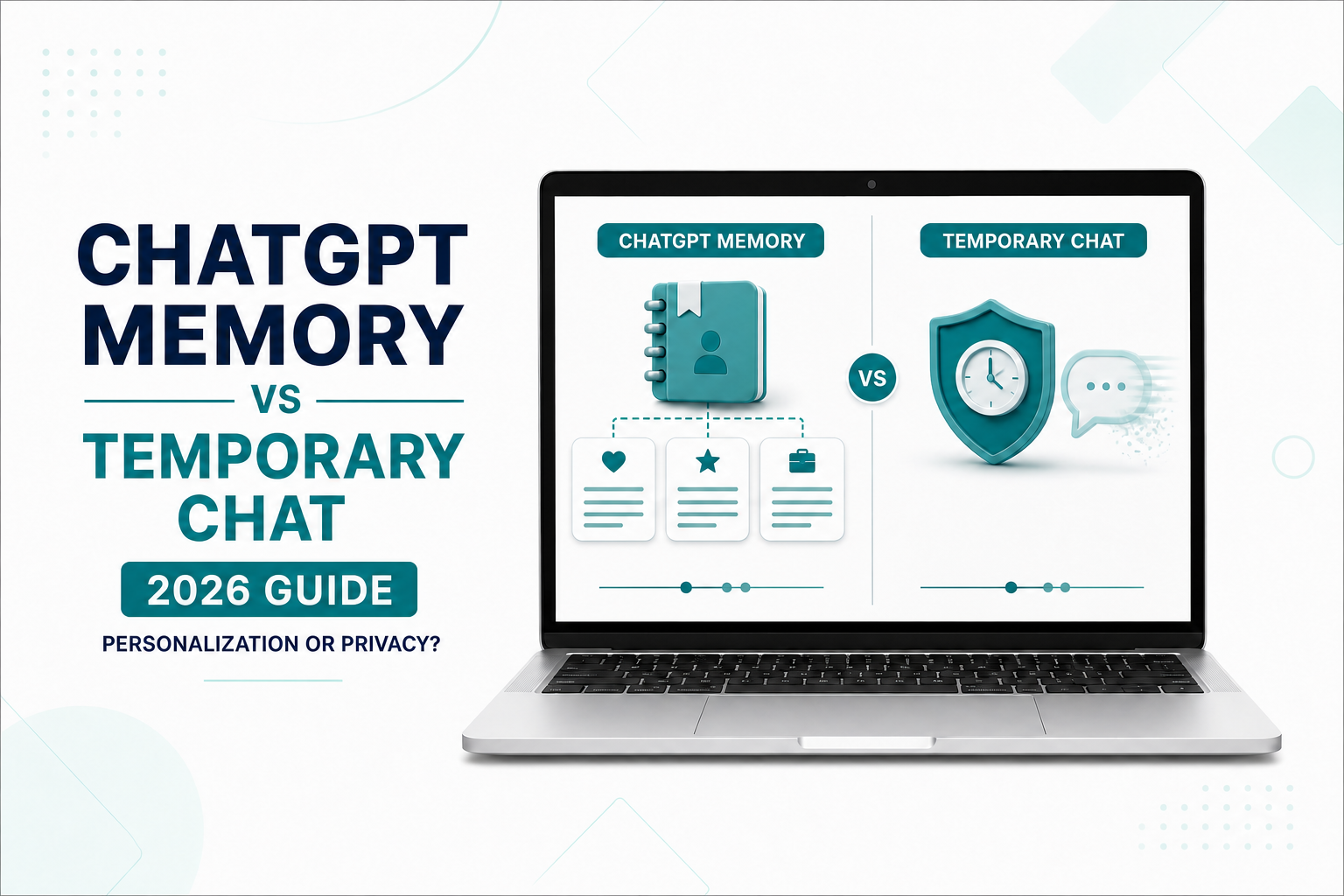
    ChatGPT Memory and Temporary Chat solve opposite problems. Memory is designed to make future conversations more personalized, while Temporary Chat is designed for one-off conversations that should not use or create memories for personalization.

    The names sound simple, but the privacy and history differences are easy to misunderstand. Temporary Chat is not the same as anonymous browsing, and deleting a normal chat does not necessarily remove information that was saved as a memory.

    This guide compares ChatGPT Memory vs Temporary Chat, explains when to use each option, and gives you a practical test you can run in your own account.

    Quick answer

    Use Memory when you want ChatGPT to personalize future conversations using useful context such as your preferences, goals, or recurring needs. Use Temporary Chat when you want a conversation that will not appear in your history and will not access or create memories for personalization.

    Neither option makes it appropriate to share passwords, payment details, confidential documents, or other secrets.

    What Is ChatGPT Memory?

    When Memory is enabled, ChatGPT can use useful context from your chats, files, and connected apps to personalize future responses. The goal is to reduce repetition. For example, it may remember that you prefer concise explanations, follow a vegetarian diet, or are working toward a particular learning goal.

    OpenAI’s current Memory FAQ describes a memory summary that updates as ChatGPT identifies useful context. You can review and correct this summary, although it may not display every factor that shaped a response.

    Memory is best treated as personalization context, not as a precise database. It should not be your only storage location for exact templates, critical facts, or long documents. For step-by-step controls, read our ChatGPT Memory guide.

    What Is Temporary Chat?

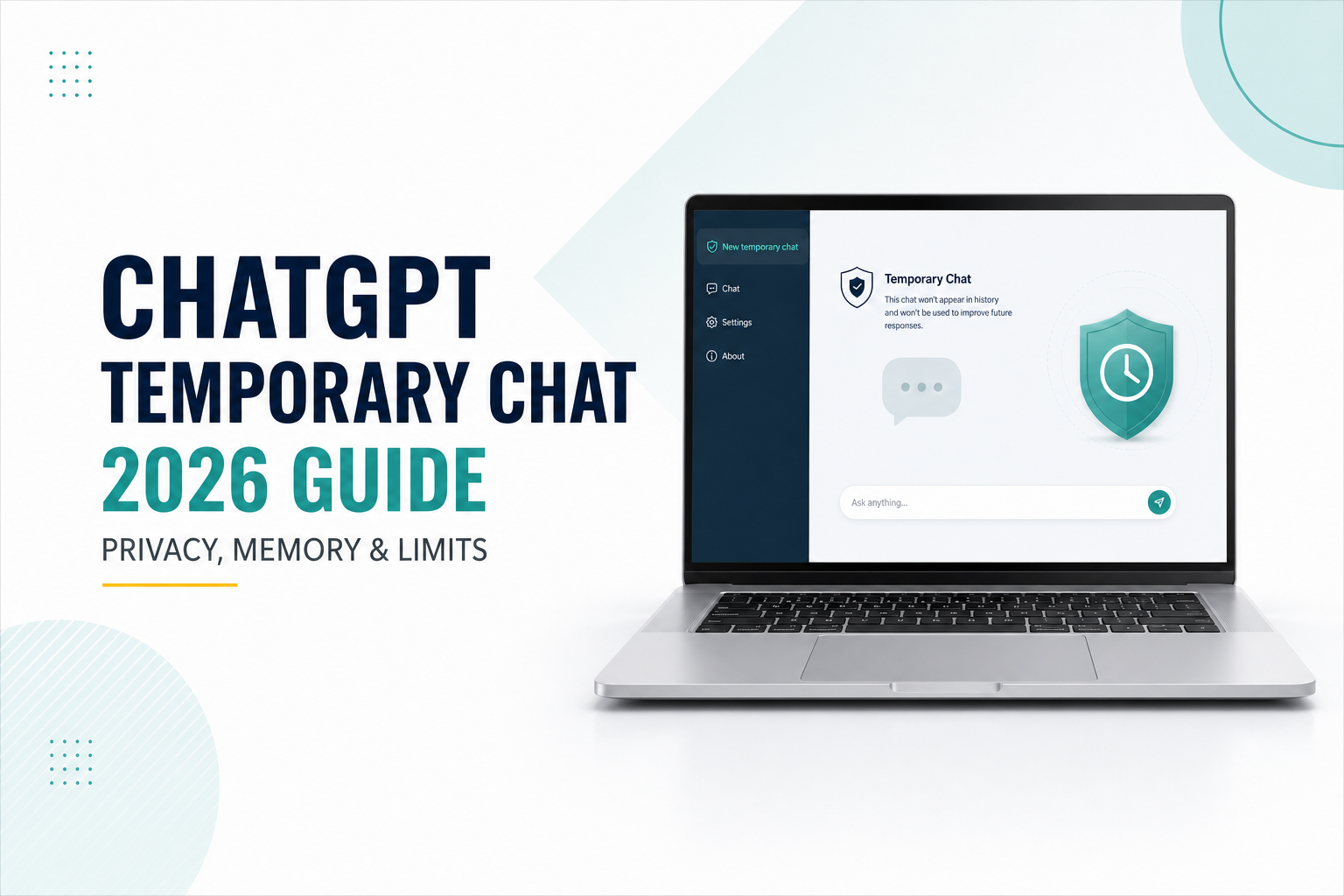
    Temporary Chat is a separate conversation mode for discussions you do not want added to your chat history or used as Memory personalization. According to OpenAI’s Temporary Chat FAQ, these chats do not access or create memories for personalization and are not used to improve OpenAI’s models.

    However, “temporary” does not mean invisible or anonymous. OpenAI says it may retain a copy for up to 30 days for safety purposes. Temporary Chat may also use limited safety-relevant context in rare high-risk situations, and it will still follow Custom Instructions when they are enabled.

    If you use a custom GPT with actions, information sent to a third party is covered by that recipient’s privacy policy and may be retained longer. See our complete ChatGPT Temporary Chat guide before using it for a sensitive topic.

    ChatGPT Memory vs Temporary Chat: Key Differences

    FeatureMemory-enabled chatTemporary Chat
    Primary purposePersonalized future conversationsOne-off conversation without Memory personalization
    Appears in chat historyYes, unless you delete the chatNo
    Uses memories for personalizationYes, when enabledNo
    Creates or updates memoriesIt may, when enabledNo
    Follows Custom InstructionsYes, when enabledYes, when enabled
    Used to improve modelsDepends on your plan and Data Controls, not Memory aloneNo
    Possible safety retentionNormal account and service retention rules applyA copy may be kept for up to 30 days
    Best forRecurring preferences, goals, and continuing workOne-time questions that should not enter history or Memory

    The most important difference is not “secure versus insecure.” It is personalized continuity versus a conversation that does not participate in Memory personalization.

    A Practical Example: Planning a Trip

    Use Memory for a recurring preference

    Imagine that you frequently ask ChatGPT for travel suggestions and prefer quiet hotels near public transportation. If you want that preference considered in later planning sessions, Memory can save you from repeating it.

    Remember that I prefer quiet hotels within a short walk of public transportation. When you suggest accommodation in future chats, prioritize those two requirements and tell me when a recommendation does not meet them.

    In a later regular chat, you could ask for accommodation in a new city without restating the preference. You should still verify that the response actually used the correct details instead of assuming Memory is complete or perfectly current.

    Use Temporary Chat for an unrelated one-time question

    Now imagine that you are helping someone else compare destinations and do not want their preferences mixed with yours. A Temporary Chat keeps that discussion out of your history and does not access or create memories for personalization.

    Compare Lisbon and Valencia for a traveler who prefers nightlife and rental cars. Treat this as a one-time scenario and do not assume these preferences describe me.

    The instruction improves clarity, while Temporary Chat prevents the conversation from participating in Memory personalization. The mode does not guarantee that every answer will be accurate, so prices, entry rules, and transportation details still require current sources.

    Try This Two-Chat Memory Test

    This reproducible test helps you understand the difference in your own account. It is a learning exercise, not a controlled benchmark: Memory availability and interface labels can vary by plan, region, device, and rollout.

    1. Open a regular chat with Memory enabled.
    2. Ask ChatGPT to remember a harmless preference, such as “I prefer explanations with one simple example before technical detail.”
    3. Open a second regular chat and ask, “Explain opportunity cost in the style I prefer.”
    4. Open a Temporary Chat and ask the same question.
    5. Compare whether the preference is reflected, and check any memory-source indicator available in your interface.

    How to interpret the result

    • If the second regular chat uses the preference, Memory is providing continuity.
    • If Temporary Chat does not use it, the mode is behaving as expected for Memory personalization.
    • If both answers look similar, that does not prove the Temporary Chat accessed Memory. The model may independently choose a similar response style.
    • If Temporary Chat follows a standing tone or formatting preference, check your Custom Instructions. OpenAI says enabled Custom Instructions still apply.

    When Should You Use ChatGPT Memory?

    Memory is usually the better choice when personalization will save time across multiple conversations.

    • You repeatedly ask for the same writing style or explanation level.
    • You have a continuing learning, fitness, travel, or productivity goal.
    • You want ChatGPT to consider stable preferences in future suggestions.
    • You are willing to review and correct what ChatGPT remembers.

    Memory is less suitable for exact specifications that must never drift. Store important templates, policies, numbers, and source documents in a reliable system and provide the relevant material when needed. For explicit response rules, Custom Instructions may be a clearer choice.

    When Should You Use Temporary Chat?

    Temporary Chat is useful when a conversation is separate from your normal context and does not need to be revisited later.

    • You are exploring a one-time hypothetical scenario.
    • You are asking on behalf of another person and do not want their preferences associated with yours.
    • You want to test how ChatGPT responds without Memory personalization.
    • You do not want the conversation to appear in your chat history.

    Temporary Chat is not a substitute for an approved confidential-work system. Do not paste passwords, payment details, medical identifiers, private client records, or unpublished business information simply because a chat is temporary.

    Privacy Limits People Often Miss

    Deleting a chat and deleting Memory are different

    Saved memories and chat history are separate. Deleting a conversation may not remove information saved as Memory. OpenAI advises removing the relevant memory and deleting every source where the information appears if you want to fully remove it.

    Temporary Chat can still follow Custom Instructions

    If a Temporary Chat seems personalized, review your Custom Instructions before concluding that it accessed Memory. Instructions about your preferred tone, profession, or response format can still shape the answer.

    Third-party actions have separate policies

    A Temporary Chat with a GPT action may transmit information to another service. That service can have different retention and usage rules, so review its privacy policy before sending data.

    A Simple Decision Checklist

    • Do I want this preference used again? Choose a regular chat with Memory enabled.
    • Do I want to return to this conversation later? Use a regular chat, then organize it if necessary.
    • Is this a one-time scenario unrelated to me? Temporary Chat may be the better fit.
    • Would disclosure cause harm? Do not enter the information in either mode.
    • Does the chat use a third-party action? Check the third party’s privacy policy first.

    Frequently Asked Questions

    Does Temporary Chat use Memory?

    It does not access or create memories for personalization. OpenAI notes that limited safety-relevant context may still be used in rare high-risk situations.

    Does Temporary Chat appear in history?

    No. It does not appear in your chat history. OpenAI may still retain a copy for up to 30 days for safety purposes.

    Is Temporary Chat completely private?

    No. It is a privacy control for history, Memory personalization, and model improvement—not an anonymous or zero-retention channel.

    Will deleting a chat erase a saved memory?

    Not necessarily. Saved memories are stored separately from chat history. Review Memory settings and remove the relevant sources as well as the original chat.

    Can I turn Memory off?

    Yes. Memory controls are available under Settings and Personalization, although exact labels and availability may vary as features roll out across plans and devices.

    Final Thoughts

    Choose ChatGPT Memory when continuity and personalization improve repeated work. Choose Temporary Chat when a discussion is one-off, should not appear in history, and should not participate in Memory personalization.

    The safest rule is independent of the mode: share only information you are comfortable providing to an online AI service, verify important answers, and review your settings instead of relying on a label alone.

    If you are new to these controls, start with our ChatGPT beginner guide, then compare the full Memory and Temporary Chat tutorials linked above.

    For a broader account-level privacy check, see our ChatGPT Data Controls guide, including model training, chat history, data export, and account settings.

  • How to Use ChatGPT Temporary Chat (2026): Privacy, Memory & Limits

    How to Use ChatGPT Temporary Chat (2026): Privacy, Memory & Limits

    Sometimes you want ChatGPT to help with a one-time question without adding that conversation to your history or using it to personalize future replies. ChatGPT Temporary Chat is designed for that situation.

    However, “temporary” does not mean invisible, anonymous, or safe for passwords and confidential records. It is important to understand what the feature does, what it does not do, and when a normal chat may still be the better choice.

    In this guide, you will learn how to start a Temporary Chat, how it differs from a regular conversation, what happens to history and Memory, and how to test the feature with a simple practical experiment.

    Quick answer

    Start a new ChatGPT conversation and select the Temporary option near the top of the page. A Temporary Chat does not appear in your history, does not create or use memories for personalization, and is not used to improve OpenAI’s models. OpenAI may still retain a copy for up to 30 days for safety purposes, and enabled Custom Instructions can still apply.

    What Is ChatGPT Temporary Chat?

    Temporary Chat is a conversation mode for short-lived sessions that you do not want saved in your normal ChatGPT history. It gives you a clean conversation that does not access or create memories for personalization.

    According to OpenAI’s Temporary Chat FAQ, these conversations are not used to improve its models. OpenAI may keep a copy for up to 30 days for safety purposes. Temporary Chat may also use limited information from earlier conversations for safety and security in rare high-risk situations.

    This makes the feature useful when you want a one-time session without the usual history and personalization behavior. It does not turn ChatGPT into an encrypted vault, and it does not make sensitive information safe to share.

    Temporary Chat vs. Regular Chat

    FeatureRegular ChatTemporary Chat
    Appears in chat historyYes, unless you delete itNo
    Uses saved Memory for personalizationCan, when Memory is enabledNo
    Creates new memoriesCan, when Memory is enabledNo
    Used to improve modelsDepends on your Data Controls settingNo
    Custom InstructionsCan applyCan still apply
    RetentionSaved until deleted under normal account rulesA copy may be kept for up to 30 days for safety
    Best forOngoing work and conversations you want to revisitOne-time questions and clean, non-personalized sessions

    If you want ChatGPT to remember useful preferences across conversations, read our ChatGPT Memory guide. If you are choosing between ongoing personalization and a one-off conversation, read our ChatGPT Memory vs Temporary Chat comparison. If you want to define reusable response preferences yourself, our Custom Instructions guide explains the difference.

    How to Start a Temporary Chat

    On the web

    1. Sign in to ChatGPT and open a new conversation.
    2. Select the pill-shaped Temporary button near the top-right area of the page.
    3. Confirm that the interface indicates you are in a Temporary Chat.
    4. Enter your question and continue the conversation normally.
    5. When you leave the chat, do not expect it to appear in your history.

    On mobile

    Open a new conversation in the ChatGPT app and look for the Temporary Chat control in the chat or model menu. Menu names and positions can change as the app is updated. If you cannot find it, update the official ChatGPT app and check the new-chat screen again.

    Before sharing anything, check the visible mode indicator. Starting a new conversation alone does not automatically make it temporary.

    Practical Test: Does Temporary Chat Use Your Preferences?

    You can test the difference without entering private information. The goal is not to prove that every response will be different. It is to observe whether known personalization appears in a normal chat but not in a Temporary Chat.

    Step 1: Choose a harmless preference

    Use a low-risk preference already stored in Memory, such as preferring vegetarian meals or short beginner-friendly explanations. Do not use your address, medical history, employer secrets, or financial information.

    Step 2: Ask the same question in a regular chat

    Suggest a simple dinner for tonight. Give me one main dish and a short shopping list.

    If ChatGPT knows you prefer vegetarian meals, the regular response may reflect that preference without you repeating it.

    Step 3: Repeat it in a Temporary Chat

    Open a Temporary Chat and submit the exact same prompt. The answer should not rely on saved Memory for personalization. It may therefore ask a follow-up question or suggest a more general meal.

    How to interpret the result

    • A different answer does not, by itself, prove that Memory caused the difference. AI responses can vary between runs.
    • A similar answer does not prove that Temporary Chat used Memory. The model may independently make the same common suggestion.
    • Run the test with two or three harmless preferences and look for a repeated pattern.
    • Remember that enabled Custom Instructions can still affect both conversations.

    The important result is behavioral: Temporary Chat gives you a session without normal history and Memory personalization, but it is not a scientific privacy audit or a guarantee of anonymity.

    5 Useful Ways to Use Temporary Chat

    1. Get a clean second opinion

    Personalization can be convenient, but sometimes you want an answer that is not shaped by remembered preferences. Ask the same low-risk question in a Temporary Chat and compare the assumptions made in each answer.

    Compare these two options using only the information I provide below. List your assumptions separately and do not infer my personal preferences.

    2. Brainstorm a one-time idea

    A quick gift idea, meal plan, fictional character, or weekend activity may not need a permanent place in your history. Temporary Chat keeps the session out of the sidebar, although the same privacy rules still apply.

    3. Test a prompt without personalization

    If you design prompts for other people, your own Memory can make a test look better than it really is. Running the prompt in Temporary Chat can reveal missing context that a new user would have to provide.

    Review this prompt as if you know nothing about me. Identify every missing detail that could materially change the answer, then ask no more than three clarifying questions.

    4. Use a GPT for a one-time task

    You can use Temporary Chat with GPTs, but be careful when a GPT uses actions or an outside service. OpenAI explains that data sent to third parties is governed by the recipient’s privacy policy and may be retained for longer than 30 days.

    5. Separate a short task from ongoing work

    Use Temporary Chat for a disposable session. Use a regular chat when you need to return to the conversation, and use ChatGPT Projects when you need a longer workspace with related chats, instructions, and files.

    What Temporary Chat Does Not Protect

    Temporary Chat improves control over history, training, and personalization, but it should not be treated as permission to paste sensitive data. Avoid entering:

    • Passwords, authentication codes, and recovery keys
    • Credit card, banking, tax, or government identification details
    • Confidential client, employer, legal, or unreleased product information
    • Private medical records or information about another person
    • School or workplace material that you are not authorized to upload

    Replace names and identifying details with placeholders, remove unnecessary sections from files, and summarize only the information required for the task. For important legal, medical, financial, academic, or business decisions, verify the output with qualified people and reliable primary sources.

    Temporary Chat, Training Settings, and Deleting Chats

    Temporary Chat is not the same as turning off “Improve the model for everyone.” According to OpenAI’s Data Controls FAQ, turning off that setting stops eligible normal conversations from being used to improve models, but those conversations can still remain in your history.

    • Use Temporary Chat when you want a conversation that does not appear in history and does not use or create Memory.
    • Turn off model improvement when you want normal saved chats but do not want eligible conversations used for model improvement.
    • Delete a regular chat when you no longer want it in your account history. Deleting a chat is different from clearing a separately saved Memory.

    OpenAI’s chat and file retention guide explains that Temporary Chats are automatically deleted from its systems within 30 days, subject to stated legal and safety exceptions. Policies and menu locations can change, so check the official documentation when retention matters.

    Common Temporary Chat Mistakes

    • Assuming “temporary” means anonymous: You are still using the service under its policies and account environment.
    • Entering secrets because the chat is not in history: History visibility is only one part of data safety.
    • Forgetting about Custom Instructions: Enabled instructions can still shape the answer.
    • Expecting to reopen the conversation later: Copy any non-sensitive result you need before leaving.
    • Ignoring third-party actions: A GPT action may send information outside OpenAI.
    • Using it for ongoing work: A normal chat or Project is usually better when continuity matters.

    Frequently Asked Questions

    Does Temporary Chat appear in history?

    No. OpenAI states that Temporary Chats do not appear in your chat history.

    Does Temporary Chat use Memory?

    It does not access or create memories for personalization. Limited safety-relevant context may still be used in rare high-risk situations, according to OpenAI.

    Are Temporary Chats used for training?

    No. OpenAI says Temporary Chats are not used to improve its models.

    Are Temporary Chats deleted immediately?

    Not necessarily. OpenAI may keep a copy for up to 30 days for safety purposes. Check the latest official retention information if this detail is important to your use case.

    Do Custom Instructions work in Temporary Chat?

    Yes. OpenAI states that Temporary Chat still follows your Custom Instructions when they are enabled.

    Can I upload files in Temporary Chat?

    Available tools can vary by plan, device, workspace, and current product limits. Even when uploads are available, remove personal and confidential information before sending a file.

    Final Thoughts

    ChatGPT Temporary Chat is useful when you want a clean, one-time conversation that does not appear in history or use Memory for personalization. It can also help you test prompts without relying on your usual remembered preferences.

    Its limits matter just as much as its benefits. A Temporary Chat can still be retained for up to 30 days for safety, enabled Custom Instructions can still apply, and third-party GPT actions follow the recipient’s privacy policy. It is not a secure place for passwords, private records, or confidential business information.

    Use Temporary Chat for disposable sessions, a regular chat for conversations you want to revisit, and Projects for longer work that needs organized context. Choosing the right mode is more useful than treating every conversation the same.

    If you want to keep normal chat history while opting out of model training, review our ChatGPT Data Controls guide before using Temporary Chat for every conversation.

  • How to Use ChatGPT Memory (2026 Guide)

    How to Use ChatGPT Memory (2026 Guide)

    ChatGPT Memory can make conversations more useful by carrying helpful context from one chat to another. Instead of repeating your preferences, goals, or working style every time, you can let ChatGPT use relevant details to personalize future responses.

    That convenience also creates an important responsibility: you should know what ChatGPT remembers, how to correct outdated details, and how to remove information you no longer want used.

    This guide explains how ChatGPT Memory works, how to test it with a controlled example, when to use Temporary Chat, and which details should never be treated as safe long-term memory.

    Quick answer

    To manage ChatGPT Memory, open your profile menu, go to Settings > Personalization > Memory, and review the available controls. You can also ask, “What do you remember about me?” Because labels and availability can vary by plan, region, device, and rollout, use the options shown in your own account as the final reference.

    What Is ChatGPT Memory?

    ChatGPT Memory is a personalization feature that can use useful context from previous interactions to make future answers more relevant. Depending on the experience available to your account, this may include information you explicitly asked ChatGPT to remember and context drawn from earlier conversations.

    A memory might be a high-level preference such as:

    • You prefer concise bullet-point answers.
    • You are learning beginner-level Python.
    • You avoid dairy when asking for recipe ideas.
    • You usually have 30 minutes available for a study session.

    Memory is best for durable context, not for exact documents, passwords, or large templates. It should reduce repetitive setup without becoming a place to store sensitive or irreplaceable information.

    ChatGPT Memory vs. Custom Instructions vs. Projects

    FeatureBest useScope
    MemoryPreferences and helpful context that may matter across chatsCan influence future conversations when enabled
    Custom InstructionsExplicit directions about how you want ChatGPT to respondApplied as direct account-level guidance
    ProjectsFiles, chats, and instructions for one ongoing area of workOrganized around a specific project

    Use Memory for information that should follow you across suitable conversations. Use Custom Instructions when you want to state a rule directly. Use Projects when the context belongs to one defined body of work rather than your general preferences.

    For a focused workspace with related chats and files, see our ChatGPT Projects guide.

    How to Turn On ChatGPT Memory

    Step 1: Open Settings

    Open ChatGPT, select your profile menu, and choose Settings.

    Step 2: Open Personalization

    Select Personalization, then open the Memory controls available in your account. The exact wording may change as OpenAI updates the feature.

    Step 3: Review the Controls

    Enable the memory options you want to use. If a memory summary or management page is available, review it before relying on personalization. You can turn Memory off later, but turning it off does not necessarily delete information that was already remembered.

    A Practical ChatGPT Memory Test

    The safest way to understand Memory is to test it with a harmless preference that is easy to recognize and easy to delete.

    1. Save a Clear Preference

    In a normal ChatGPT conversation, enter:

    Remember that I prefer weekly plans in a short checklist with no more than five items.

    Use a preference that does not contain sensitive information. The confirmation you see may vary, so do not assume that a detail was saved simply because the response sounds agreeable.

    2. Check What ChatGPT Remembers

    What do you remember about how I want weekly plans formatted?

    A useful result should identify the checklist preference without inventing extra requirements. If the answer adds details you never requested, correct them before continuing.

    3. Test It in a New Chat

    Create a simple weekly plan for practicing business English.

    Compare the response with your saved preference. Did it use a short checklist? Did it stay within five items? This gives you a concrete signal that personalization influenced the answer, although output can still vary from one response to another.

    4. Update the Preference

    Update that preference: weekly plans can contain up to seven items, and each item should include an estimated time.

    Ask what ChatGPT remembers again. The new version should replace or refine the earlier preference rather than creating two conflicting rules.

    5. Delete and Retest

    Forget my preference about weekly plan formatting.

    Then review your Memory settings and start another new chat with the same planning request. This final step checks whether the preference has stopped influencing future answers.

    Useful Things to Let ChatGPT Remember

    1. Answer format: concise bullets, step-by-step explanations, or short summaries.
    2. Learning level: beginner, intermediate, or advanced knowledge of a topic.
    3. Long-term goal: improving business English or learning a programming language.
    4. Recurring constraint: a normal session length or preferred level of detail.
    5. Accessibility preference: plain language, descriptive structure, or another non-sensitive presentation need.
    6. General dietary preference: vegetarian or dairy-free suggestions, when you are comfortable sharing it.

    Keep memories general and useful. If a detail is only relevant to one course, client, or assignment, a Project may be a better place for that context.

    What You Should Not Store in ChatGPT Memory

    • Passwords, recovery codes, or API keys
    • Credit card, bank, tax, or government identification numbers
    • Confidential client, employer, or student information
    • Private medical, legal, or financial records
    • Exact contracts, unpublished research, or proprietary documents
    • Anything you would not want influencing a future conversation

    Memory is a convenience feature, not a password manager, secure records vault, or source of truth. Store critical information in the system designed for it.

    How to View, Correct, or Delete Memories

    You can begin by asking:

    What do you remember about me?

    For a more controlled review, open Settings > Personalization > Memory and use the management options available to your account. Review memories periodically and remove details that are inaccurate, outdated, unnecessary, or more specific than expected.

    Deleting a chat does not automatically remove a saved memory created from that conversation. Turning Memory off also does not automatically erase existing saved information. To fully remove a detail, OpenAI advises deleting the memory and the original chat or other source where the information appeared.

    OpenAI states that a log of deleted saved memories may be retained for up to 30 days for safety and debugging. See the official Memory FAQ for the latest controls and retention details.

    When to Use Temporary Chat

    Use Temporary Chat when you want a conversation that does not access or create memories for personalization. It is useful for one-off questions, testing an unbiased response, or discussing a topic you do not want carried into future chats.

    According to OpenAI, Temporary Chats do not appear in chat history and are not used to improve its models. A copy may still be retained for up to 30 days for safety, and enabled Custom Instructions can still apply. If a custom GPT sends data to a third party through actions, that third party’s privacy policy applies.

    For current details, read the official Temporary Chat FAQ.

    Not sure whether Memory is appropriate for a particular conversation? Compare ChatGPT Memory and Temporary Chat to see how history, personalization, and retention differ.

    Memory and Model Training Are Different Settings

    Turning Memory off controls personalization; it is not the same as choosing whether your conversations help improve OpenAI’s models. That separate choice appears under Data Controls as Improve the model for everyone.

    If the training setting is enabled, OpenAI says content from chats and saved memories may be used to improve models for eligible consumer accounts. Business, Enterprise, and Edu content is not used for training by default. Review the current Data Controls FAQ for the settings that apply to your account.

    Common ChatGPT Memory Problems

    The response uses an outdated preference

    Ask ChatGPT what it remembers, correct the outdated detail explicitly, and review the Memory management page. Do not keep adding new versions of the same rule without removing conflicts.

    Memory does not appear to work

    Check whether Memory is enabled and whether the feature is available for your plan, region, and device. Also confirm that you are using a normal chat rather than Temporary Chat.

    The preference is too vague

    Replace “I like helpful answers” with a testable instruction such as “I prefer answers that begin with a three-bullet summary.” Clear, observable preferences are easier to review.

    A remembered detail is not suitable for every task

    Move task-specific instructions into a Project or state an exception in the current chat. General memory should not override the real requirements of a specific assignment.

    Frequently Asked Questions

    Is ChatGPT Memory always on?

    No. Memory can be controlled in Settings, and availability may vary by account, plan, region, device, and rollout.

    Can I ask ChatGPT what it remembers?

    Yes. Ask “What do you remember about me?” and then review the management controls in Settings for a more complete check.

    Does deleting a chat delete its saved memory?

    Not necessarily. Saved memories are managed separately from chat history. For full removal, delete the saved memory and the original chat or other source.

    Does turning Memory off erase existing memories?

    No. Turning it off stops the feature from being used in the same way, but existing saved information must be removed separately.

    Does Temporary Chat use Memory?

    Temporary Chat does not access or create memories for personalization, although enabled Custom Instructions can still apply.

    Should I use Memory for exact templates?

    No. Use a Project, document, or secure storage system for exact text and important records. Memory is better suited to high-level preferences and context.

    Final Thoughts

    ChatGPT Memory is most useful when it saves small amounts of stable, non-sensitive context that would otherwise be repeated in many conversations. Its value comes from continuity, but that continuity should remain visible and controllable.

    Start with one harmless preference, test it in a new chat, inspect the result, and then practice updating and deleting it. Review your memories regularly, use Temporary Chat when personalization is unwanted, and never rely on Memory as secure storage.

    If you use ChatGPT for structured learning, our ChatGPT Study Mode guide explains how to request step-by-step questions, practice, and feedback.

    Memory is only one part of ChatGPT privacy. Use our ChatGPT Data Controls guide to review model training, chat history, data exports, and account settings separately.