Note: The clinic scenario in this article is a fictional example used to illustrate how Temporary Chat handles isolated context. It does not describe a real client, patient, or business case. Some Temporary Chat product details below have been updated to reflect OpenAI’s current documentation and may differ from an earlier version of this article.
In this fictional walkthrough, a fresh Temporary Chat was asked to recover a fictional clinic-marketing packet stored in a separate Project. It did not retrieve the packet and returned “No prior work context available,” so the practical takeaway is: use Temporary Chat for isolated, one-off work, not for tasks that depend on saved Project context.
The interface notices below describe this behavior: by default, a non-personalized Temporary Chat does not appear in history and is not used to train models, while a separate safety notice states a copy may be kept for up to 30 days.
This article explains how to start Temporary Chat, what the two notices mean, how a controlled context-isolation walkthrough can be run, and what a human editor must still verify before using it for a real workflow. All clinic details in the example are fictional, and no patient, customer, or employee data was used.
Problem Breakdown & Direct Resolution
Use Temporary Chat when you need a clean, one-off conversation and do not need prior Project context. Do not treat it as anonymous storage: remove confidential information, verify critical output, and return to the original Project when continuity is required.
What Is ChatGPT Temporary Chat?
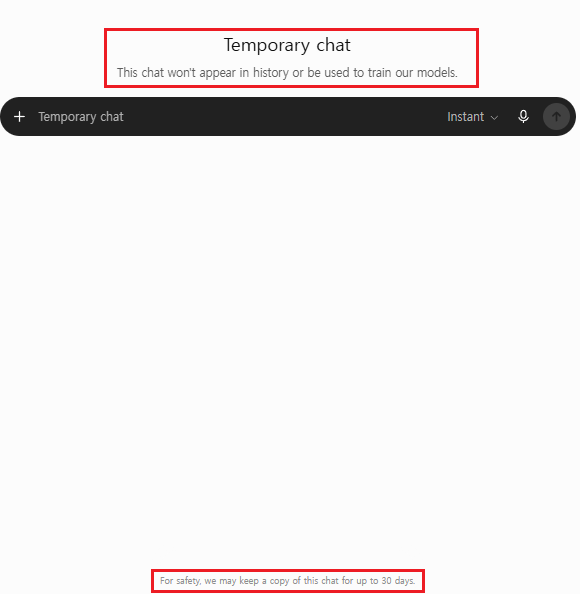
The interface describes an unsaved Temporary Chat: it does not appear in history and is not used to improve models while it remains temporary, while OpenAI may retain a copy for up to 30 days for safety. If the chat is saved, it becomes a regular chat and follows the account's usual settings.Temporary Chat is a conversation mode for short-lived sessions that you do not want saved in your normal ChatGPT history. By default it starts as a non-personalized Temporary Chat, meaning it does not use existing memories, Custom Instructions, or plugins; you can instead choose a personalized Temporary Chat when starting it, which can use those existing memories, Custom Instructions, and plugins.
According to OpenAI’s Temporary Chat FAQ, an unsaved Temporary Chat is not used to improve models while it remains temporary. If you save it, it becomes a regular chat and follows your account-level model-improvement setting. OpenAI may keep a temporary copy for up to 30 days for safety.
This makes the feature useful when you want a one-time session without the usual history and personalization behavior. It does not turn ChatGPT into an encrypted vault, and it does not make sensitive information safe to share.
Temporary Chat vs. Regular Chat
| Feature | Regular Chat | Temporary Chat |
|---|---|---|
| Appears in chat history | Yes, unless you delete it | No while it remains temporary; saving converts it into a regular chat in history |
| Uses saved Memory for personalization | Can, when Memory is enabled | No by default; a personalized Temporary Chat can use existing memories |
| Creates new memories | Can, when Memory is enabled | No while the chat remains temporary |
| Used to improve models | Depends on your Data Controls setting | No while it remains temporary; after saving, the regular chat follows your account setting |
| Custom Instructions | Can apply | No by default; a personalized Temporary Chat can use existing Custom Instructions |
| Retention | Saved until deleted under normal account rules | OpenAI may keep a copy for up to 30 days while temporary; saving converts it into a regular chat |
| Best for | Ongoing work and conversations you want to revisit | One-time questions; choose personalization when starting the chat and save only if you want regular-chat continuity |
If you want ChatGPT to remember useful preferences across conversations, read our ChatGPT Memory guide. If you are choosing between ongoing personalization and a one-off conversation, read our ChatGPT Memory vs Temporary Chat comparison. If you want to define reusable response preferences yourself, our Custom Instructions guide explains the difference.
How to Start a Temporary Chat
On the web
- Sign in to ChatGPT and open a new conversation.
- Select the pill-shaped Temporary button near the top-right area of the page.
- Confirm that the interface indicates you are in a Temporary Chat.
- Enter your question and continue the conversation normally.
- Unless you save it, do not expect the conversation to appear in your history after you leave. Saving converts it into a regular chat.
On mobile
Open a new conversation in the ChatGPT app and look for the Temporary Chat control in the chat or model menu. Menu names and positions can change as the app is updated. If you cannot find it, update the official ChatGPT app and check the new-chat screen again.
Before sharing anything, check the visible mode indicator. Starting a new conversation alone does not automatically make it temporary.
Field Decision Test: A One-Off Clinic Pop-Up Review
This scenario is based on a real type of work performed by the BJ Creates editor: reviewing homepage pop-ups, monthly event graphics, desktop and mobile crops, and customer-facing notices for clinic marketing. The example below is intentionally fictionalized. It contains no clinic name, patient information, real closure date, unpublished campaign copy, or customer list.
The question is not simply “Can Temporary Chat do this?” The useful question is: Is a blank-slate, non-persistent conversation the right place for this task after the input has been sanitized?
The original work problem
A vague request such as “make a monthly clinic schedule” often produces a generic calendar or invented filler. In the editor’s design workflow, that output is not ready for a real homepage pop-up. The visual must match the clinic’s brand, the notice must use verified dates, desktop and mobile crops must be checked separately, and final text or image artifacts may still require Photoshop review.
Temporary Chat can provide a clean space for testing a layout critique, but it does not solve missing source information and should not receive private records merely because the chat is temporary.
Sanitize the request before opening the chat
| Original information | Use in the test | Reason |
|---|---|---|
| Real clinic name and brand files | Replace with “[Fictional clinic]” and a written style description | The design principle can be tested without the real identity |
| Exact closure or reduced-hours date | Use “[Verified date]” | The task is layout review, not schedule verification |
| Patient or customer messages | Do not include | They are unnecessary for the design question |
| Unreleased campaign copy | Use neutral placeholder copy | Avoids disclosing confidential launch material |
| Desktop and mobile requirements | Keep as general dimensions or crop rules | These are needed to evaluate the workflow |
Controlled Temporary Chat prompt
This is a fictional design-review exercise. Do not infer a real clinic, date, or patient-facing message.

Review a homepage pop-up concept for [Fictional clinic].

Goal:
- communicate one verified closure date;
- look clean and premium;
- keep the date as the primary visual element;
- work in separate desktop and mobile crops.

Current concept:
- premium interior background;
- subtle translucent center panel;
- short headline;
- one date and one closure line.

Return:
1. the visual hierarchy;
2. desktop crop risks;
3. mobile crop risks;
4. details that must remain “Not confirmed”;
5. the final human/Photoshop checks.

Do not invent the date, approval status, clinic identity, or final public copy.
This prompt is useful because it asks for a critique rather than an automatically publishable asset. It preserves the editor’s real judgment: the background, panel, typography, and message must work together, and a polished image can still be unsuitable if the brand context or verified schedule is missing.
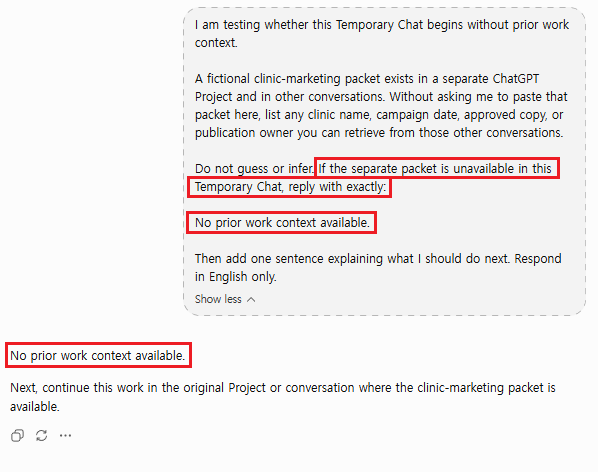
Screenshot from a single controlled run using a fictional clinic-marketing packet: Temporary Chat did not retrieve the separate Project packet and did not invent its missing details.Input-safety screen
| Question | Result for this fictional test | If the answer changes |
|---|---|---|
| Is the task one-off? | Yes | Use a Project or normal workspace if versions must continue |
| Has real personal or confidential information been removed? | Yes | Stop and use the employer-approved system |
| Can the task be completed without saved Memory? | Yes | Use a normal chat if continuity is necessary |
| Are connected apps or GPT actions unnecessary? | Yes | Review the third party’s privacy and retention terms first |
| Would retention for up to 30 days still be acceptable? | Yes, because the input is fictional | Do not submit the information if retention would be harmful |
Editorial decision: suitable after sanitization. The fictional prompt passes all five input checks, so Temporary Chat is a reasonable place to test the critique. This 5/5 screen evaluates the input decision, not ChatGPT’s security and not the quality of the final design.
What the editor would still verify
- The closure date against an approved source.
- The spelling and final public copy.
- The desktop crop at the actual website size.
- The mobile crop on a real device.
- Image artifacts, overly glossy surfaces, or broken-looking text.
- The final approval owner before publication.
The output is therefore a review aid, not a finished clinic notice. Temporary Chat changes the conversation’s memory and history behavior; it does not remove the need for accurate sources, brand review, Photoshop QA, or human approval.
Choose Temporary Chat by Task, Not by Fear
| Scenario | Better choice | Why |
|---|---|---|
| Fictional one-off pop-up critique with sanitized placeholders | Temporary Chat | No future continuity is needed |
| Monthly campaign with approved files, versions, and recurring instructions | Project or approved team workspace | The work needs controlled continuity and source files |
| Stable preference such as separating desktop and mobile QA | Memory, if non-sensitive and appropriate | The preference may help across suitable chats |
| Real patient data, customer contact details, or confidential records | Do not paste into a personal Temporary Chat | Use the organization’s approved privacy and security process |
| Testing whether Memory is influencing a harmless prompt | Temporary Chat | A default, non-personalized Temporary Chat does not use existing memories, does not create new ones, and does not use Custom Instructions |
OpenAI’s Temporary Chat FAQ says a default, non-personalized Temporary Chat does not appear in history, does not use existing memories or Custom Instructions, does not create new memories, and is not used to improve models while it stays temporary. OpenAI may still keep a copy for up to 30 days for safety, a personalized Temporary Chat (chosen at the start) can instead use existing memories and Custom Instructions, and data sent through GPT actions is governed by the recipient’s policy.
What Temporary Chat Does Not Protect
Temporary Chat improves control over history, training, and personalization, but it should not be treated as permission to paste sensitive data. Avoid entering:
- Passwords, authentication codes, and recovery keys
- Credit card, banking, tax, or government identification details
- Confidential client, employer, legal, or unreleased product information
- Private medical records or information about another person
- School or workplace material that you are not authorized to upload
Replace names and identifying details with placeholders, remove unnecessary sections from files, and summarize only the information required for the task. For important legal, medical, financial, academic, or business decisions, verify the output with qualified people and reliable primary sources.
Temporary Chat, Training Settings, and Deleting Chats
One more current detail matters for how you use this feature: a Temporary Chat can now be saved. Saving it converts it into a regular chat, which then follows your account’s normal history, personalization, and model-improvement settings. If you want a conversation to stay excluded from history and training, do not save it.
Temporary Chat is not the same as turning off “Improve the model for everyone.” According to OpenAI’s Data Controls FAQ, turning off that setting stops eligible normal conversations from being used to improve models, but those conversations can still remain in your history.
- Use a default non-personalized Temporary Chat when you want a conversation that does not appear in history while it remains temporary, does not use existing Memory, and does not create new memories. A personalized Temporary Chat can use existing memories but still will not create or update them while it remains temporary.
- Turn off model improvement when you want normal saved chats but do not want eligible conversations used for model improvement.
- Delete a regular chat when you no longer want it in your account history. Deleting a chat is different from clearing a separately saved Memory.
OpenAI’s chat and file retention guide explains that Temporary Chats are automatically deleted from its systems within 30 days, subject to stated legal and safety exceptions. Policies and menu locations can change, so check the official documentation when retention matters.
Common Temporary Chat Mistakes
- Assuming “temporary” means anonymous: You are still using the service under its policies and account environment.
- Entering secrets because the chat is not in history: History visibility is only one part of data safety.
- Forgetting the personalization choice: only a personalized Temporary Chat uses existing Custom Instructions; the default non-personalized mode does not.
- Expecting to reopen the conversation later without saving: an unsaved Temporary Chat will not appear in history, but you can save it to convert it into a regular chat.
- Ignoring third-party actions: A GPT action may send information outside OpenAI.
- Using it for ongoing work: A normal chat or Project is usually better when continuity matters.
Frequently Asked Questions
Does Temporary Chat appear in history?
Not while they remain unsaved. If you choose to save a Temporary Chat, it becomes a regular chat and appears in history.
Does Temporary Chat use Memory?
A default non-personalized Temporary Chat does not use existing memories and does not create new memories. A personalized Temporary Chat can use existing memories, but it still will not create or update memories while the chat remains temporary. OpenAI may also use limited safety-relevant context in rare, high-risk situations.
Are Temporary Chats used for training?
An unsaved Temporary Chat is not used to improve OpenAI’s models while it remains temporary. If you save it, it becomes a regular chat and follows your account-level model-improvement setting.
Are Temporary Chats deleted immediately?
Not necessarily. OpenAI may keep a copy for up to 30 days for safety purposes. Check the latest official retention information if this detail is important to your use case.
Do Custom Instructions work in Temporary Chat?
Only a personalized Temporary Chat uses existing Custom Instructions. The default non-personalized mode does not.
Can I upload files in Temporary Chat?
Available tools can vary by plan, device, workspace, and current product limits. Even when uploads are available, remove personal and confidential information before sending a file.
Final Thoughts
A default non-personalized Temporary Chat is useful when you want a clean, one-time conversation that does not appear in history while it remains temporary or use Memory for personalization. A personalized Temporary Chat is different because it can use existing memories and Custom Instructions.
Its limits matter just as much as its benefits. OpenAI may retain an unsaved Temporary Chat for up to 30 days for safety. Only a personalized Temporary Chat uses existing Custom Instructions, and data sent through third-party GPT actions follows the recipient’s privacy policy. Temporary Chat is not a secure place for passwords, private records, or confidential business information.
Use Temporary Chat for disposable sessions, a regular chat for conversations you want to revisit, and Projects for longer work that needs organized context. Choosing the right mode is more useful than treating every conversation the same.
For a side-by-side decision on context, retention, and privacy boundaries, read our ChatGPT Projects vs Memory vs Temporary Chat comparison.
If you want to keep normal chat history while opting out of model training, review our ChatGPT Data Controls guide before using Temporary Chat for every conversation.