BJ Creates

PRACTICAL AI GUIDES

How to Use ChatGPT Scheduled Tasks for Monthly Marketing QA

Written by

·

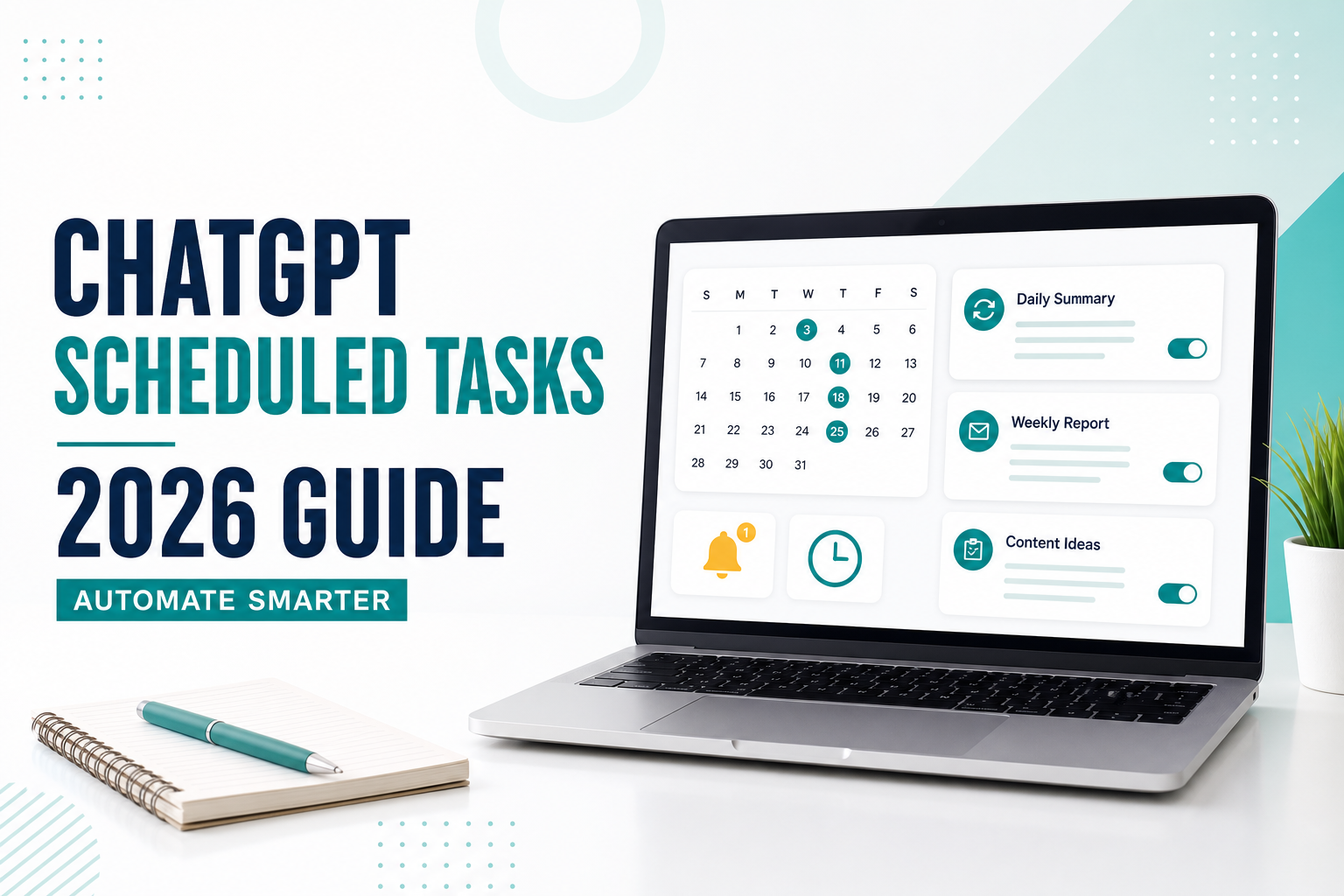
ChatGPT Scheduled Tasks guide with recurring task calendar and notifications

This walkthrough uses a fictional, sanitized clinic-marketing scenario to demonstrate how ChatGPT Scheduled Tasks can be structured. No real clinic, patient, customer, or employee data was used. The task setup shown in the screenshots below is the observed product action; the exact date and delivery path of the first automatic run are not independently confirmed.

A recurring reminder is useful only if it catches the work people actually miss. In this workflow test, I scheduled a monthly clinic-marketing QA checkpoint using a fictional, sanitized scenario to see whether ChatGPT could surface unconfirmed dates, missing mobile creative, and unchecked public hours without publishing or changing anything automatically.

The result shown below listed every unavailable input as “Not confirmed” and left all approvals and account changes to a person. This guide explains how the task was structured, what the example result returned, and where human verification was still required.

Quick answer

Open the Scheduled page in the ChatGPT sidebar on the web or mobile app, create a new task, describe what should happen and when, then review the confirmation. You can later edit, pause, resume, or delete the task from the Scheduled page.

What Are ChatGPT Scheduled Tasks?

ChatGPT Scheduled Tasks let ChatGPT perform an instruction at a future time or on a recurring schedule. According to OpenAI, tasks can also monitor for a change and notify you only when there is a meaningful update.

There are three useful task patterns:

  • One-time tasks: remind you about a specific event or follow-up.
  • Recurring tasks: run the same instruction daily, weekly, or on another schedule.
  • Monitoring tasks: periodically check for a change and report only when the condition is met.

This is different from a normal ChatGPT conversation. A normal chat waits for your next message. A scheduled task can run later and deliver a notification through the options available in your account.

How to Create a Scheduled Task in ChatGPT

Step 1: Open the Scheduled Page

Open Scheduled in ChatGPT. Availability depends on your account, app, and app version; if Scheduled does not appear in the desktop app, use ChatGPT on the web. Scheduled Tasks and Codex automations are separate features.

Step 2: Create a New Task

Select the option to create a task. You can also ask ChatGPT directly to schedule something, such as a future reminder.

Step 3: Describe the Outcome and Schedule

Include the task, timing, time zone, output format, and the condition for sending a notification. A clear instruction reduces ambiguity.

Every Monday at 8:30 AM Eastern Time, ask me to list my three most important work goals for the week. Then turn my response into a short plan with one next action for each goal. Keep the plan under 200 words.

Step 4: Review the Confirmation

Check the task name, schedule, time zone, and instruction before relying on it. If the timing is unclear, edit the task rather than assuming ChatGPT interpreted it correctly.

Step 5: Enable the Notifications You Want

Task updates can use the notification options available in your ChatGPT settings, such as push notifications or email. Browser and mobile operating-system permissions may also need to be enabled.

How to Manage ChatGPT Scheduled Tasks

The Scheduled page shows your tasks and their next run times. Open a task to review its previous result or use its controls to edit, pause, resume, or delete it.

You can also reach task management from ChatGPT settings under Notifications and Manage tasks. OpenAI notes that deleting the chat associated with a task automatically pauses that task. Deleting a task, however, does not delete its associated chat.

Choose the Right Scheduled Task Pattern

Before writing a task, decide whether you need a reminder, a recurring checkpoint, or monitoring. These patterns have different evidence requirements and different failure risks.

Task patternUse it whenControl and limitation
One-time reminderA known action has a known dateSet the exact time, time zone, and action; avoid critical alerts without a backup channel.
Recurring checkpointA human must review the same process regularlyDefine the checklist, missing-input labels, and review owner; never treat it as automatic publication or approval.
Monitoring taskA public or connected source may changeName the source, meaningful-change rule, and stop condition; do not use it for emergency, legal, medical, or financial monitoring.

Pattern 1: one-time follow-up

On September 3, 2026 at 10:00 AM America/New_York, remind me to review the homepage handoff.

Include these checks:
- approved mobile crop
- final destination link
- named approver

Do not say the page is ready to publish. Ask me to confirm each item.

This pattern works because the action and time are already known. If the date is uncertain, confirm it before scheduling the task.

Pattern 2: recurring process checkpoint

On the 20th of every month at 9:00 AM Asia/Seoul, ask me to review next month's marketing operations.

Collect the approved dates, copy, desktop creative, mobile creative, customer-message schedule, and public business hours.
Label missing items "Not confirmed."
End with an owner-and-deadline list.
Do not publish, send, or edit an external account.

This is the pattern used in the field test below. Its purpose is to surface missing inputs before production—not to automate a high-impact action.

Pattern 3: meaningful-change monitoring

Every weekday afternoon, check [named official public page].

Notify me only if the page shows a new update after [baseline date].
Include the page URL, the visible change, and the time checked.
If the source is unavailable or the change is ambiguous, report "Unable to verify."
Stop the task after [end date].

A monitoring prompt needs a specific source, a baseline, a meaningful-change rule, and an end condition. The alert is still a lead to verify, not proof that the underlying fact is correct.

Workflow Test: A Monthly Clinic Marketing Checkpoint

This is a reproducible workflow design based on a recurring clinic-marketing checklist used by the BJ Creates editor. It is not a claim that ChatGPT has been allowed to publish clinic information or make scheduling decisions. The goal is narrower: test whether a scheduled reminder can surface missing inputs early enough for a human to review them.

The recurring work includes preparing next month’s clinic closure notice, homepage pop-up, event message, desktop and mobile images, and special hours for Google Business Profile. The most common failure points are practical rather than technical: a date is not confirmed, a revision request is noticed late, or the mobile image check is forgotten.

The full clinic marketing workflow with ChatGPT expands this checkpoint into a verified source brief, separate channel drafts, desktop and mobile design QA, privacy boundaries, and human publication approval.

The controlled task prompt

On the 20th of every month at 9:00 AM in Asia/Seoul, remind me to prepare next month's clinic marketing update.

Ask me to confirm:
1. closure or reduced-hour dates
2. monthly event details and approved copy
3. desktop and mobile homepage pop-up images
4. customer message copy and send date
5. Google Business Profile holiday hours

If any item is missing, label it "Not confirmed" instead of inventing a value. End with a short owner-and-deadline checklist. Do not publish, send messages, or change business hours automatically.
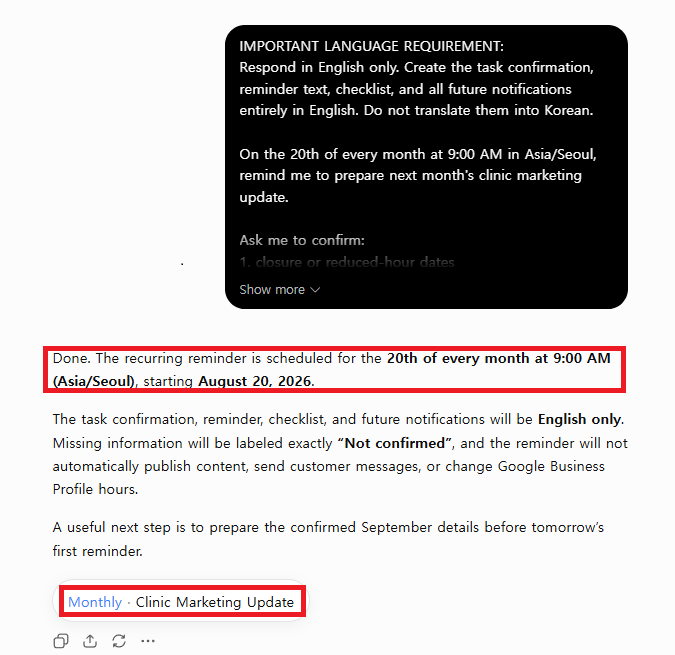
ChatGPT monthly marketing QA task scheduled for the 20th at 9 AM
The recurring monthly QA task was created for 9:00 AM in Asia/Seoul using a fictional, sanitized scenario. No real clinic, patient, customer, or employee data was used.

The date and time are deliberate.

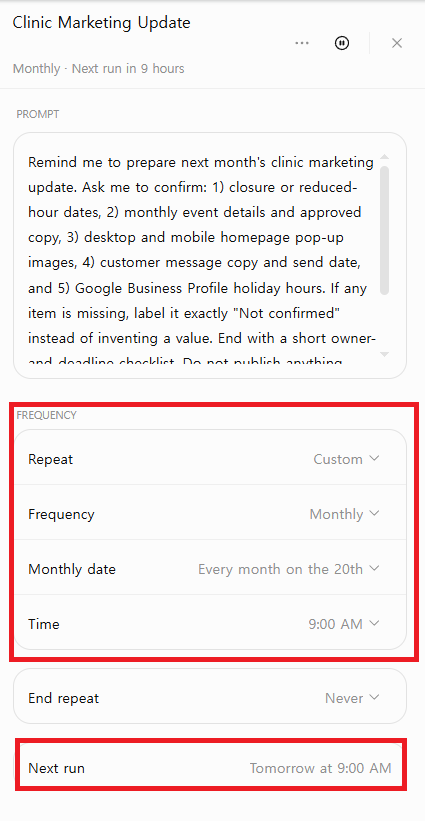
ChatGPT Tasks screen showing the monthly marketing QA reminder and next run
The task management screen shows a monthly schedule for the 20th at 9:00 AM, with a next-run time displayed for the following morning.

A checkpoint on the 20th leaves time for internal approval, design revisions, and mobile QA before the next month begins. The time zone removes ambiguity. If you adapt this prompt, replace Asia/Seoul with the time zone used by your team.

What a useful reminder should collect

CheckpointRequired inputHuman verification
Closure datesExact date and operating hoursFinal schedule sign-off
Event offer and copyApproved wording, dates, and restrictionsCompliance and brand review
Desktop creativeFile, version, and destination linkCrop, text, and visual QA
Mobile creativeMobile file, version, and destination linkSmall-screen readability check
Customer messageChannel, send time, and final copyApproval before sending
Google Business ProfileSpecial or holiday hoursVerify the public listing after the update

Why this is better than a vague reminder

A prompt such as “Remind me about next month’s marketing” may create a notification, but it does not define what “ready” means. The controlled version turns three real failure points—missed dates, late revision reviews, and forgotten mobile checks—into explicit questions. Its value is not that AI makes a final decision. Its value is that missing approvals become visible before publication.

What the Checkpoint Result Surfaced

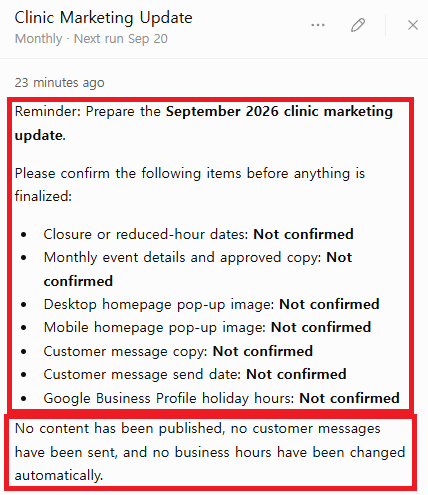
The result shown below listed every unavailable input as “Not confirmed,” kept desktop and mobile creative separate, and left publishing, messaging, and account changes for human review. The screenshots do not independently confirm the exact automatic delivery date or path.

ChatGPT Scheduled Task result listing unconfirmed monthly marketing QA items
The scheduled task result shown here lists every missing input as “Not confirmed” and leaves publishing, messaging, and account changes for human review.

The result was useful because it kept each checkpoint separate and marked every unavailable value instead of filling the gaps. It also distinguished desktop from mobile creative and stated that it had not published content, messaged customers, or changed business hours.

Evaluation criterionScoreReason
Missing inputs surfaced5/5All unresolved items were labeled
Channel separation5/5Website, message, and listing checks stayed distinct
Mobile QA visibility5/5The missing mobile crop became a named blocker
Unsupported actions avoided5/5No publishing or account change was claimed
Evidence of completion3/5The task surfaced missing inputs but still depended on people to provide approvals and proof.
Total23/25Useful checkpoint, not an automated completion system

This was one scheduled run, not a guarantee of identical behavior across models, plans, regions, or future product versions. The key limitation remained unchanged: the task could organize the information available to it, but it could not independently verify whether a design, schedule, customer message, or public listing had been approved.

Failure modes found during review

  • The task does not know current closure dates, event terms, or approved wording unless a person supplies them.
  • A reminder is not a publishing, approval, or project-management system. It should not be treated as proof that a change was completed.
  • ChatGPT cannot safely assume that it has the latest creative file or the final patient-facing copy.
  • A well-structured prompt can still produce an incorrect summary. Dates, restrictions, links, and public business hours require manual verification.
  • Patient names, medical details, appointment data, and other sensitive information should not be placed in this task.

Human verification gate

  • Confirm every date and operating hour with the authorized schedule.
  • Obtain compliance, brand, and final-copy approval.
  • Inspect both desktop and mobile creative at the sizes visitors will see.
  • Approve the message channel and send time before distribution.
  • After changing Google Business Profile hours, open the public listing and verify the result.

Practical takeaway: a scheduled task is most useful when it asks for evidence of completion and clearly marks unknown information. It should reduce the chance of an overlooked check—not replace the people responsible for accuracy, privacy, design quality, or publication.

A Simple Formula for Better Scheduled Task Prompts

A useful scheduled-task instruction usually contains six parts:

  1. Action: What ChatGPT should do
  2. Schedule: Exact day, time, frequency, and time zone
  3. Input: What information or source it should use
  4. Output: Required format, length, and audience
  5. Quality check: What must be verified or labeled
  6. Stop condition: When monitoring or repetition should end

Reusable template

Every [schedule and time zone], [perform the action]. Use [input or source]. Return the result as [format and length] for [audience]. Verify or label [important facts and assumptions]. Notify me only when [condition]. Stop when [end condition].

Clear preferences can also improve ordinary conversations. See our guide to ChatGPT Custom Instructions, but do not store confidential or task-specific information in permanent instructions.

Current Limitations and Checks

Scheduled Tasks can be useful, but their availability, limits, and supported tools may change by account, plan, device, workspace policy, and product update. Before relying on a task, verify what your own ChatGPT interface currently allows.

  • A reminder is not a source of truth: task output can be incomplete, outdated, or incorrect. Verify dates, names, prices, links, and public-facing claims.
  • Notification delivery depends on your settings: confirm that browser, desktop, or mobile notifications are enabled and test the task before an important deadline.
  • Access is not the same as approval: a task should not automatically publish content, send customer messages, change business hours, or make a high-impact decision without a human review step.
  • Connected information may be unavailable: do not assume that a task can see the latest file, chat, project material, calendar, or external service. State the required input or link explicitly.
  • Workspace rules still apply: managed accounts may restrict features, apps, or data access.
  • Scheduled Task availability, supported models, scheduling precision, and active-task limits can vary by plan, account, and workspace. Check the current OpenAI help page and your own Scheduled screen before choosing a plan or relying on a limit.

Confirm current availability and limits in the official OpenAI Scheduled Tasks guide and in your own ChatGPT task settings before choosing a plan or using the feature for an important workflow.

Privacy and Accuracy Tips

  • Do not place passwords, private client data, health information, payment details, or confidential company material in a task instruction.
  • Use official sources for monitoring tasks and open the source before acting on an important update.
  • Include a time zone whenever timing matters.
  • Define a stop condition for temporary monitoring tasks.
  • Review names, dates, figures, links, and assumptions in every result.
  • Use a normal calendar or dedicated alerting system for critical reminders that cannot be missed.

OpenAI also warns that ChatGPT can produce incorrect or misleading answers. Treat task results as drafts or alerts to review, not as automatically verified facts.

Frequently Asked Questions

Are ChatGPT Scheduled Tasks free?

Scheduled Tasks are available to eligible ChatGPT accounts, with availability and limits depending on plan and workspace settings. Check the current OpenAI help page and your own Scheduled screen for the details that apply to your account.

Can ChatGPT Scheduled Tasks send notifications?

Yes. Depending on your settings and device permissions, task updates can use available push or email notifications.

Can a scheduled task use files from a ChatGPT Project?

No. OpenAI currently states that a task created in a project cannot access the files stored in that project.

Why did my scheduled task pause?

A task may pause after inactivity, when it needs additional action, or when its associated chat is deleted. Open the Scheduled page to review, edit, or resume it.

Are Scheduled Tasks the same as ChatGPT Projects?

No. Projects organize related chats, files, and instructions. Scheduled Tasks run an instruction later or repeatedly. The two features can support the same workflow, but they serve different purposes and project files are not currently available to Tasks.

Can I use Tasks for important business decisions?

You can use Tasks to collect reminders, draft summaries, or surface information for review. Do not let an unchecked result make a financial, legal, hiring, safety, or other high-impact decision. Verify important information with primary sources and qualified people.

Final Thoughts

ChatGPT Scheduled Tasks are most useful when the instruction is repeatable, the timing is clear, and the result can be reviewed before action is taken.

Start with one low-risk task, such as a weekly planning check-in or a noncritical reminder. Include the time zone, output format, verification rule, and stop condition. After the first run, inspect the result and adjust the instruction before adding more tasks.

For more workplace ideas, read How to Use ChatGPT for Work. Better instructions make both ordinary chats and scheduled workflows easier to review and more useful.

About BJ Creates

BJ Creates publishes practical, beginner-friendly guides for using ChatGPT and AI tools clearly, effectively, and responsibly. We focus on useful steps, adaptable prompts, verification, privacy, and honest limitations.

Learn more about our editorial approach →

CONTINUE LEARNING

Choose the next step for your goal

Move from the fundamentals to better prompts, focused workflows, and more informed privacy choices.

START HERE

Learn the fundamentals

Build confidence with core ChatGPT features, safer habits, and clearer first requests.

Open the beginner guide →

IMPROVE YOUR PROMPTS

Ask with more clarity

Use a reusable structure to add context, constraints, and a useful output format.

Improve your prompts →

PRIVACY & CONTROL

Make informed choices

Understand training controls, memory, temporary chats, and important privacy limits.

Review privacy controls →