This guide walks through ChatGPT’s Data Controls settings and includes a separate, clearly labeled fictional exercise showing how a marketing editor might classify sensitive inputs. No real clinic, patient, customer, employee, or account data was used in that exercise.
This guide walks through opening ChatGPT Data Controls and checking the account-level model-improvement setting, followed by a separate fictional exercise showing how five clinic-marketing materials might be classified before publication.
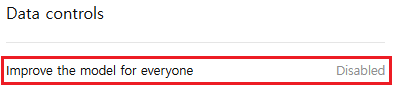
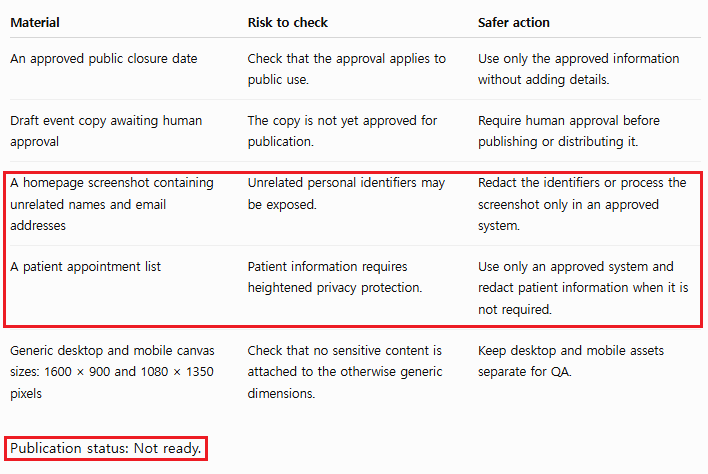
The account showed “Improve the model for everyone” disabled, but that setting did not determine whether a screenshot, draft campaign, or appointment list was safe to enter. The controlled test still required redaction, an approved system, or human approval and ended with “Publication status: Not ready.”
No real clinic, patient, customer, employee, or account data was used. This guide shows the exact audit sequence, what the setting does not prove, and the input decisions a human editor must still make.
Problem Breakdown & Direct Resolution
Data Controls create an account-level privacy baseline; they do not approve the next file or prompt. The direct resolution is to check the setting first, then classify each input separately before uploading or publishing anything.
A common mistake is to treat a disabled model-improvement setting as permission to enter sensitive material. The setting is not permission to enter patient, customer, employee, account, confidential, or otherwise restricted information; the safer approach separates confirmed public facts, unapproved drafts, identifiers, patient information, and generic design requirements into different risk categories.
What Are ChatGPT Data Controls?
Data Controls are settings that let you manage how ChatGPT handles your conversations and account data. The exact options may vary slightly depending on whether you are signed in, which device you use, your plan, and product updates.
For a signed-in personal account, the Data Controls area commonly includes options to:
- choose whether new conversations can help improve OpenAI’s models;
- export a copy of your ChatGPT data;
- permanently delete your account;
- access related privacy information and controls.
Memory controls are normally found under Settings > Personalization, not Data Controls. Temporary Chat is started from the main chat interface. Treat these as connected privacy tools rather than one master privacy switch.
Step-by-Step Actionable Troubleshooting
On the web
- Sign in to ChatGPT.
- Open your profile menu.
- Select Settings.
- Choose Data Controls.
- Review each option before changing it.
On the mobile app
- Open the sidebar menu.
- Tap your profile icon.
- Select Data Controls.
- Review the model-improvement setting and account options.
Improve the model for everyone controls eligible model-improvement use of conversations, and turning it off applies across devices for the same account. Turning it off does not delete chats; chats can remain in history. Interface wording and button locations can change, so use the setting names rather than relying only on screenshots.
Specification / Comparison Checklist
Data Controls answer account-level questions. They can help you decide whether eligible new conversations may be used to improve models, request a data export, or begin account deletion. They do not decide whether a particular client file, screenshot, medical detail, or unpublished campaign belongs in ChatGPT.
That distinction prevents a common privacy mistake: changing one setting and treating the entire workflow as approved. Model improvement, visible chat history, Memory personalization, Temporary Chat, third-party actions, and an employer’s data policy are separate layers.
| Question | Where to check | What the answer does not prove |
|---|---|---|
| May eligible new personal chats help improve models? | Data Controls | That the input is safe or authorized |
| Should a preference influence future chats? | Personalization and Memory | That a changing fact is current |
| Should this one-off chat avoid normal history and Memory? | Temporary Chat | That confidential data may be entered |
| Does a file, date, or approval need version control? | Project or verified source document | That Memory can replace the source |
| May this material be shared with an AI service? | Employer, client, legal, and security policy | Nothing in a personal ChatGPT setting overrides that decision |
Build a Six-Minute Account Privacy Baseline
The useful output of a privacy review is not “settings checked.” It is a short record of what was checked, what rule applies to future inputs, and when the decision should be reviewed again.
- Record the account context: personal account, managed workspace, device, and review date. Do not assume the same controls or policy apply to every account type.
- Check model improvement: confirm whether Improve the model for everyone matches your preference. Record the setting; do not treat it as an input-approval switch.
- Review Memory separately: inspect saved personalization under Settings and Personalization. Remove information that should not continue influencing suitable future chats.
- Inspect chats you no longer need: deleting a conversation and removing a saved memory are separate actions.
- List connected destinations: note custom GPT actions, connected apps, uploaded files, or other services that may receive information under separate terms.
- Write a personal input boundary: define information that will never be entered, regardless of the selected setting.
Reusable audit record
Account type:
Device checked:
Review date:
Model-improvement setting:
Memory reviewed:
Old chats reviewed:
Connected services or actions:
Information never entered:
Approved system for restricted data:
Next review date:
Human reviewer:
Keep this record outside the chat being audited. It is an operational note, not another prompt containing the same private information.
Input Classification Test: Clinic Marketing Materials
The BJ Creates editor works with clinic schedules, event messages, website pop-ups, separate desktop and mobile creative, and public business-listing updates. These tasks expose a gap that settings alone cannot solve: some information is confirmed and public, some is an internal draft, and some should remain in an approved organizational system.
The table is an editorial risk assessment, not a claim that changing a ChatGPT setting makes restricted data safe. Real clinic names, patient details, customer lists, credentials, and unreleased campaign data are excluded.
| Material | Risk to check | Safer action |
|---|---|---|
| Approved public closure date and business hours | A wrong source or outdated date can still create a public error | Use only the minimum confirmed facts and verify the date again before publication |
| Draft event copy awaiting approval | It may contain incorrect terms, pricing, or promises | Remove confidential details, label it as a draft, and require human approval |
| Homepage or mobile screenshot | It may expose names, email addresses, analytics, controls, or hidden browser tabs | Crop the image and redact every unrelated identifier before upload |
| Patient name, phone number, appointment, diagnosis, or medical record | Sensitive personal or health information | Do not enter it; use the approved clinical or messaging system |
| Internal revision request with employee or vendor details | Private identities, links, or unreleased plans may be exposed | Rewrite it as a fictional brief containing only the design problem |
| Generic desktop and mobile image dimensions | Usually low risk when separated from private project files | Use the requirement without attaching the original account or client material |
Test the structure with fictional data
Do not test tone by entering a real patient-specific request. A disabled training setting does not make this appropriate:
Write an appointment reminder for [real patient name]
using their phone number, appointment time, and treatment details.
If the goal is only to draft the structure, remove the original data and keep delivery inside the approved system:
Create a generic appointment-reminder template for a fictional clinic.

Use placeholders:
[DATE]
[TIME]
[APPROVED CONTACT METHOD]

Do not include a patient name, diagnosis, treatment, phone number,
or any real appointment information.

The template will be reviewed before use in an approved messaging system.
This safer version tests wording and layout without reproducing the sensitive record. It does not authorize the resulting template for automatic delivery.
The editor’s five-question gate
- Is the input necessary? Remove names, account details, dates, and files when the task works without them.
- Is the tool and workflow approved? A personal preference or disabled training setting is not organizational permission.
- Is the information already public and confirmed? Planned, drafted, and approved are different statuses.
- Can the problem be tested with fictional details? Preserve the structure of the task without exposing the original material.
- Who verifies the output? Assign a person to check dates, claims, links, design files, desktop and mobile presentation, and publication status.
Practical verdict
Data Controls create an account privacy baseline; they do not classify the next input for you. For clinic marketing work, the higher-value workflow is to use confirmed public facts, generic requirements, or fictional test material—and keep personal health information and private operational records in approved systems.
Use the separate Memory vs Temporary Chat decision audit when the remaining question is where a sanitized, non-sensitive task should live.
Exporting Your ChatGPT Data
Data export is useful when you want a copy of your account information before cleaning up conversations or deleting an account.
- Open Settings.
- Select Data Controls.
- Choose the data export option.
- Follow the confirmation instructions sent to your account email.
- Store the downloaded archive securely because it may contain personal conversation data.
An export is a copy, not a deletion request. Downloading it does not remove chats from ChatGPT. Likewise, deleting the downloaded file from your computer does not delete the source data from your account.
What Data Controls Cannot Guarantee
- Perfect secrecy: No online service should be treated as a secure place for passwords, private keys, or information you are not authorized to share.
- Immediate deletion in every situation: Retention periods, safety requirements, legal obligations, and third-party services can affect how long some data remains.
- Control over third parties: If a GPT uses an external action, information sent to that service follows the recipient’s privacy policy.
- Automatic removal of memories: Turning Memory off or deleting a conversation is not the same as deleting every saved memory.
- Identical options on every plan: Controls may vary by account type, workspace, region, device, and rollout status.
Real-World Pitfalls & Pro Tips
Assuming training off means history off
You can opt out of model training and still keep conversations in your history. Check both the training preference and the type of chat you are starting.
Deleting a chat but forgetting its saved memory
Saved memories and chat history are separate. Review both locations when you want to remove a remembered detail.
Treating Temporary Chat as anonymous
Temporary Chats start non-personalized by default and do not use memory, custom instructions, or plugins unless a user chooses a personalized Temporary Chat, which can use existing memories, custom instructions, and plugins but does not create or update memories while the chat remains temporary. An unsaved Temporary Chat does not appear in history and is not used to improve models while it remains temporary, but Temporary Chat is not the same as anonymous, zero-retention communication: OpenAI may retain a copy for up to 30 days for safety, and a Temporary Chat can be saved, which converts it to a regular chat following the account’s normal settings.
Sending feedback on a sensitive conversation
If you submit product feedback, the associated conversation may be used to improve models. Avoid providing feedback from a conversation containing information you would not want included in that process.
FAQ Section
Does turning off model training delete my chats?
No. OpenAI states that conversations can remain in your history while new chats are excluded from model training.
Does the setting sync between web and mobile?
Yes. OpenAI says the model-training preference applies across devices for the same account.
Do Temporary Chats behave like regular chats?
No. A default non-personalized Temporary Chat does not use memory, custom instructions, or plugins, and while it remains temporary it does not appear in history and is not used to improve models. OpenAI may retain a copy for up to 30 days for safety. Saving a Temporary Chat converts it into a regular chat that then follows the account’s normal personalization and model-improvement settings.
Does deleting a chat delete its memory?
Not necessarily. OpenAI says saved memories are stored separately. Delete the saved memory and the original chat when you want to fully remove a remembered detail.
Can I use ChatGPT for confidential work after changing these settings?
Only if your organization, contract, and applicable rules allow it. Data Controls are useful, but they do not override confidentiality obligations or authorize you to share someone else’s data.
Official Sources
- OpenAI Data Controls FAQ
- How your data is used to improve model performance
- OpenAI Temporary Chat FAQ
- OpenAI Memory FAQ
Final Thoughts
The best ChatGPT privacy setup is not one universal switch. Decide separately whether you want conversations saved, used for model improvement, or remembered for personalization. Use Temporary Chat for one-off conversations, review Memory independently, and avoid entering information you are not allowed to share.
A short privacy audit now can prevent confusion later. Start with Data Controls, then check Personalization and your existing chat history so that all three match the way you actually use ChatGPT.